

As you certainly already have heard, Oracle 11g comes with a new feature called “Instance caging”. This feature allows Oracle DBAs to easily manage Oracle Instance CPU consumption. How does it work? Quite easily … see below.
First, two simple scenarios for your understanding:
Scenario 1: Server over-provisioning, 4 Databases sharing a 4 CPU-machine.
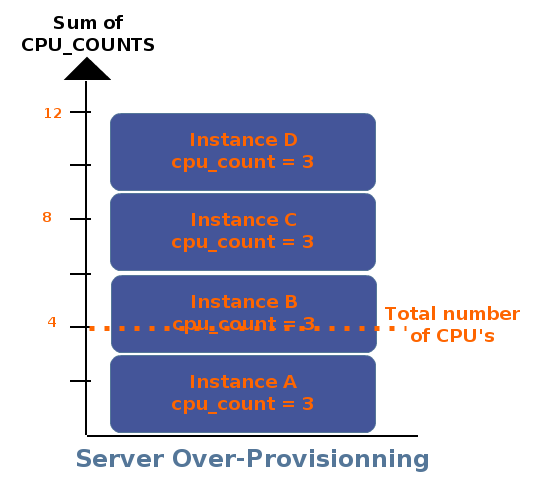
With heavy load on all databases, each one of them would equally consume:
3/(3+3+3+3) = 0.25 => 25%.
If only two databases are active, then one instance will consume:
3/(3+3) =0.5 => 50% of the CPU.
Per default, the init parameter CPU_COUNT is set to {Max. Number of CPU -1}.
Scenario 2: Now, assume you have a server with 16 CPUs and 4 databases running on it. Several of these databases are not critical. But one, the production line, is!
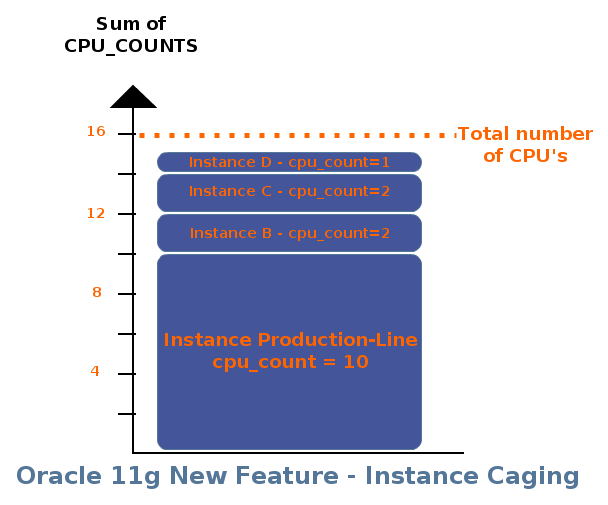
Using Oracle 11g Instance caging, you are able to manage the maximal amount of CPU consumed by each oracle instances.
Instance A could consume up to 62.5% (10/16=0.625) of CPU-capacity.
To enable instance caging, create an Oracle resource plan, active the plan and set the right CPU_COUNT amount.
Step 1: enable Resource Manager
The first step consists in creating a simple resource manager plan.
BEGIN
— Pending area mandatory for each Resource Manager action
DBMS_RESOURCE_MANAGER.CREATE_PENDING_AREA();
–create resource consumer groups
DBMS_RESOURCE_MANAGER.CREATE_CONSUMER_GROUP (
CONSUMER_GROUP => ‘OLTP_CG’,
COMMENT => ‘OLTP high priority’
);
DBMS_RESOURCE_MANAGER.CREATE_CONSUMER_GROUP (
CONSUMER_GROUP => ‘REPORTING_CG’,
COMMENT => ‘REPORTING middle priority’
);
DBMS_RESOURCE_MANAGER.CREATE_CONSUMER_GROUP (
CONSUMER_GROUP => ‘LOW_CG’,
COMMENT => ‘other eclectic applications’
);
–create a resource plan
DBMS_RESOURCE_MANAGER.CREATE_PLAN(
PLAN => ‘ACTIVITY_PLAN’,
COMMENT => ‘Normal activity plan’,
MGMT_MTH=> ‘EMPHASIS’);
–validate & submit the pending area
DBMS_RESOURCE_MANAGER.VALIDATE_PENDING_AREA();
DBMS_RESOURCE_MANAGER.SUBMIT_PENDING_AREA();
END;
/
To enable the resource plan, set the resource_manager_plan parameters as follows:
SQL> ALTER SYSTEM SET RESOURCE_MANAGER_PLAN = ‘ACTIVITY_PLAN’;
Setting the resource manager plan, activates the resource manager.
Step 2: Set cpu_count
SQL> ALTER SYSTEM SET CPU_COUNT = 16;
>To burn all available CPU (dynamically of course :), we will start 16 parallel sessions running the following code:
DECLARE
L_n NUMBER;
BEGIN
WHILE (TRUE)
LOOP
L_ n:= dbms_random.random();
END LOOP;
END;
/
Theses activities burn all CPU as you can see below:
oracle@sbsubs177:bscc177 > prstat -t -s cpu -n 5
NPROC USERNAME SWAP RSS MEMORY TIME CPU
72 oracle 1398M 1501M 4.6% 1:12:25 96%
1 smmsp 1512K 4416K 0.0% 0:00:18 0.0%
6 daemon 6728K 6424K 0.0% 0:00:03 0.0%
23 root 106M 57M 0.2% 0:38:43 0.0%
Total: 102 processes, 274 lwps, load averages: 17.11, 10.56, 5.02
Dividing CPU to 50 % of the amount of CPU’s
SQL> ALTER SYSTEM SET CPU_COUNT = 8;
oracle@sbsubs177:bscc177 > prstat -t -s cpu -n 5
NPROC USERNAME SWAP RSS MEMORY TIME CPU
72 oracle 1398M 1501M 4.6% 1:36:20 51%
1 smmsp 1512K 4184K 0.0% 0:00:18 0.0%
6 daemon 6728K 6424K 0.0% 0:00:03 0.0%
23 root 106M 57M 0.2% 0:38:43 0.0%
Total: 102 processes, 275 lwps, load averages: 11.14, 10.97, 5.97
Dividing CPU to 25 % of the amount of CPU’s
SQL> ALTER SYSTEM SET CPU_COUNT = 4;
oracle@sbsubs177:bscc177 > prstat -t -s cpu -n 5
NPROC USERNAME SWAP RSS MEMORY TIME CPU
72 oracle 1398M 1503M 4.6% 1:47:28 26%
1 smmsp 1512K 4184K 0.0% 0:00:18 0.0%
6 daemon 6728K 6424K 0.0% 0:00:03 0.0%
23 root 106M 57M 0.2% 0:38:43 0.0%
Total: 102 processes, 274 lwps, load averages: 6.07, 9.27, 6.02
Convinced ? Let’s quickly look deeper. Imagine you have a reporting application plugged in on your OLTP database which should not consume too much CPU.
Let’s shortly summarize all steps to create an overall Resource Manager plan:
1. Create groups : (see above) – consumer groups can be viewed by querying DBA_RSRC_CONSUMER_GROUP
- OLTP_CG : OLTP consumer group, unlimited resource access
- REPORTING_CG : Our reporting application which should not burn all our available CPU-power
- LOW_CG : our low priority group , maximum CPU-usage 25%
2. Create Resource Manager plan (see above)
3. Create Resource Manager directives, plan directives are switch conditions.
- if a User/Session from consumer group REPORTING_CG consumes 50% CPU (parameter MGMT_P1) during 10 CPU seconds (paramter SWITCH_TIME), he will be automatically switched to the LOW_CG consumer group
- LOW_CG is a plan directive that limits CPU usage to 25% (parameter MAX_UTILIZATION_LIMIT)
P. S. : If you try looking up the parameter MAX_UTILIZATION LIMIT in the Oracle 11gR2 Administration guide, it’s a gift, it is only mentioned in the example pages 😛
-– create plan directives
BEGIN
DBMS_RESOURCE_MANAGER.CREATE_PENDING_AREA();
DBMS_RESOURCE_MANAGER.CREATE_PLAN_DIRECTIVE (
PLAN => ‘ACTIVITY_PLAN’,
GROUP_OR_SUBPLAN => ‘REPORTING_CG’,
COMMENT => ‘switch REPORTING group to a lower priority consumer group’,
MGMT_P1 => 50,
SWITCH_GROUP => ‘LOW_CG’,
SWITCH_TIME => 10
);
DBMS_RESOURCE_MANAGER.CREATE_PLAN_DIRECTIVE (
PLAN => ‘ACTIVITY_PLAN’,
GROUP_OR_SUBPLAN => ‘LOW_CG’,
COMMENT => ‘sets the max CPU used for LOW_GC’,
MAX_UTILIZATION_LIMIT => 25
);
DBMS_RESOURCE_MANAGER.CREATE_PLAN_DIRECTIVE (
PLAN => ‘ACTIVITY_PLAN’,
GROUP_OR_SUBPLAN => ‘OTHER_GROUPS’,
COMMENT => ‘This one is required’,
MGMT_P1 => 10
);
DBMS_RESOURCE_MANAGER.VALIDATE_PENDING_AREA();
DBMS_RESOURCE_MANAGER.SUBMIT_PENDING_AREA();
END;
/
4. Set the initial resource group for database schemas, “query-able” from DBA_USERS.INITIAL_RSRC_CONSUMER_GROUP:
BEGIN
DBMS_RESOURCE_MANAGER.SET_CONSUMER_GROUP_MAPPING(DBMS_RESOURCE_MANAGER.ORACLE_USER,’REPORT_USER’,’REPORTING_CG’);
DBMS_RESOURCE_MANAGER.SET_CONSUMER_GROUP_MAPPING(DBMS_RESOURCE_MANAGER.ORACLE_USER,’OTHER_USER’,’LOW_CG’);
DBMS_RESOURCE_MANAGER.VALIDATE_PENDING_AREA();
DBMS_RESOURCE_MANAGER.SUBMIT_PENDING_AREA();
END;
/
SQL> select username,INITIAL_RSRC_CONSUMER_GROUP from dba_users where username like ‘%_USER’;
USERNAME INITIAL_RSRC_CONSUMER_GROUP
—————– ——————————
REPORT_USER REPORTING_CG
OTHER_USER LOW_CG
OLTP_USER DEFAULT_CONSUMER_GROUP
Again, we start 16 sessions belonging to the REPORT_USER running the same PL/SQL block which normally burns all available CPU (CPU_COUNT set to 16).
The V$SESSION.RESOURCE_CONSUMER_GROUP view shows the current consumer group:
SQL> select username,RESOURCE_CONSUMER_GROUP,sid,serial# from v$session where username is not null and schemaname!=’SYS’ and rownum=1 ;
USERNAME RESOURCE_CONSUMER_GROUP SID SERIAL#
————- ———————— —– ——-
REPORT_USER OTHER_GROUPS 146 1
Because our resource plan directives are not accurate, the REPORTING_CG consumer group switches automatically to OTHERS_GROUPS and consumes all available CPU. The Resource manager plans should be as structured as possible to avoid switching connected session directly to the default OTHER_GROUPS consumer group.
The procedure…
DBMS_RESOURCE_MANAGER.SWITCH_CONSUMER_GROUP_FOR_SESS(‘v$session.sid’,’v$session.serial’#,’REPORTING_GC’)
…can be used to switch back all users sessions to the resource consumer group REPORTING_CG.
SQL> select username,RESOURCE_CONSUMER_GROUP,sid,serial# from v$session where username is not null and schemaname!=’SYS’ and rownum=1 ;
USERNAME RESOURCE_CONSUMER_GROUP SID SERIAL#
————- ———————— —– ——-
REPORT_USER LOW_CG 146 1
As of our directives REPORTING_CG consumer group sessions: these are automtically switched to LOW_CG when consuming up to 50% CPU at level 1 during more than 10 CPU seconds. The result is a decreasing CPU usage up to the parameter MAX_UTILIZATION_LIMIT:
oracle@sbsubs177:none > prstat -t -s cpu -n 5

NPROC USERNAME SWAP RSS MEMORY TIME CPU

113 oracle 1598M 1648M 5.0% 0:30:12 23%

1 smmsp 1512K 3704K 0.0% 0:00:18 0.0%

6 daemon 6728K 5152K 0.0% 0:00:03 0.0%

22 root 104M 54M 0.2% 0:39:12 0.0%

Total: 142 processes, 316 lwps, load averages: 6.25, 5.11, 4.37
I hope you enjoyed reading this post. We have just scratched the surface of the Resource Manager, which is able to…
- manage the degree of parallelism (number of parallel execution servers)
- manage active session (nulber of concurrent active sessions)
- limit UNDO usage
- limite execution time (maximum execution time allowed for an operation)
- and so on … all features are well described in the Oracle 11gR2 Database Administration documentation
By the way, Instance Caging cannot reduce the number of licensed CPUs! 😉