

1 Introduction
Dear Readers,
Recently, I encountered the ‘Microsoft.ACE.OLEDB.16.0 Provider is Not Registered’ error while working on a data extraction task using SSIS. In this article, I’ll share how to fix this issue and also guide you through:
- Migrating SSIS packages from SQL Server 2017 to SQL Server 2022 using Visual Studio 2022.
- Deploying SSIS packages to the SSIS Catalog.
- Installing 32-bit driver when 64-bit version is already present.
2 Context
In a recent project, I had to migrate SSIS packages from SQL Server 2017 to SQL Server 2022. Many of these packages used Excel as a data source. Here’s the environment setup:
- Development Environment: Windows Server 2022 with Visual Studio 2022 installed.
- Production Environment: Windows Server 2022 with SQL Server 2022 and SSMS (SQL Server Management Studio) 20.2.
Migrating these packages was straightforward using Visual Studio 2022. Below are some key steps:
Questions about your own setup? A dbi services consultant can look at your case.
Talk to an expert (opens in a new tab)2.1 SSIS Catalog Creation
Using SQL Server in the production environment, I created the SSIS Catalog.
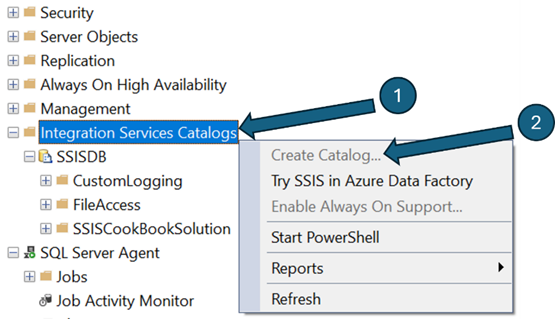
Note: The ‘Create Catalog’ option is disabled because each SQL Server instance can have only one SSIS Catalog, and the instance used in this demo already contains an existing SSIS Catalog.
2.2 Setting up Visual Studio
I Installed the SQL Server Integration Services Projects 2022 extension in Visual Studio 2022.
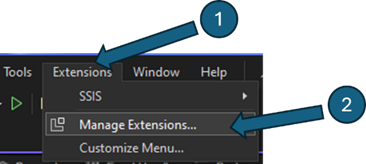
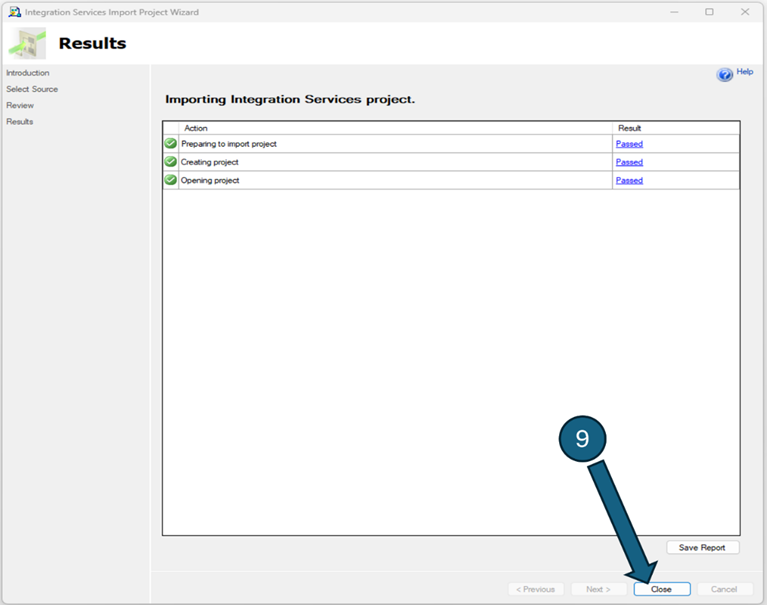
2.3 SSIS Packages Import
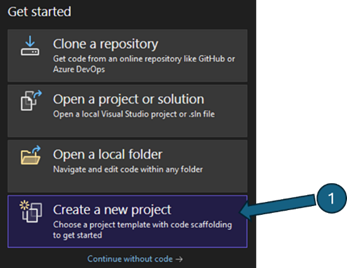
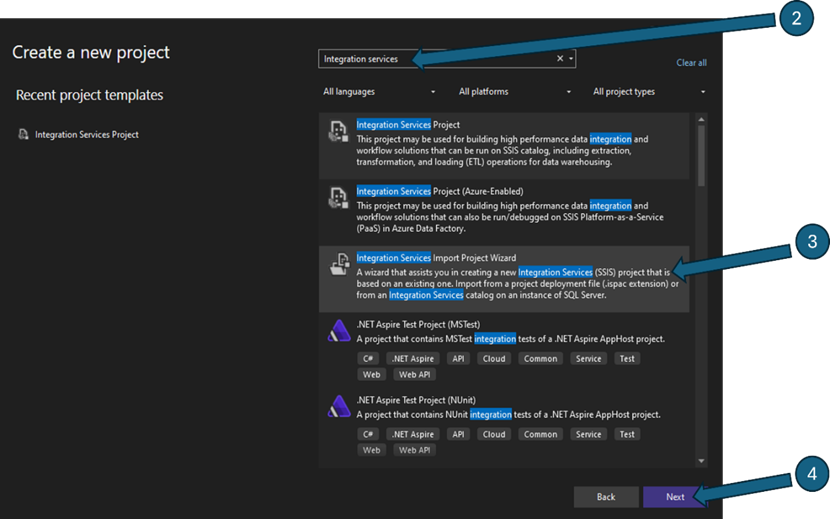
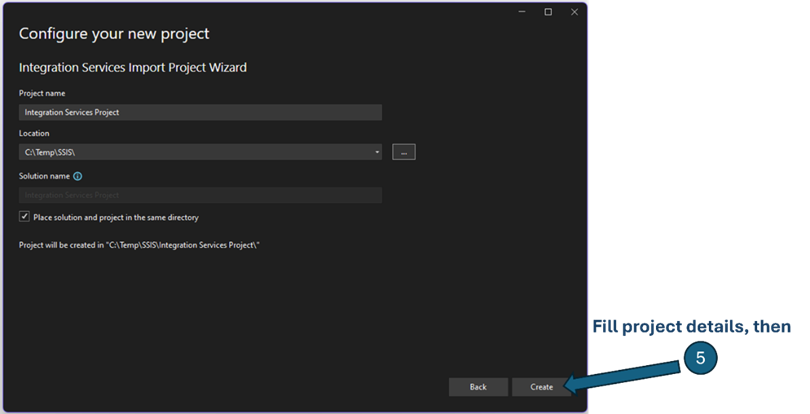
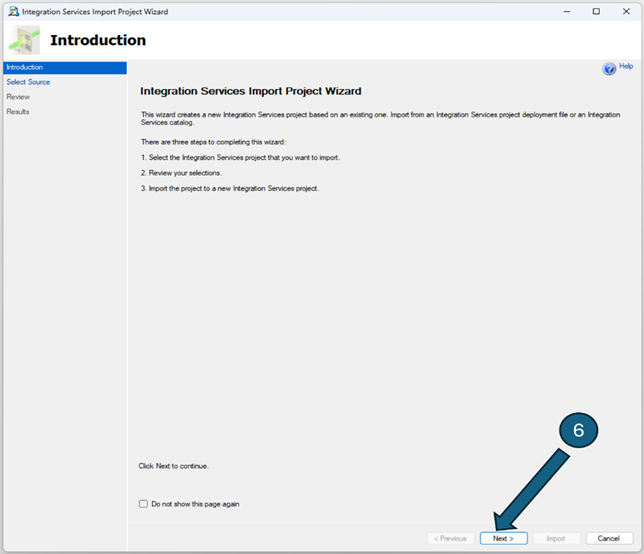
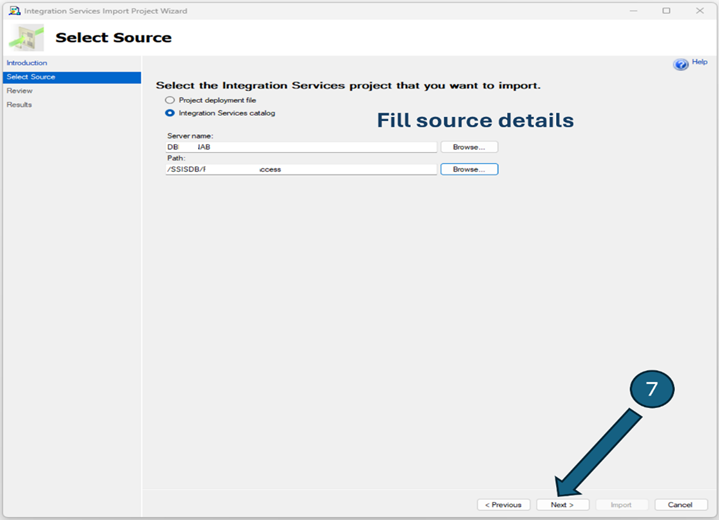
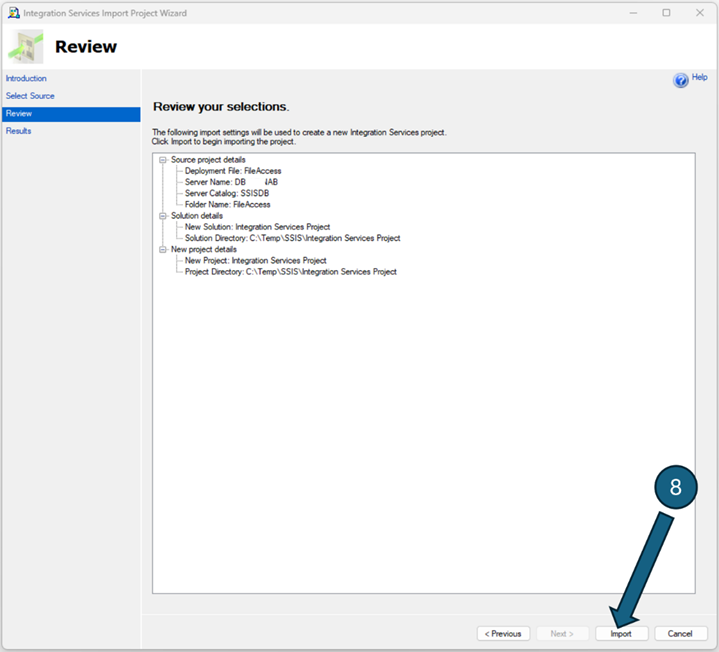
Using Visual Studio 2022’s import wizard, I imported SSIS packages from SQL Server 2017. This wizard simplifies the process by extracting the packages and creating a local project.
2.4 Deploying Packages
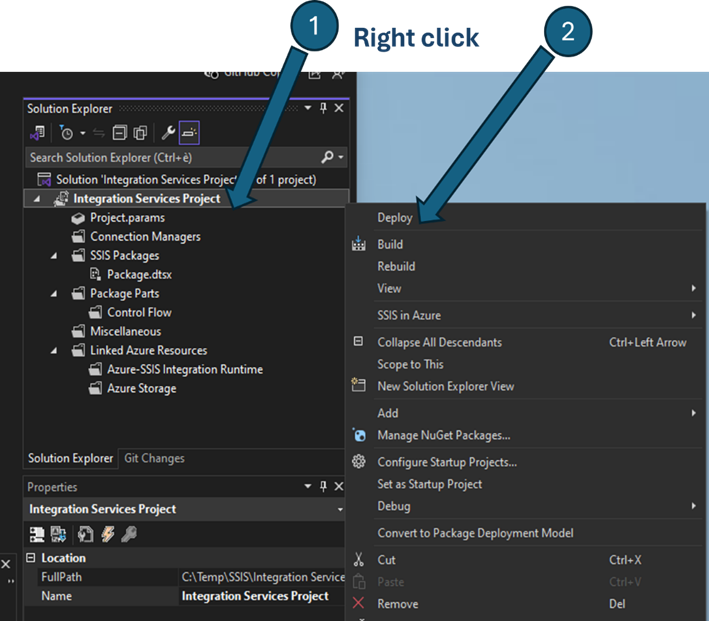
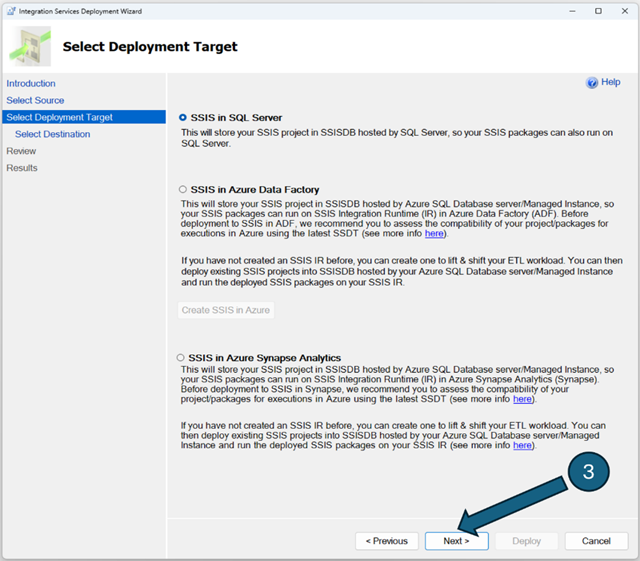
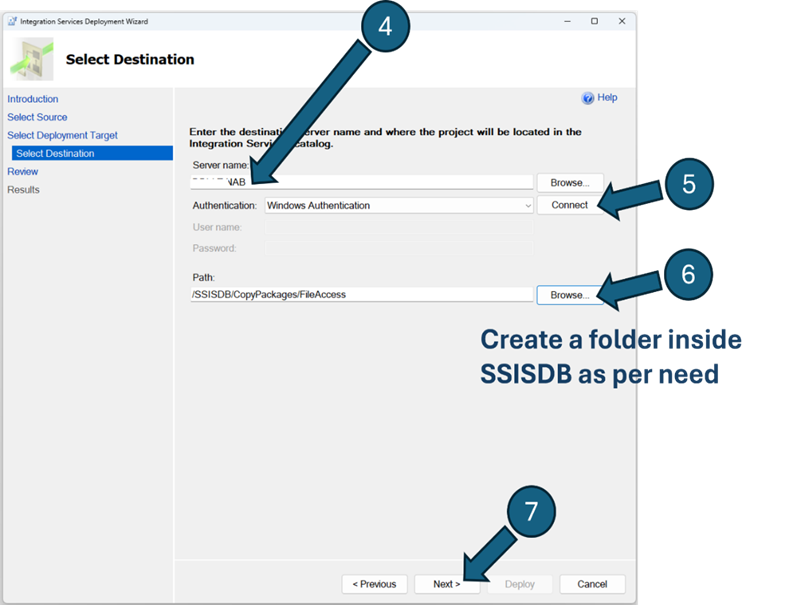
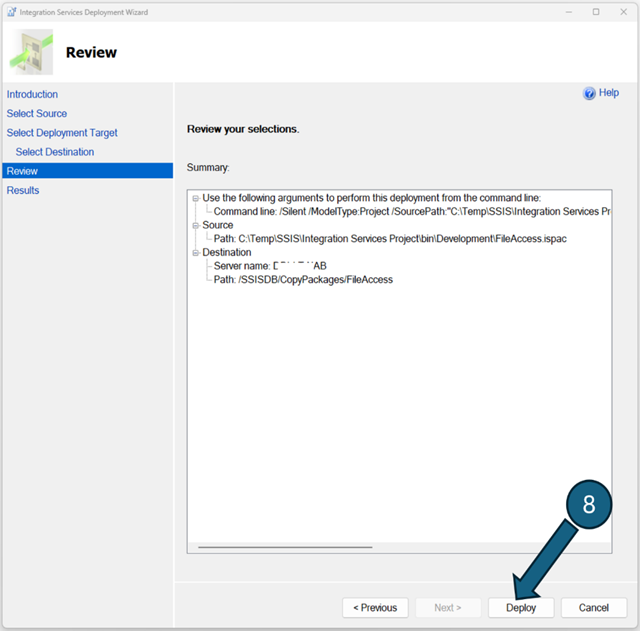
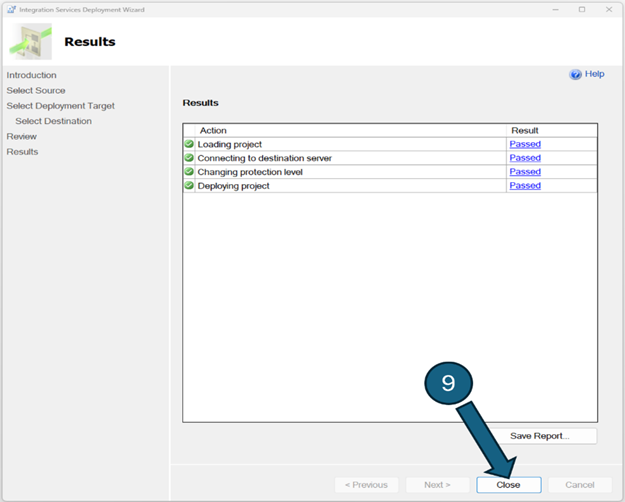
After the migration, I used the SSIS Project Deployment feature to deploy all the packages into the new SSIS Catalog.
3 Problem Statement
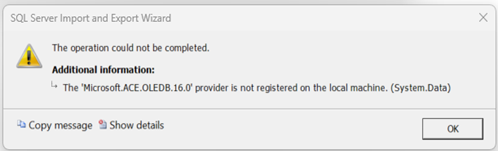
After deploying the packages to SSIS Catalog, executing them resulted in the error: ‘Microsoft.ACE.OLEDB.16.0 provider is not registered’
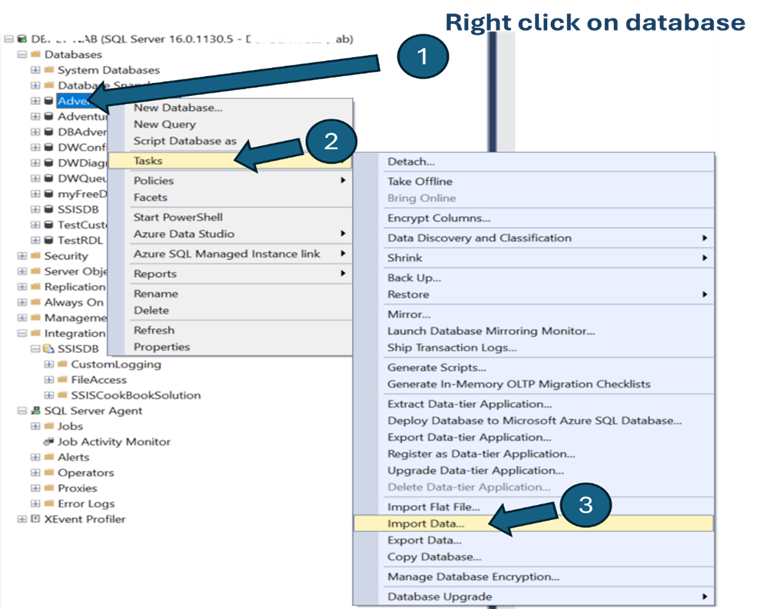
This issue also appeared when attempting to import Excel data through SQL Server Management Studio:
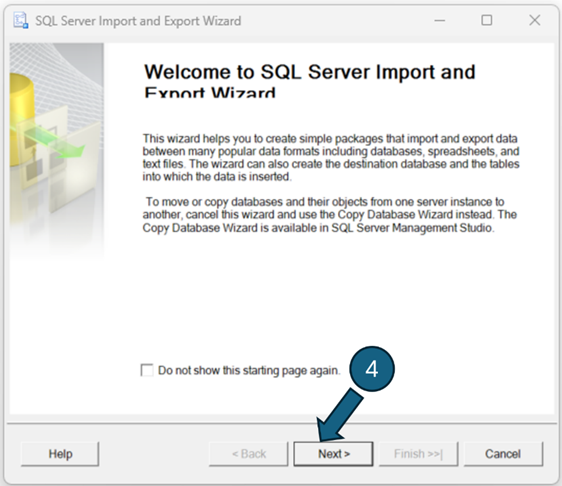
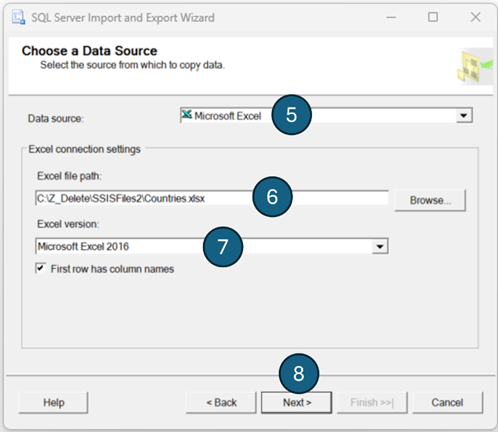
Then I got the same error message
4 Root Cause Analysis
This error occurs because the Access Connectivity Engine (ACE) OLEDB provider required to connect Excel files is not installed.
5 Solution
To resolve this issue, I followed these steps:
5.1 Install the 64-bit Microsoft Access Database Engine 2016 Redistributable
Download Microsoft Access Database Engine 2016 Redistributable 64-bit and install it on the two servers.
5.2 Install the 32-bit Microsoft Access Database Engine 2016 Redistributable
Download Microsoft Access Database Engine 2016 Redistributable 32-bit if necessary.
This is required for 32-bit applications like SQL Server Management Studio’s Excel import feature.
The installation of the 32-bit ended up with below error message because the 64-bit was already installed:
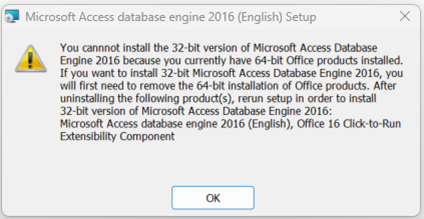
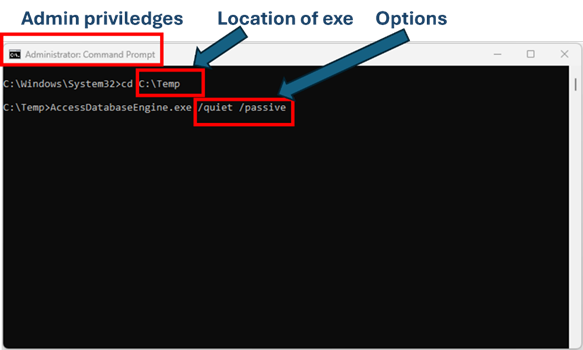
To bypass this, use the Command Prompt to force the installation:
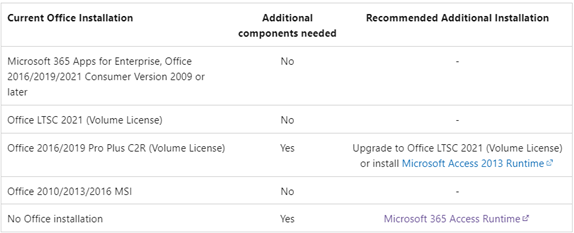
5.3 Install Additional Components (depending on your Excel version)
Download and install other components depending on the Excel version used. Details are provided in the below picture:
6 Conclusion
Connecting to Excel files using SSIS requires the ACE OLEDB provider. By installing the correct Microsoft Access Database Engine, you can fix the ‘Microsoft.ACE.OLEDB.16.0 provider is not registered’ error.
Additionally, I walked you through migrating SSIS packages from SQL Server 2017 to SQL Server 2022 , deploying them to the SSIS Catalog and force install a 32-bit driver when a 64-bit is already installed.
Stay tuned for future insights and tips to avoid similar challenges!