

I faced a problem at a customer site last week when I tried to install the .NET Framework 3.5 – a prerequisite for installing SQL Server 2012 on a Windows Server 2012 R2. I opened the Server Manager and then navigated to the Manage, Add Roles and Features section:

I selected the .NET Framework 3.5 Features option:

I specified an alternate source path:

… and surprise! Even though an ISO of Windows Server 2012 R2 was mapped to my D: drive, the installation failed with this strange error: “The source file could not be found…”
After some investigations, I found that this problem is quite common and that Microsoft has published a fix … which unfortunately does not work for me!
I tried the same installation with different ways: command prompt, PowerShel l… but absolutely NO RESULT.
I finally decided to open a PowerShell console to check the Windows Features available on my server with the cmdlet Get-WindowsFeature:

Strangely, the status of the .NET Framework 3.5 is not showing “Available”, but “Removed”!

So, how do I change this state from removed to available?
After some investigations and after having tried some fixes provided by persons who faced to the same problem as me, I finally found the Standalone Offline Installer tool that solved my problem by enabling the .NET Framework 3.5 (many thanks to Abbodi1406).
I downloaded this exe file and executed it on my server.
An installer screen appeared:

After clicking on the Next button, a command prompt screen appeared which showed the completion state of the process.
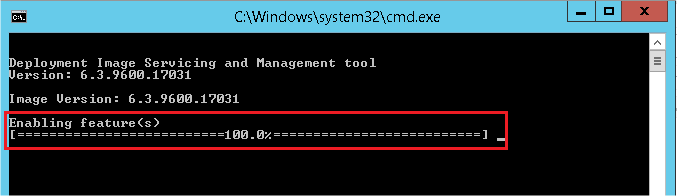
As soon as the process was finished, I went back to my PowerShell screen to check if my .NET Framework 3.5 is now available – by running my PowerShell cmdlet Get-WindowsFeature:

The .NET Framework 3.5 was now available and I was able to restart the installation process from the beginning by navigating to the server manager, selecting the concerned feature and giving the alternate source path.
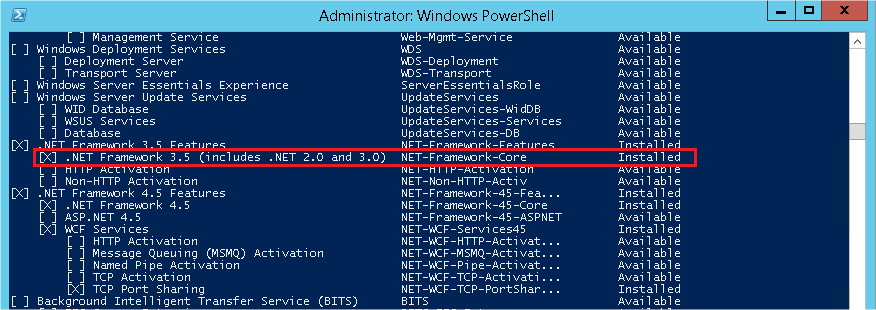
I finally succeeded to install my .NET Framework 3.5!
I hope that my blog post will help some of you to resolve this installation problem 😉
first, i was happy -But than the installation told me, that it is for Windows 10 ????