

Last week, at the Pass Data Summit, they announce the new version of SQL Server Management Studio: SSMS 21
You can find the preview in here.
It’s a good opportunity to test this new version before installing it by customers…
After downloading the file vs_SSMS.exe (4,3 MB), start the file to doanload and install it.
For the installation, you have 2 possibilities: “Install while downloading” (the default) or “Download all, then install”.
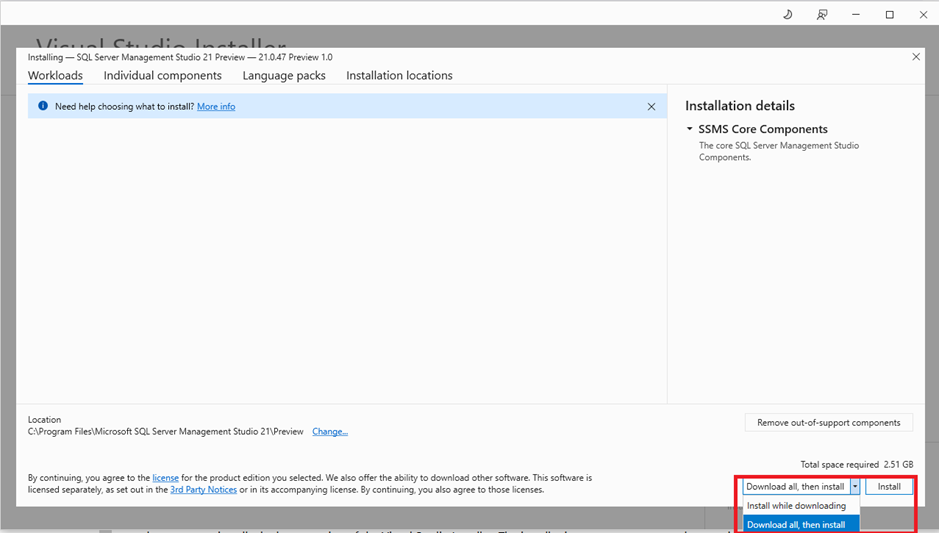
I chose the last one to install SSMS on a VM for testing…
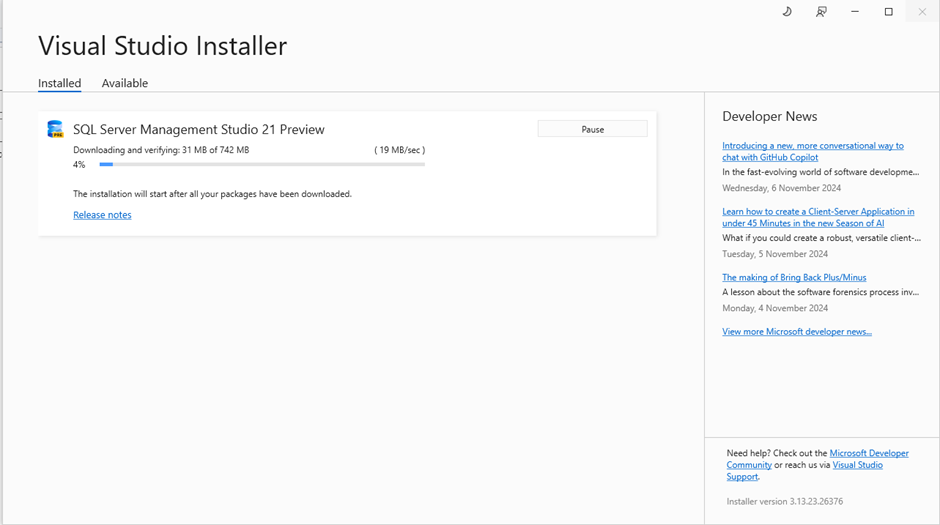
During the download, you have a link to the release note and see the news features available in this version:
Questions about your own setup? A dbi services consultant can look at your case.
Talk to an expert (opens in a new tab)You have also the possibility to install a Visual Studio 2022 Preview.
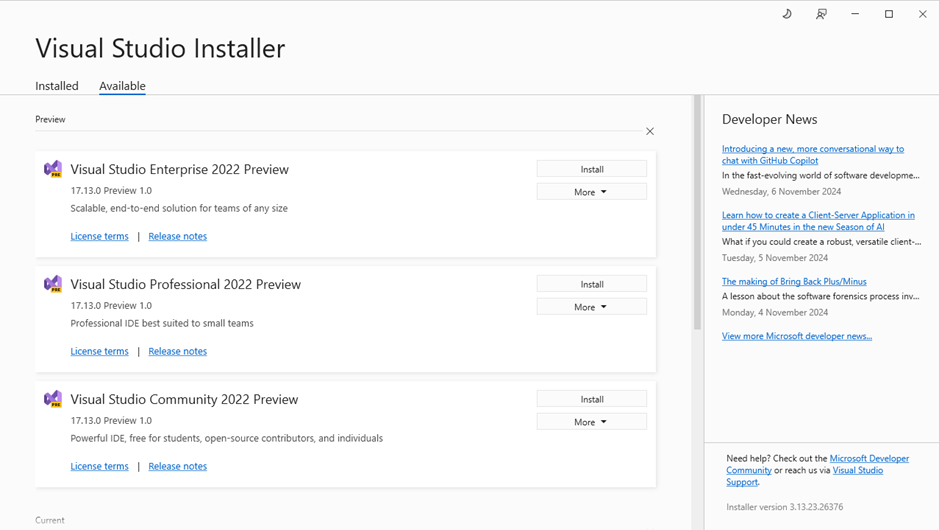
This version of SQL Server Management Studio is now based on Visual Studio 2022 and supports 64-bit to avoid out-of-memory errors…
Now, start SSMS 21:
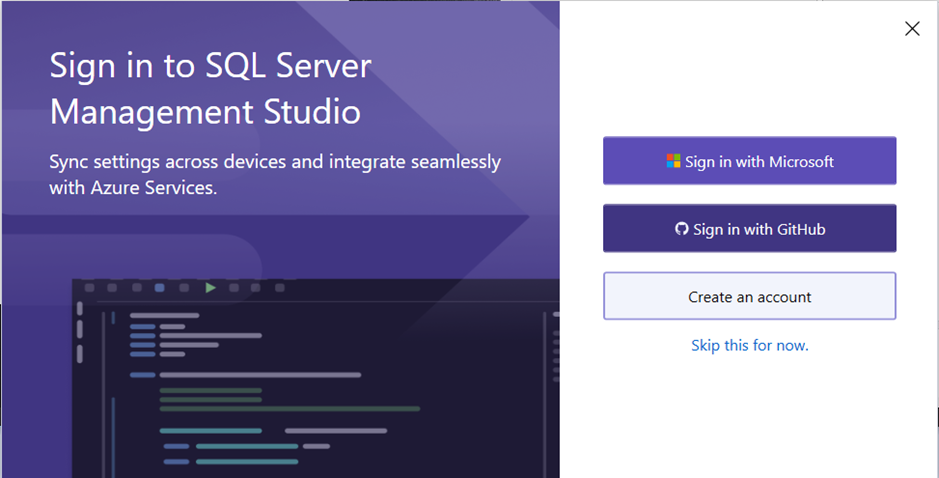
The first choice you need to make is the authentication:
- Sign in with Microsoft
- Sign in with GitHub
- Create an account
Or the best option at the begin: “skip for now”
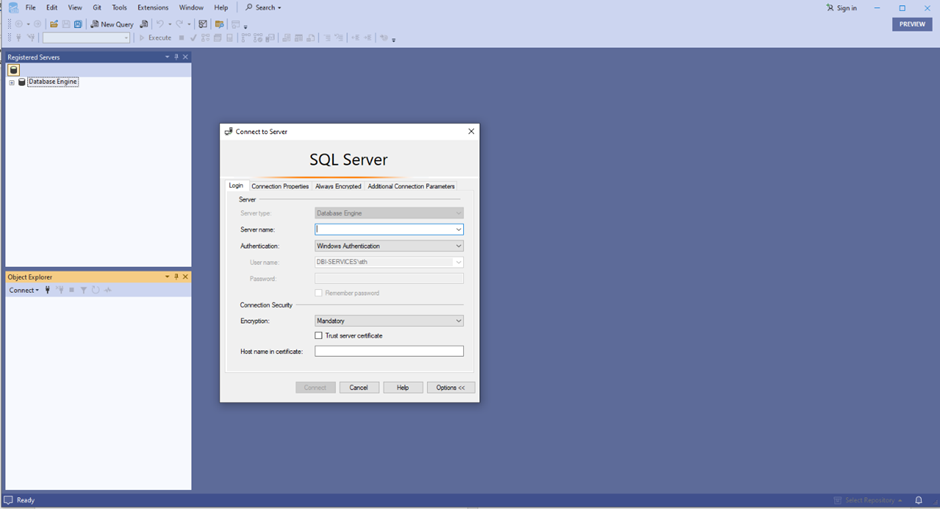
After clicking on “skip for now”, SSMS is running:
I tested first a funny part:
Before this version, the background of SSMS was limited to 3 options:
Now, you have more choice:
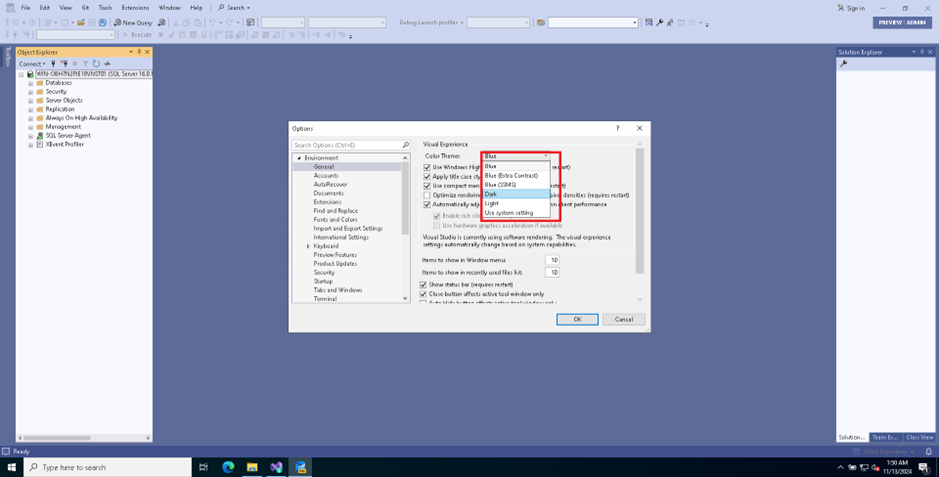
I chose the Dark Theme to continue my test…
One of the new options is the Database Scoped Configuration included in the database Properties:
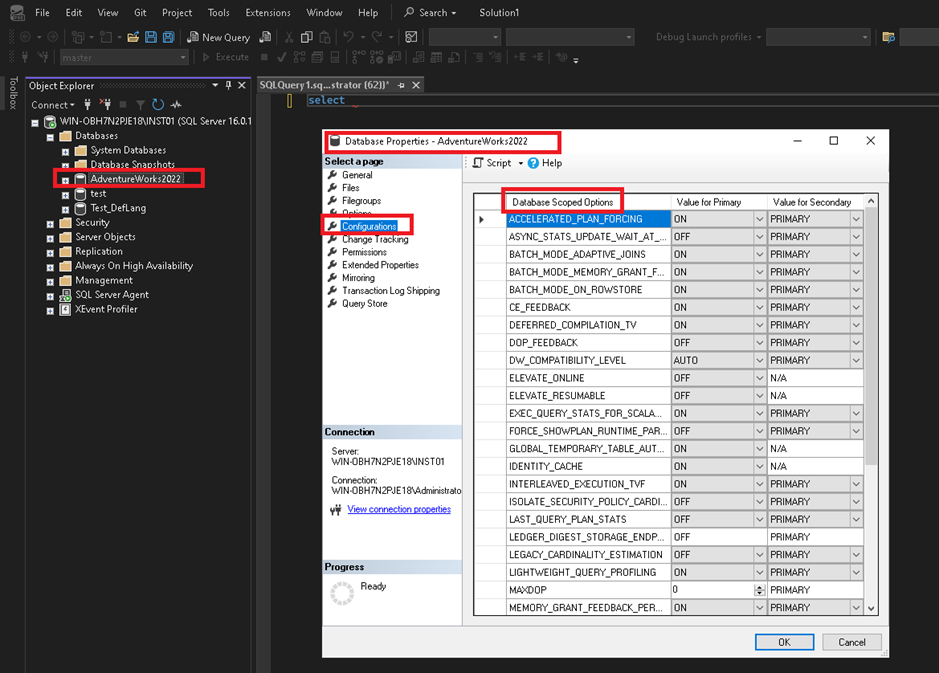
I’m already happy to test this new version of SQL Server Management Studio and will continue to test it…
See you in the next blog post!
Thanks for this info. I’m installing the Preview for SSMS 21 right now. I hope MS fixed the issues where a couple of the dialogs don’t fit on a default-sized Windows screen. I’m tired of constantly resizing my screen on SSMS 20.2…….just so I can get to the OK button.