Recently, I decided to conduct an initial test involving a review in one of our test environments. The aim was twofold: to explore the new features and to verify the update process. You can read about my experience and the outcome in this blog post.
In week 29 of 2026, M-Files released a new version of its widely known and used M-Files Compliance Kit. This is especially useful if you are looking for advanced workflow capabilities or working in a regulated environment. The Compliance Kit is an essential tool.
This first version of the 2026 edition was followed by several smaller updates and fixes, culminating in version 2026 (26.9.16376.0).In this blog, I will highlight some of the improvements that I consider significant. The full release notes can be found on the M-Files official website.
New features and improvements
This does not reflect the complete list, but it does include some of the most important parts.
Features
- Object Creator commands and groups can use custom icons (including your own SVG or image-based icons).
- You can create and arrange custom task bar groups, control their placement and priority, and merge them with built-in groups.
- Commands can be shown outside their group in the context menu to match the classic client’s layout.
- Existing configurations continue to work with no changes required — classic client behavior is preserved, and legacy icons are reused automatically in newer clients where appropriate.
- CAD File Preview Support
CAD files with extensions .dwg, .dxf, .dwt, and .dgn can be previewed within the new Clients Preview tab, utilizing the active layout. The maximum supported file size is 50 MB. Previews are generated using a converted PDF format. Administrators have the capability to enable this conversion process for workflow state transitions or on-demand PDF conversion through the “Configuration>PDF Conversion (Indexing, File Preview, Workflows)>CAD Files>Enable On-Demand Conversion” setting, which is disabled by default.
Improvements
- Activity feed now identifies AI-driven changes
When an object’s metadata is edited automatically based on an AI response, the activity feed now shows “M-Files AI” as the editor instead of a generic “M-Files” entry, making it clearer when a change was made by AI rather than a person. - Icons in view listing columns
The new M-Files client now shows a small icon next to value-list values in view listing columns — Workflow, Workflow state, Class, Object Type, and any custom value list item — so users can recognise the state, class, and type of each object at a glance without opening it. - Improved metadata card appearance
The metadata card now correctly displays custom colors for property group headers and descriptions. This ensures a more consistent and visually clear experience when viewing object details. - Drag-and-drop support for relationships and document collection management
Users can now drag and drop one or multiple objects onto another object in the listing to add documents to a document collection, establish relationships, append files to a multi-file document, or replace a file’s content. - Edit documents stored in M365 Storage using Web Co-Authoring
You can now open and co-author documents directly in the Office Web version using the new ‘Edit in Web’ option in the context menu. This makes it easier to collaborate online without needing the Office Desktop application. - UIXv2: show multiple dashboards in a popup window
You can now display up to three dashboards side by side in a pop-up window using the UI extensibility framework (UIXv2). This helps you compare information and work more efficiently without switching views.
As previously mentioned, a large number of improvements have been made and many defects have been fixed. Please refer to the official M-Files documentation for further details.
Installation and Update process
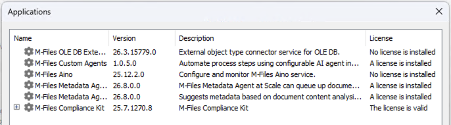
I can confirm that the installation and update process was very straightforward and worked without any issues. As always, you can simply install the new Vault Framework application in the Vault. There is no need to uninstall the previous version.
After installation, navigate to the Compliance Kit configuration in the Vault. As in previous versions, an update button will be displayed. Pressing this button starts the update process, which went very well in my test. Afterwards, the Compliance Kit worked as expected, with all configurations and settings remaining intact.

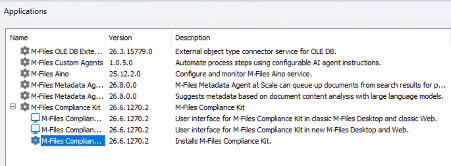
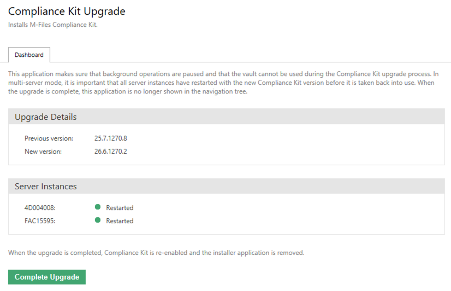
After restarting and refreshing the vault, the upgrade application is shown under configuration. Next, we can start the final update process by pressing the button, as shown in the screenshot.
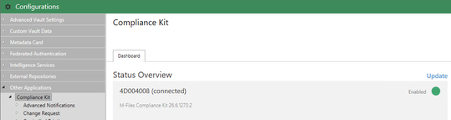
Once again, the M-Files Admin Tool is refreshed and the result of the update confirms that the new version of the Compliance Kit is 2026.
Example of new features
The examples below demonstrates the new features of the M-Files Compliance Kit 2026, as implemented in a Quality Management System (QMS) demo vault.
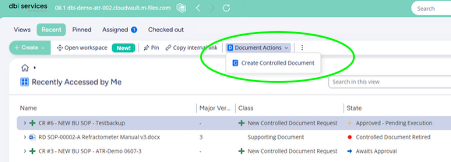
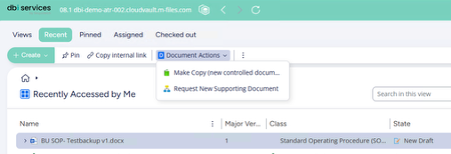
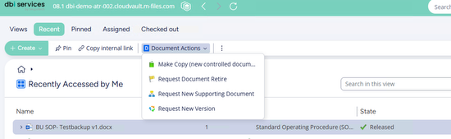
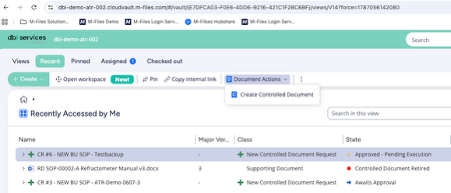
The picture below shows the new features based on an approved change request. Refer to the cycle in the picture to see the commands available for an approved change request. This makes it very easy to create a new document based on the approved change request.
This function was already available in the classic client but was sorely missed by almost every user in the new client.
New M-Files Client
Web Client
Conclusion
With all the improvements and fixes, particularly the new client’s command retrieval function. This is a step in the right direction. If you’re wondering how it works in the web client.Tthe answer is that anything that works in the new client also works in the web client.
If you have any questions or would like a demonstration, please get in touch with us. We can also assist with installation, updates and configuration.
![Thumbnail [60x60]](https://www.dbi-services.com/blog/wp-content/uploads/2022/08/ATR_web-min-scaled.jpg)
![Thumbnail [90x90]](https://www.dbi-services.com/blog/wp-content/uploads/2022/08/GME_web-min-scaled.jpg)
![Thumbnail [90x90]](https://www.dbi-services.com/blog/wp-content/uploads/2022/08/STH_web-min-scaled.jpg)