In this blog, I will explain what needs to be done when registering GoldenGate targets behind NGINX reverse proxy in the Enterprise Manager. More specifically, we will see how to avoid the EM-90000 error related to an SSLHandshakeException.
If you are upgrading to GoldenGate 26ai and migrating from Classic to Microservices Architecture, you must re-discover GoldenGate targets in the Enterprise Manager. The discovery module settings vary from one setup to another, but for a GoldenGate deployment exposed via an NGINX reverse proxy, you should set up the discovery module with the following:
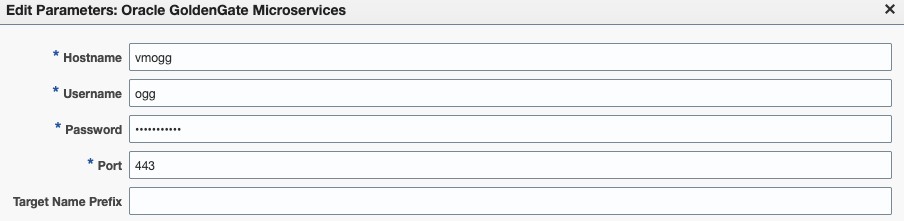
While this could be enough in some GoldenGate setups, it will fail if the certificate chain is not trusted by the OEM agent. In fact, if you run a discovery of your host with the settings mentioned above, no target will be discovered. This is especially tricky, since the Enterprise Manager will tell you “Discover Now – Completed Successfully“.
Open the ogg_so_logs.log.0 file in the agent_inst/sysman/emd directory of your target agent. You will see that the discovery has failed with the following error : INFO: Exception occured when tried with SSL deployment. SSLHandshakeException.
oracle@vmogg:~ [emagent] vim ogg_so_logs.log.0
Apr 19, 2026 8:01:32 AM com.oracle.sysman.goldengate.discovery.GoldenGateDiscovery createDiscovery
INFO: Discovery : Discovering Oracle Goldengate Instances . Discovery parameters values are , Port=443, UserName=ogg, HostName=vmogg, OGG Mode=Microservices, EMStateDir=/u01/app/oracle/agent_24ai/agent_inst
Apr 19, 2026 8:01:32 AM com.oracle.sysman.goldengate.discovery.GoldenGateDiscovery createDiscovery
INFO: Discovery :Target name prefix =oggtest:
Apr 19, 2026 8:01:32 AM com.oracle.sysman.goldengate.discovery.GoldenGateDiscovery createDiscovery
INFO: agentTrustLocation:/u01/app/oracle/agent_24ai/agent_inst/sysman/config/montrust/AgentTrust.jks
Apr 19, 2026 8:01:32 AM com.oracle.sysman.goldengate.discovery.GoldenGateMicroServicesDiscovery getJSONDataFromUrl
INFO: Discovery : Invoking URL request :https://vmogg:443/services/v2/deployments
Apr 19, 2026 8:01:32 AM com.oracle.sysman.goldengate.discovery.GoldenGateMicroServicesDiscovery getJSONDataFromUrlForSSL
INFO: Trying to connect as a ssl connection https://vmogg:443/services/v2/deployments
Apr 19, 2026 8:01:32 AM com.oracle.sysman.goldengate.discovery.GoldenGateMicroServicesDiscovery getJSONDataFromUrlForSSL
INFO: SSLHandshakeException while getting response for URL:https://vmogg:443/services/v2/deployments . javax.net.ssl.SSLHandshakeException: sun.security.validator.ValidatorException: PKIX path building failed: sun.security.provider.certpath.SunCertPathBuilderException: unable to find valid certification path to requested target
Apr 19, 2026 8:01:32 AM com.oracle.sysman.goldengate.discovery.GoldenGateMicroServicesDiscovery getJSONDataFromUrl
INFO: Exception occured when tried with SSL deployment. SSLHandshakeException: Failed to connect to ssl Microservices . Retrying via non ssl microservices. Trying with http.
Apr 19, 2026 8:01:32 AM com.oracle.sysman.goldengate.discovery.GoldenGateMicroServicesDiscovery getJSONDataFromUrl
SEVERE: For the Url = http://vmogg:443/services/v2/deployments , HTTP/response error code = 307
Apr 19, 2026 8:01:32 AM com.oracle.sysman.goldengate.discovery.GoldenGateMicroServicesDiscovery generateTargetsXML
SEVERE: Exception getting response from URL:https://vmogg:443/services/v2/deployments - com.oracle.sysman.goldengate.discovery.GoldenGateDiscovery$GGDiscoveryException: Discovery failed : HTTP error code : 307 from URL:http://vmogg:443/services/v2/deployments
Apr 19, 2026 8:01:32 AM com.oracle.sysman.goldengate.discovery.GoldenGateDiscovery main
SEVERE: Exception during Targets discovery: EM-90000 - Target Discovery failed. Internal Error. Please contact System Administrator. - com.oracle.sysman.goldengate.discovery.GoldenGateDiscovery$GGDiscoveryException: EM-90000 - Target Discovery failed. Internal Error. Please contact System Administrator.
The problem here is that the OEM agent does not trust the certificate chain being used in your GoldenGate installation. For the discovery (and the monitoring) to work, you need to register the certificates in the agent’s truststore.
Displaying the content of the truststore
First, let’s have a look at the content of the agent’s truststore. To do so, use the keytool utility shipped with the agent. Here is an example of a default AgentTrust.jks content. When prompted for the keystore password, use the configured truststore password (welcome, by default).
oracle@vmogg:~ [emagent] /u01/app/oracle/agent_24ai/agent_24.1.0.0.0/oracle_common/jdk/bin/keytool -list -keystore /u01/app/oracle/agent_24ai/agent_inst/sysman/config/montrust/AgentTrust.jks
Enter keystore password:
Keystore type: JKS
Keystore provider: SUN

Your keystore contains 9 entries

verisignclass1pca, Oct 20, 2009, trustedCertEntry,
Certificate fingerprint (SHA-256): 13:B8:4A:BA:EC:A3:DE:8C:71:9A:06:7D:E8:CF:18:5F:65:DC:19:E0:3E:BD:92:C2:0B:D3:8C:75:09:7B:E1:13
verisignclass3ca, Oct 20, 2009, trustedCertEntry,
Certificate fingerprint (SHA-256): E7:68:56:34:EF:AC:F6:9A:CE:93:9A:6B:25:5B:7B:4F:AB:EF:42:93:5B:50:A2:65:AC:B5:CB:60:27:E4:4E:70
gtecybertrustglobalca, Oct 20, 2009, trustedCertEntry,
Certificate fingerprint (SHA-256): A5:31:25:18:8D:21:10:AA:96:4B:02:C7:B7:C6:DA:32:03:17:08:94:E5:FB:71:FF:FB:66:67:D5:E6:81:0A:36
entrustsslca, Oct 20, 2009, trustedCertEntry,
Certificate fingerprint (SHA-256): 62:F2:40:27:8C:56:4C:4D:D8:BF:7D:9D:4F:6F:36:6E:A8:94:D2:2F:5F:34:D9:89:A9:83:AC:EC:2F:FF:ED:50
entrust2048ca, Oct 20, 2009, trustedCertEntry,
Certificate fingerprint (SHA-256): D1:C3:39:EA:27:84:EB:87:0F:93:4F:C5:63:4E:4A:A9:AD:55:05:01:64:01:F2:64:65:D3:7A:57:46:63:35:9F
verisignserverca, Oct 20, 2009, trustedCertEntry,
Certificate fingerprint (SHA-256): 29:30:BD:09:A0:71:26:BD:C1:72:88:D4:F2:AD:84:64:5E:C9:48:60:79:07:A9:7B:5E:D0:B0:B0:58:79:EF:69
gtecybertrustca, Oct 20, 2009, trustedCertEntry,
Certificate fingerprint (SHA-256): 52:7B:05:05:27:DF:52:9C:0F:7A:D0:0C:EF:1E:7B:A4:21:78:81:82:61:5C:32:6C:8B:6D:1A:20:61:A0:BD:7C
entrustgsslca, Oct 20, 2009, trustedCertEntry,
Certificate fingerprint (SHA-256): 2F:2F:87:02:A6:ED:EC:B6:46:92:94:BC:A0:40:F6:3B:88:49:42:1F:CE:E1:C3:7D:1C:FB:EE:89:DC:CD:43:83
verisignclass2ca, Oct 20, 2009, trustedCertEntry,
Certificate fingerprint (SHA-256): BD:46:9F:F4:5F:AA:E7:C5:4C:CB:D6:9D:3F:3B:00:22:55:D9:B0:6B:10:B1:D0:FA:38:8B:F9:6B:91:8B:2C:E9

Warning:
uses a 1024-bit RSA key which is considered a security risk. This key size will be disabled in a future update.
uses a 1024-bit RSA key which is considered a security risk. This key size will be disabled in a future update.
uses a 1024-bit RSA key which is considered a security risk. This key size will be disabled in a future update.
uses a 1024-bit RSA key which is considered a security risk. This key size will be disabled in a future update.
uses a 1000-bit RSA key which is considered a security risk and is disabled.
uses a 1024-bit RSA key which is considered a security risk. This key size will be disabled in a future update.
uses a 1024-bit RSA key which is considered a security risk. This key size will be disabled in a future update.
uses a 1024-bit RSA key which is considered a security risk. This key size will be disabled in a future update.
Importing the certificate in the truststore
Let’s add the certificate in the agent’s truststore with the following command.
/u01/app/oracle/agent_24ai/agent_24.1.0.0.0/oracle_common/jdk/bin/keytool -importcert -alias ogg_capath -file /path/to/ogg_certs/RootCA_cert.pem -keystore /u01/app/oracle/agent_24ai/agent_inst/sysman/config/montrust/AgentTrust.jksIf you are not sure which file you should add, keep in mind that it should be the same file you are using in the OGG_CLIENT_TLS_CAPATH environment variable when loading the GoldenGate environment and connecting to your deployments with the adminclient.
oracle@vmogg:~ [emagent] export OGG_CLIENT_TLS_CAPATH=/path/to/ogg_certs/RootCA_cert.pem
oracle@vmogg:~ [emagent] /u01/app/oracle/agent_24ai/agent_24.1.0.0.0/oracle_common/jdk/bin/keytool -importcert -alias ogg_capath -file $OGG_CLIENT_TLS_CAPATH -keystore /u01/app/oracle/agent_24ai/agent_inst/sysman/config/montrust/AgentTrust.jks
Enter keystore password:
Owner: CN=OGG RootCA, O=OGG ROOT CA, C=AU
Issuer: CN=OGG RootCA, O=OGG ROOT CA, C=AU
Serial number: 1a11d06e7d73700aa85e35ffc0ce4a27dcfdaf7d
Valid from: Fri Mar 21 15:22:22 GMT 2026 until: Mon Mar 18 15:22:22 GMT 2036
Certificate fingerprints:
SHA1: 3C:99:5B:3A:D9:A4:64:6D:23:F0:0A:48:16:FA:AF:85:BD:26:E3:C7
SHA256: 8D:6F:1D:67:ED:D9:7B:C0:C8:0E:D1:0E:50:2F:15:25:45:5D:F2:1D:A2:AB:22:C7:2D:AE:05:19:F1:DE:28:31
Signature algorithm name: SHA256withRSA
Subject Public Key Algorithm: 4096-bit RSA key
Version: 3

Extensions:

#1: ObjectId: 2.5.29.35 Criticality=false

AuthorityKeyIdentifier [
KeyIdentifier [
0000: E3 BC BD 71 43 FD 85 B0 48 E1 44 A1 81 04 FA A9 …qC…H.D…..
0010: 1D 1C 45 16 ..E.
]
]

#2: ObjectId: 2.5.29.19 Criticality=true

BasicConstraints:[
CA:true
PathLen:2147483647
]

#3: ObjectId: 2.5.29.14 Criticality=false

SubjectKeyIdentifier [
KeyIdentifier [
0000: E3 BC BD 71 43 FD 85 B0 48 E1 44 A1 81 04 FA A9 …qC…H.D…..
0010: 1D 1C 45 16 ..E.
]
]

Trust this certificate? [no]: yes
Certificate was added to keystore
If you check the content of the keystore again, you will see the new entry under the alias you just added. We will use the -alias ogg_capath option to only display the new alias.
oracle@vmogg:~ [emagent] /u01/app/oracle/agent_24ai/agent_24.1.0.0.0/oracle_common/jdk/bin/keytool -list -keystore /u01/app/oracle/agent_24ai/agent_inst/sysman/config/montrust/AgentTrust.jks -alias ogg_capath
Enter keystore password:
ogg_capath, Apr 19, 2026, trustedCertEntry,
Certificate fingerprint (SHA-256): 8D:6F:1D:67:ED:D9:7B:C0:C8:0E:D1:0E:50:2F:15:25:45:5D:F2:1D:A2:AB:22:C7:2D:AE:05:19:F1:DE:28:31
Without modifying anything in the Enterprise Manager, you can re-run the discovery. This time, the GoldenGate targets will be discovered ! To promote the new targets, just click on the number of targets discovered. You can also go in the Setup > Add Target > Auto Discovery Results section to view all discovered targets. Once this is done, the new targets will be monitored.
To summarize, in this NGINX context, OEM GoldenGate discovery fails with EM-90000 due to missing CA certificates in the agent truststore. Importing the proper CA chain into AgentTrust.jks resolves the SSL handshake failure.
![Thumbnail [60x60]](https://www.dbi-services.com/blog/wp-content/uploads/2025/05/JDE_Web-1-scaled.jpg)
![Thumbnail [90x90]](https://www.dbi-services.com/blog/wp-content/uploads/2025/07/ALK_MIN.jpeg)
![Thumbnail [90x90]](https://www.dbi-services.com/blog/wp-content/uploads/2022/08/JDU_web-min-scaled.jpg)