As you might know, since Documentum 24.4, there is a new requirement to have a valid license assigned to a user in order to log in to Documentum. This is a pretty important change, most likely designed with the X-Plan license model in mind, and one of the reasons why OpenText changed the license approach in the first place. This was likely done to provide better visibility and control over who is allowed to access and use Documentum, and to ensure that all usage is correctly licensed.
In this blog, I will use Documentum as well as OTDS in their freshly released version 25.4. Depending on the version you are working with, the steps might slightly differ. I will assume that both the Documentum and OTDS environments are fully available and ready for inter-connectivity and license configuration. I will use a demo environment I have internally that is hosted on RKE2 (Kubernetes from SUSE).. It doesn’t use the out-of-the-box images from OpenText but our own custom images built from scratch (same process used since Documentum 7.3, even before images/containers were officially provided):
- OTDS URL: https://otds.dns.com/otdsws
- Dctm Repo Name: dbi01
- Dctm Repo inline account: adm_morgan
- Dctm Repo OTDS (AD) account: morgan
- OTDS Repo Resource ID: 12345678-1234-5678-9abc-123456789abc
- OTDS Repo Secret Key: AbCd1234efGH5678IJkl9==
- OTDS License Key Name: dctmlicense
- OTDS Partition for inline accounts: dctminline
- OTDS Partition for AD accounts: dbi
- OTDS Business Admin: businessadmin
All the values above can be changed and you should update them based on your own environment/setup.
Note: The OTDS Partition for my AD, the Repository Resource & Access Roles as well as the OAuth Clients (+ possibly the Auth Handlers) are already created and configured. Since that is outside of the scope of the “license” part and it’s something you would already require even for versions prior to 24.4, I won’t cover that part in this blog. If you need help on that, don’t hesitate to contact us and we can help with the OTDS design and implementation.
1. Dctm Server – OTDS Authentication (turned auth+lic)
In previous versions of Documentum (like 16.4, 20.2, …, 25.2), the OTDS Authentication was handled by the JMS (Tomcat or WildFly if you go further back in versions). There was an application “OTDSAuthentication” deployed on the JMS that would link the Documentum Server and OTDS (REST calls). Starting in 25.4, this is now a standalone process that you can find under “$DM_HOME/OTDSAuthLicenseHttpServerBin” (a simple JAR file). This is started by the Repository automatically, but our custom images make sure it’s always running properly, even if something goes wrong and the Repository isn’t able to start it itself.
In that OTDS Auth application, there is a single configuration file that you need to configure to allow communication:
- E.g. 16.4 (JMS on WildFly): $JMS_HOME/server/DctmServer_MethodServer/deployments/ServerApps.ear/OTDSAuthentication.war/WEB-INF/classes/otdsauth.properties
- E.g. 23.4 (JMS on Tomcat): $JMS_HOME/webapps/OTDSAuthentication/WEB-INF/classes/otdsauth.properties
- E.g. 25.4 (Standalone): $DM_HOME/OTDSAuthLicenseHttpServerBin/config/otdsauth.properties
The content is roughly the same for all versions of Documentum (it changed slightly but not too much). The main change that I wanted to mention here, linked to the licensing checks, is the addition of a new parameter called “admin_username“.
With the above parameters, this is a “simple” way to configure the “otdsauth.properties” file:
[dmadmin@cs-0 ~]$ # Definition of parameters, to fill the file
[dmadmin@cs-0 ~]$ otdsauth_properties="$DM_HOME/OTDSAuthLicenseHttpServerBin/config/otdsauth.properties"
[dmadmin@cs-0 ~]$ otds_base_url="https://otds.dns.com/otdsws"
[dmadmin@cs-0 ~]$ install_owner="dmadmin"
[dmadmin@cs-0 ~]$ repo="dbi01"
[dmadmin@cs-0 ~]$ otds_resource_id="12345678-1234-5678-9abc-123456789abc"
[dmadmin@cs-0 ~]$ otds_resource_key="AbCd1234efGH5678IJkl9=="
[dmadmin@cs-0 ~]$
[dmadmin@cs-0 ~]$ # First, to make sure the file is in "unix" file format. It's often provided by OT as DOS, even on linux, which is a problem...
[dmadmin@cs-0 ~]$ awk '{ sub("\r$", ""); print }' ${otdsauth_properties} > temp.properties
[dmadmin@cs-0 ~]$ mv temp.properties ${otdsauth_properties}
[dmadmin@cs-0 ~]$ chmod 660 ${otdsauth_properties}
[dmadmin@cs-0 ~]$
[dmadmin@cs-0 ~]$ # Configuration of the properties file
[dmadmin@cs-0 ~]$ sed -i "s,otds_rest_credential_url=.*,otds_rest_credential_url=${otds_base_url}/rest/authentication/credentials," ${otdsauth_properties}
[dmadmin@cs-0 ~]$ sed -i "s,otds_rest_ticket_url=.*,otds_rest_ticket_url=${otds_base_url}/rest/authentication/resource/validation," ${otdsauth_properties}
[dmadmin@cs-0 ~]$ sed -i "s,otds_rest_oauth2_url=.*,otds_rest_oauth2_url=${otds_base_url}/oauth2/token," ${otdsauth_properties}
[dmadmin@cs-0 ~]$ sed -i "s,synced_user_login_name=.*,synced_user_login_name=sAMAccountName," ${otdsauth_properties}
[dmadmin@cs-0 ~]$ sed -i "s,auto_cert_refresh=.*,auto_cert_refresh=true," ${otdsauth_properties}
[dmadmin@cs-0 ~]$ sed -i "s,cert_jwks_url=.*,cert_jwks_url=${otds_base_url}/oauth2/jwks," ${otdsauth_properties}
[dmadmin@cs-0 ~]$ sed -i "s,admin_username=.*,admin_username=${install_owner}," ${otdsauth_properties}
[dmadmin@cs-0 ~]$ sed -i "s,.*_resource_id=.*,${repo}_resource_id=${otds_resource_id}," ${otdsauth_properties}
[dmadmin@cs-0 ~]$ sed -i "s,.*_secretKey=.*,${repo}_secretKey=${otds_resource_key}," ${otdsauth_properties}
[dmadmin@cs-0 ~]$
2. Repo – OTDS Authentication (turned auth+lic)
With the new license requirement in conjunction with the fact that it is not handled by the JMS anymore, the URL to be configured in the Repository has been changed too. If you are upgrading your environment from a previous version, you will normally already have an “app_server_name” for “OTDSAuthentication“, with an URL of “http(s)://hostname:port/OTDSAuthentication/servlet/authenticate” (where hostname is either localhost or your local hostname // port is 9080 or 9082 for example). With the new version of Documentum, this will need to be changed to “http://localhost:port/otdsauthlicense” (where port is 8400 by default).
# Example of commands to add a new entry for "OTDSAuthentication" (if it already exists, you need to change the "append" to "set" the correct ID)
API> retrieve,c,dm_server_config
API> append,c,l,app_server_name
SET> OTDSAuthentication
API> append,c,l,app_server_uri
SET> http://localhost:8400/otdsauthlicense
API> save,c,l
Note: When I first saw that new standalone process through Java, I was a bit skeptical… The OTDS Authentication used to run through the JMS. That means that you could configured your Tomcat with all security and best practices and it would apply to the OTDS Authentication as well. With the new standalone process, it is only available through HTTP and it also only listens on localhost/127.0.0.1… I guess that means that you can forget about the failover across Documentum Servers if you have a High-Availability environment! The source code isn’t available so I don’t know if we could force it to HTTPS on another address with the help of Java Options, and the documentation doesn’t mention anything in that regard either (and I don’t want to de-compile the classes)… So not very good I would say. The only workaround would be to setup a front-end but that over-complicates things.
3. Status (#1)
At that point in time, assuming that you have your OTDS Partition / Resource / Access Role and that you have a Documentum version < 24.4 (with the “old” URL configured in the “dm_server_config“), you should be able to log in with any OTDS account (and inline accounts as well, obviously).
However, for higher versions, such as our 25.4 environment, you should still not be able to log in to the Repository. Trying to do so with either an inline account or an OTDS-enabled account would both result in failure with this message:
[dmadmin@cs-0 ~]$ # Definition of parameters, to test the log in
[dmadmin@cs-0 ~]$ repo="dbi01"
[dmadmin@cs-0 ~]$ inline_test_account="adm_morgan"
[dmadmin@cs-0 ~]$
[dmadmin@cs-0 ~]$ # Trying to log in to the Repository
[dmadmin@cs-0 ~]$ iapi ${repo} -U${inline_test_account}
Please enter password for adm_morgan:

	OpenText Documentum iapi - Interactive API interface
	Copyright (c) 2025. OpenText Corporation
	All rights reserved.
	Client Library Release 25.4.0000.0134

Connecting to Server using docbase dbi01
[DM_SESSION_E_AUTH_FAIL]error:  "Authentication failed for user adm_morgan with docbase dbi01."

[DM_LICENSE_E_NO_LICENSE_CONFIG]error:  "Could not find dm_otds_license_config object."

Could not connect
[dmadmin@cs-0 ~]$
To be more precise, without any configuration on a 25.4 environment, you can log in in a few ways, fortunately, otherwise it would break Documentum. Some “exceptions” were put in place by OpenText and from what I could see, it appears that the current behavior is as follows (GR = Global Registry):
- Log in through iAPI / iDQL will only work with “dmadmin” and other default GR-linked accounts (dm_bof_registry / dmc_wdk_presets_owner / dmc_wdk_preferences_owner) in a GR Repository
- Log in through iAPI / iDQL will only work with “dmadmin” in a non-GR Repository
- Log in through DA will work with “dmadmin”
- Log in to any other DFC Client will not work with any account
4. OTDS – License, inline partition and business admin
So far, I talked about things that would mostly be setup/available if you have a Documentum environment already using OTDS for its Authentication. Now, let’s proceed with the OTDS configuration related to the license management, with screenshots and example.
4.1. Uploading a license key
Let’s start with uploading the license key for Documentum into OTDS:
- Log in to “https://otds.dns.com/otds-admin” with the “admin” account ([email protected])
- Go to “License Keys“
- Click on “Add“
- Set the “License Key Name” to “dctmlicense“
- Set the “Resource ID” to the Repository Resource ID previously created
- Click on “Next“
- Click on “Get License File” and browse your local filesystem to find the needed license file (.lic)
- Click on “Save“
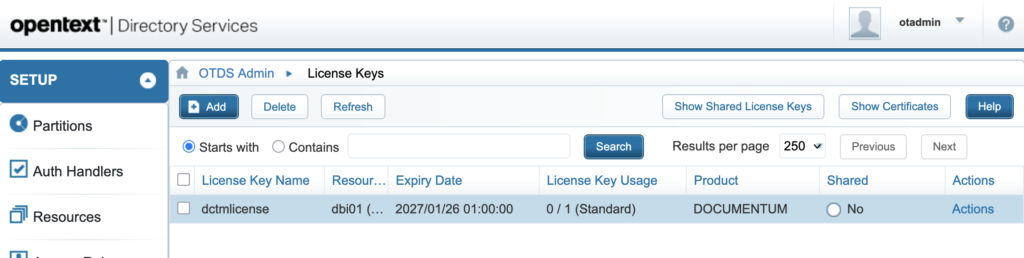
You should end up with something like this:
4.2. Creating a Partition for “inline” accounts
Then, let’s create a new non-synchronized partition that will be used to store the Documentum inline accounts:
- Go to “Partitions“
- Click on “Add” and then “New Non-synchronized User Partition“
- Set the “Name” to “dctminline“
- Click on “Save“
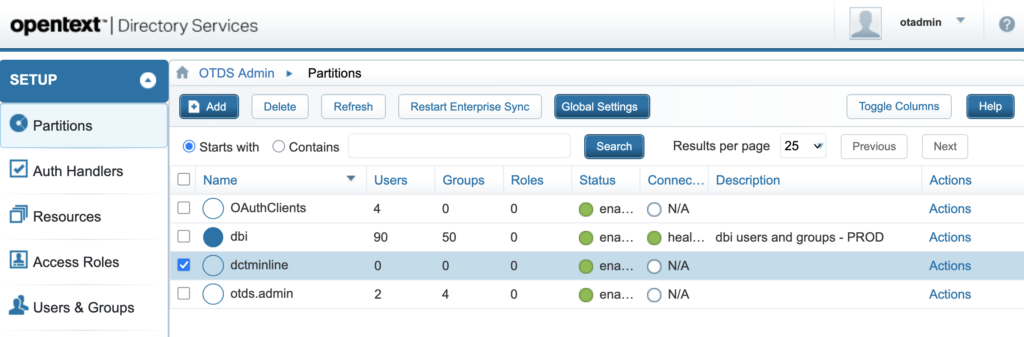
You should end up with something like this (Note: “dbi” is a synchronized partition coming from a development LDAP that I created for this demo environment):
4.3. Allocating a license to a Partition
Now, let’s allocate the license to that inline Partition (“dctminline“), so that later, when the users get added, they will be able to take a license from the pool to log in to the Repository. Please note that I specifically didn’t allocate the license to the LDAP Partition (“dbi“), to show the difference later on:
- For the Partition “dctminline“, click on “Actions” and then “Allocate to License“
- Select the correct license, if you have multiple. For my parameters, it should be “dctmlicense – dbi01“
- Select the correct counter, if you have multiple (like System Accounts / X2_Premium / …)
- Click on “Allocate to License“
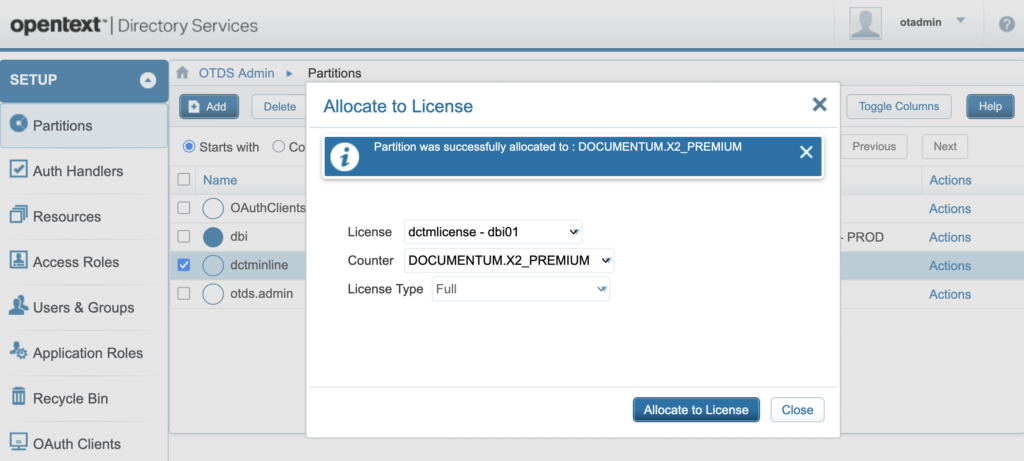
You should see a message saying that it was successfully allocated:
4.4. Creating a “Business Admin” account
The next step in OTDS is to create what OpenText calls a “Business Admin” account. When someone tries to log in to Documentum or a Client Application, Documentum will use that account to contact OTDS to check whether there are enough licenses available and if the person trying to log in is allowed to do so (i.e. has a license allocated). We will configure that connection on Documentum side later, but for now, let’s create that Business Admin account:
- For the Partition “otds.admin“, click on “Actions” and then “View Members“
- Click on “Add” and then “New User“
- Set the “User Name” to “businessadmin“
- Click on “Next“
- Set the “Password Options” to “Do not require password change on reset” (dropdown)
- Set the “Password Options” to “Password never expires” (checkbox)
- Set the “Password” to XXX (remember that password, it will be used later)
- Set the “Confirm Password” to XXX (re-enter here the account password)
- Click on “Save“
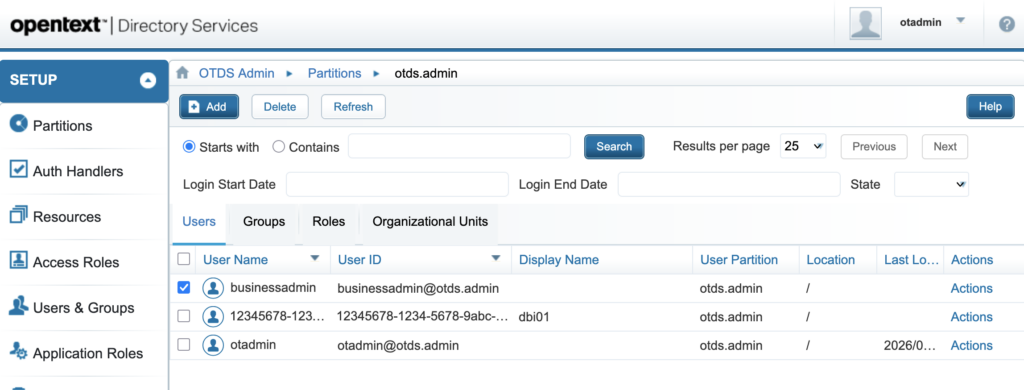
You should end-up with a new account in the “otds.admin” Partition (3rd for me, the default “admin” account + another one for the OTDS Resource for “dbi01” Repository):
4.5. Granting permissions to the “Business Admin” account
The last step is then to grant the necessary permission to the newly created Business Admin account, so it can check the license details:
- Go to “Users & Groups“
- Click on “Groups“
- Search for the group named “otdsbusinessadmins” (there should be 1 result only)
- For the Group “otdsbusinessadmins“, click on “Actions” and then “Edit Membership“
- Click on “Add Member“
- Search for the user named “[email protected]” (= user “businessadmin” created in “otds.admin” Partition)
- Select the checkbox for that account
- Click on “Add Selected“
You should see a message saying that it was successfully done:
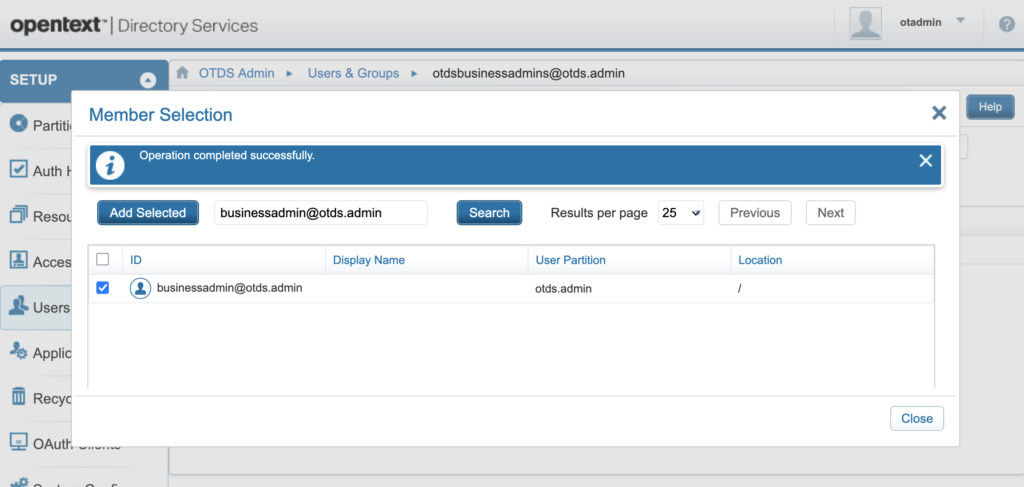
That completes the configuration on the OTDS Admin UI. There are quite a few manual steps to be done, but fortunately, you should (normally) only do that once. The documentation mention other steps about creating a Resource for the inline Partition but that’s only required in case you are going to create accounts inside OTDS and you expect them to be pushed to Documentum. In our case, since the inline accounts already exist in Documentum and we want to do the opposite, we don’t need a Resource for that. There are also other steps about creating roles and whatnot, but for the testing / initial setup that we are doing here, it’s not needed either.
5. Repo – “dm_otds_license_config” object
Now that OTDS is fully configured, the last step, as previously mentioned, is to tell Documentum which account it can use for license checks. This is done through the “dm_otds_license_config” object that you will need to create:
[dmadmin@cs-0 ~]$ # Definition of parameters, to create the license config object
[dmadmin@cs-0 ~]$ otds_base_url="https://otds.dns.com/otdsws"
[dmadmin@cs-0 ~]$ install_owner="dmadmin"
[dmadmin@cs-0 ~]$ repo="dbi01"
[dmadmin@cs-0 ~]$ otds_license_name="dctmlicense"
[dmadmin@cs-0 ~]$ otds_business_admin_username="businessadmin"
[dmadmin@cs-0 ~]$
[dmadmin@cs-0 ~]$ # Set the password in a secure way
[dmadmin@cs-0 ~]$ read -s -p "  --> Please enter the password here: " otds_business_admin_password
  --> Please enter the password here: XXX
[dmadmin@cs-0 ~]$
[dmadmin@cs-0 ~]$ # Creation of the license config object
[dmadmin@cs-0 ~]$ iapi ${repo} -U${install_owner} -Pxxx << EOC
create,c,dm_otds_license_config
set,c,l,otds_url
${otds_base_url}/rest
set,c,l,license_keyname
dctmlicense
set,c,l,business_admin_name
${otds_business_admin_username}
set,c,l,business_admin_password
${otds_business_admin_password}
save,c,l
reinit,c
apply,c,NULL,FLUSH_OTDS_CONFIG
EOC


	OpenText Documentum iapi - Interactive API interface
	Copyright (c) 2025. OpenText Corporation
	All rights reserved.
	Client Library Release 25.4.0000.0134

Connecting to Server using docbase dbi01
[DM_SESSION_I_SESSION_START]info:  "Session 012345678000aa1b started for user dmadmin."

Connected to OpenText Documentum Server running Release 25.4.0000.0143 Linux64.Oracle
Session id is s0
API> ...
000f424180001d00
API> SET> ...
OK
API> SET> ...
OK
API> SET> ...
OK
API> SET> ...
OK
API> ...
OK
API> ...
OK
API> ...
SUCCESS
API> Bye
[dmadmin@cs-0 ~]$
The “FLUSH_OTDS_CONFIG” apply command is only required if you modify an existing “dm_otds_license_config” object. However, I still added it, as this is a nice and simple way to make sure that the Repository is able to communicate with the standalone Java process (“OTDSAuthLicenseHttpServerBin“).
If it succeeds, you should see the “SUCCESS” message at the end. If it fails to communicate (e.g. you have an issue in your “dm_server_config.app_server_uri“), you should get an error about not being able to open a socket or something similar.
6. Status (#2)
At that point in time, since both the OTDS and Documentum Server configurations are complete, you might think that you would be able to log in to Documentum with an inline account. But that’s not the case. Trying to do so will result in this error:
[dmadmin@cs-0 ~]$ # Definition of parameters, to test the log in
[dmadmin@cs-0 ~]$ repo="dbi01"
[dmadmin@cs-0 ~]$ inline_test_account="adm_morgan"
[dmadmin@cs-0 ~]$
[dmadmin@cs-0 ~]$ # Trying to log in to the Repository with an inline account
[dmadmin@cs-0 ~]$ iapi ${repo} -U${inline_test_account}
Please enter password for adm_morgan:

	OpenText Documentum iapi - Interactive API interface
	Copyright (c) 2025. OpenText Corporation
	All rights reserved.
	Client Library Release 25.4.0000.0134

Connecting to Server using docbase dbi01
[DM_SESSION_E_AUTH_FAIL]error:  "Authentication failed for user adm_morgan with docbase dbi01."

[DM_LICENSE_E_USER_NOT_FOUND_OR_DUPLICATE]error:  "User adm_morgan not found in OTDS or duplicate user exists."

Could not connect
[dmadmin@cs-0 ~]$
This is because the inline account isn’t yet present inside OTDS. We did create an inline Partition, but it’s currently empty.
If you try to log in with an LDAP Partition account (e.g. “morgan“), then you will get a slightly different error message, since the account does exist in OTDS, but it’s in a Partition that we specifically didn’t allocate to the license yet:
[dmadmin@cs-0 ~]$ # Definition of parameters, to test the log in
[dmadmin@cs-0 ~]$ repo="dbi01"
[dmadmin@cs-0 ~]$ ldap_test_account="morgan"
[dmadmin@cs-0 ~]$
[dmadmin@cs-0 ~]$ # Trying to log in to the Repository with an inline account
[dmadmin@cs-0 ~]$ iapi ${repo} -U${ldap_test_account}
Please enter password for morgan:

	OpenText Documentum iapi - Interactive API interface
	Copyright (c) 2025. OpenText Corporation
	All rights reserved.
	Client Library Release 25.4.0000.0134

Connecting to Server using docbase dbi01
[DM_SESSION_E_AUTH_FAIL]error:  "Authentication failed for user morgan with docbase dbi01."

[DM_LICENSE_E_USER_NO_LICENSE_ALLOCATED]error:  "No License allocated for current user."

Could not connect
[dmadmin@cs-0 ~]$
At least, the error messages are accurate!
7. Dctm Server – migrating inline accounts to OTDS
As mentioned, the very last step is therefore to get all Documentum inline accounts created in OTDS. You can, obviously, create them all manually inside the inline Partition (“dctminline“), but if you have hundreds or even thousands of such accounts, it’s going to take hours (and probably a lot of human errors on such a repetitive task). For that purpose, OpenText provides a migration utility which you can use in this way:
[dmadmin@cs-0 ~]$ # Definition of parameters
[dmadmin@cs-0 ~]$ install_owner="dmadmin"
[dmadmin@cs-0 ~]$ repo="dbi01"
[dmadmin@cs-0 ~]$ otds_inline_partition="dctminline"
[dmadmin@cs-0 ~]$
[dmadmin@cs-0 ~]$ # Execution of the migration utility
[dmadmin@cs-0 ~]$ cd $DOCUMENTUM/dfc
[dmadmin@cs-0 dfc]$ java -Ddfc.properties.file=../config/dfc.properties -cp .:dfc.jar com.documentum.fc.tools.MigrateInlineUsersToOtds ${repo} ${install_owner} xxx ${otds_inline_partition}
...
imported user to otds: dmc_wdk_presets_owner
imported user to otds: dmc_wdk_preferences_owner
imported user to otds: dm_bof_registry
imported user to otds: d2ssouser
imported user to otds: dm_fulltext_index_user
imported user to otds: adm_morgan
...
[dmadmin@cs-0 dfc]$
If you go back to OTDS Admin UI, you should now be able to see all users being present inside the inline Partition (“dctminline“). Trying to log in with your inline account should now be working properly:
[dmadmin@cs-0 ~]$ # Definition of parameters, to test the log in
[dmadmin@cs-0 ~]$ repo="dbi01"
[dmadmin@cs-0 ~]$ inline_test_account="adm_morgan"
[dmadmin@cs-0 ~]$
[dmadmin@cs-0 ~]$ # Trying to log in to the Repository with an inline account
[dmadmin@cs-0 ~]$ iapi ${repo} -U${inline_test_account}
Please enter password for adm_morgan:

	OpenText Documentum iapi - Interactive API interface
	Copyright (c) 2025. OpenText Corporation
	All rights reserved.
	Client Library Release 25.4.0000.0134

Connecting to Server using docbase dbi01
[DM_SESSION_I_SESSION_START]info:  "Session 012345678000aa2d started for user adm_morgan."

Connected to OpenText Documentum Server running Release 25.4.0000.0143 Linux64.Oracle
Session id is s0
API> exit
Bye
[dmadmin@cs-0 ~]$
In the OTDS Admin UI, it is possible to see the current license usage. For that, go to “License Keys” and, for “dctmlicense“, you can click on “Actions” and then “View Counters“. This should now display “1” under “Unit Usage“, as the account has taken a license from the pool (“Reserved Seat“). If needed, you can proceed with the allocation of other Partitions (or users/groups). Please note that log in with one of the “exceptions” (i.e. “dmadmin“) shouldn’t use a counter.
![Thumbnail [60x60]](https://www.dbi-services.com/blog/wp-content/uploads/2022/08/MOP_web-min-scaled.jpg)
![Thumbnail [90x90]](https://www.dbi-services.com/blog/wp-content/uploads/2022/08/GME_web-min-scaled.jpg)