Recently, I had to renew an SSL certificate on an SQL Server Reporting Services (SSRS) server. The task seemed straightforward: replacing an expired certificate with a new one containing the same configuration. However, once the change had been made, HTTPS wasn’t working anywhere — neither via the usual DNS names nor even when accessing the server directly. Only HTTP remained accessible.
Here is a step-by-step guide to how the problem was solved.
Symptom
After the certificate was renewed:
- HTTP was working normally, both remotely and locally.
- HTTPS was not working.
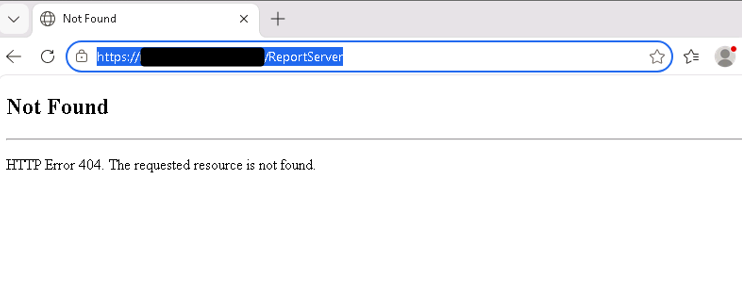
- There were no certificate warnings or TLS errors: the issue manifested as an application error (404).
A 404 error is an application error, not an encryption error. It means that the TLS connection was established correctly (the certificate was presented and accepted), but that the server could not find any resource matching the request.
Step 1: Check the installed certificate
The first thing to check in any case is the certificate. Go to the server certificates and select the proprieties of the right certificate. You must ensure that it does indeed contain the correct SANs (Subject Alternative Names).
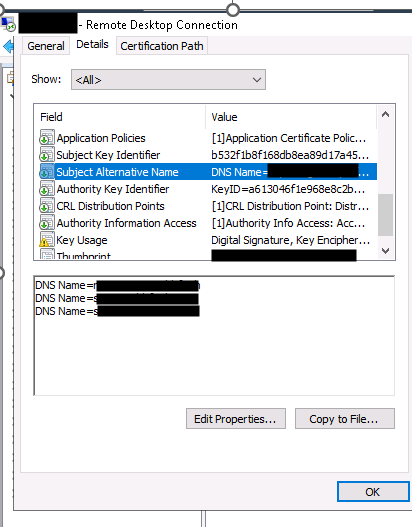
A point that is often overlooked: the CN (Common Name) of a certificate is no longer considered 100 per cent reliable. If you wish to connect via HTTPS using a specific name . That name must be included in the certificate’s SAN field, and not just in the CN.
Step 2: Check the SSRS configuration
The next step is to check the configuration of SSRS itself:
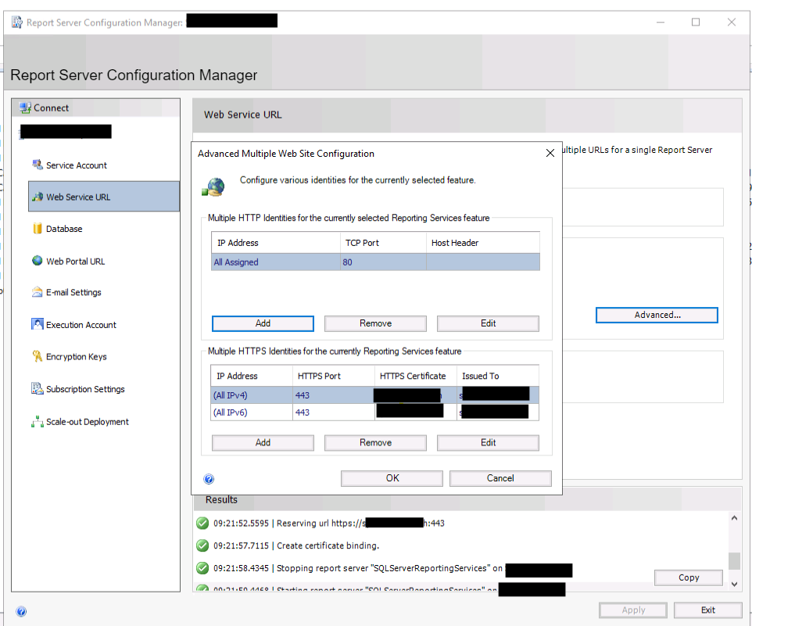
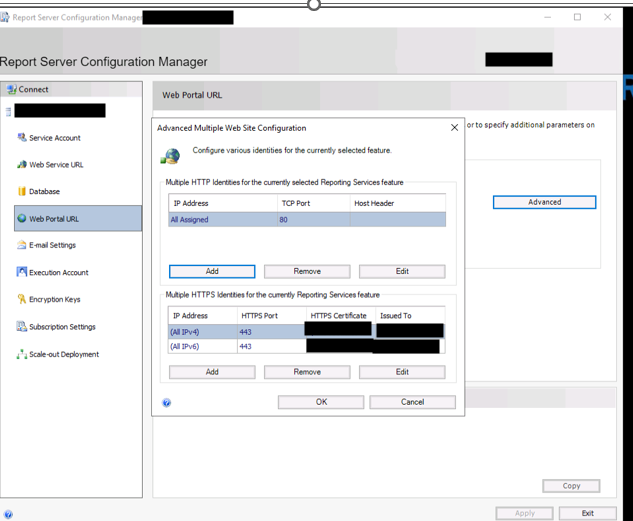
- Check that the certificate has been correctly associated with the service in Reporting Services Configuration Manager (Web Service URL and Web Portal URL).
- Check that the certificate is recognised for both IPv4 and IPv6.
- Ensure that the binding is consistent on both the SSRS service side and the server side (Windows / HTTP.sys).
This final check can be carried out via the command line using:
netsh http show sslcertThis command lists the mappings between IP addresses/ports and certificates (identified by their hash). In my case, the binding was set up using wildcards (0.0.0.0:443 and [::]:443) with a single certificate for all incoming HTTPS requests on port 443.
Step 4: URL Reservations
It was whilst looking into reserved URLs that the problem came to light. The following command lists the URLs reserved with HTTP.sys, the Windows component that manages HTTP/HTTPS listening at the system level:
netsh http show urlaclThe result revealed the source of the problem: the entries did indeed exist, but only for the server name, with an explicit host header. However, as the server name was not present in the certificate’s SAN. This is why the HTTPS connection was not working either:
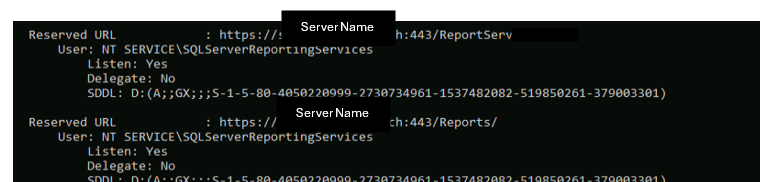
Reserve the right URLs
The fix involves recreating the reservations assigned to each DNS so that the host header is accepted. Here, we add the URL by specifying the service account. It is important to add the SDDL (Security Descriptor Definition Language) . This is used to grant service accounts (like ReportServer) the permissions required to reserve specific URLs for web traffic. For SSRS 2017 and later, the AccountSid value is S-1-5-80-4050220999-2730734961-1537482082-519850261-379003301 and the AccountName value is NT SERVICE\SQLServerReportingServices. For Power BI Report Server, the AccountSid value is S-1-5-80-1730998386-2757299892-37364343-1607169425-3512908663 and the AccountName value is NT SERVICE\PowerBIReportServer. Here, we use the specifications for SSRS
cmd
netsh http add urlacl  url=https://"dns.name":443/Reports
user="NT Service\ReportServerSQLServerReportingServices" sddl=D:(A;;GX;;;S-1-5-80-4050220999-2730734961-1537482082-519850261-379003301)

netsh http add urlacl  url=https://"dns.name":443/ReportServer
user="NT Service\SQLServerReportingServices" sddl=D:(A;;GX;;;S-1-5-80-4050220999-2730734961-1537482082-519850261-379003301)
Step 4: Manually add the DNS entries to the configuration file
Once the previous steps had been completed without any issues being detected, the certificate contained the correct SANs, the SSRS configuration appeared to be consistent, and the DNS records were correctly pointing to the correct IP address. we had to dig deeper into the service’s configuration file itself:
C:\Program Files\Microsoft Power BI Report Server\PBIRS\ReportServer\rsreportserver.config
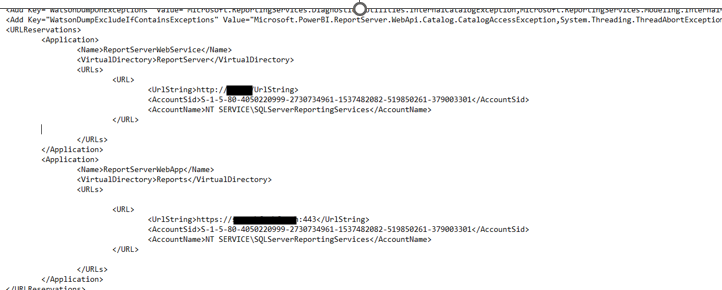
Contrary to what one might think, URL reservations at the HTTP.sys level (netsh http show urlacl) are not sufficient on their own: the SSRS/PBIRS service also maintains its own list of authorised names directly within this configuration file. Additions must be made after this tag : one entry for the web service (/ReportServer/) and another for the web portal (/Reports/). If a DNS entry is not explicitly declared in both of these locations, the service may refuse to recognise it as a valid name, even though HTTP.sys would be prepared to allow the request through.
The fix therefore involves manually editing the rsreportserver.config file and adding each relevant DNS to both instances of the tag, whilst strictly adhering to the syntax already in place for the existing entries.
Once changes have been made, the service must be restarted for the changes to take effect.
In summary
So here are a few key points to bear in mind:
- A 404 error over HTTPS following a certificate change is not necessarily related to the certificate itself. If the TLS connection is established without any warnings, the problem is likely to lie in application routing (URL reservations), not in the trust chain.
netsh http show urlaclandnetsh http show sslcertare the two key commands for distinguishing between a certificate binding issue and a URL reservation issue.- An explicit host header (name:443) restricts access to that name only
- The service account is just as important as the URL itself. A technically correct reservation that is associated with the wrong account will prevent the service from creating its own endpoint, resulting in an E_ACCESSDENIED error on start-up.
Some Sources:
About reservations URL :Configure Reporting Services to use a Subject Alternative Name (SAN) – SQL Server Reporting Services (SSRS) | Microsoft Learn
About Common name on certificat : Chrome 58: Common Name in SSL Certificates Finally Dies | Dataprise
![Thumbnail [60x60]](https://www.dbi-services.com/blog/wp-content/uploads/2022/11/TBR-web-min-scaled.jpg)
![Thumbnail [90x90]](https://www.dbi-services.com/blog/wp-content/uploads/2025/11/LTO_WEB.jpg)
![Thumbnail [90x90]](https://www.dbi-services.com/blog/wp-content/uploads/2023/01/APY_web-scaled.jpg)
![Thumbnail [90x90]](https://www.dbi-services.com/blog/wp-content/uploads/2022/08/ATR_web-min-scaled.jpg)