The 23.26.3.0.0 release update of GoldenGate 26ai (July 2026) ships a small but welcome usability change, listed in the New Enhancements section of the release notes:
Bug 39415027: Generic – Simplified Distribution and Receiver Service Path Configuration
Enhanced the Create Distribution and Receiver Service Paths experience by introducing Simple and Advanced configuration modes. The simplified view displays only the required settings by default, while advanced options remain available for users who need additional configuration.
Anyone who has created a distribution path from the web UI knows the form used to be long. I already walked through the full setup in a previous blog on distribution paths in NGINX-secured deployments. This enhancement simplifies the creation form for most common use cases.
In this blog, I want to look at what changes: first in the web UI, then what the hidden fields default to, and finally whether anything changes at the REST API level.
What changes in the web UI
This enhancement is in fact two separate changes, shipped together.
First, the form collapsed to a single step. In 23.26.2 and earlier version of GoldenGate, creating a path was a six-step process: Path Information, Source Options, Target Options, Advanced Options, Filtering Options and Managed Options.
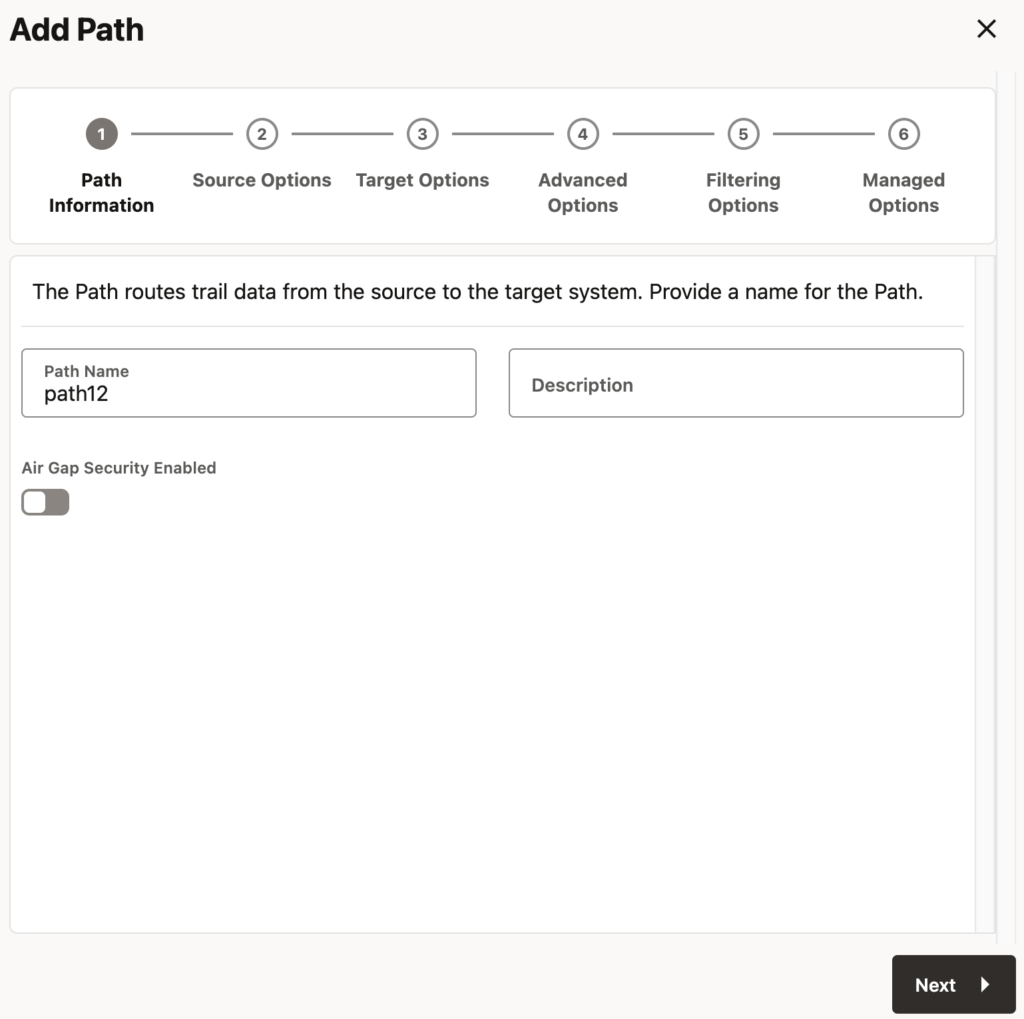
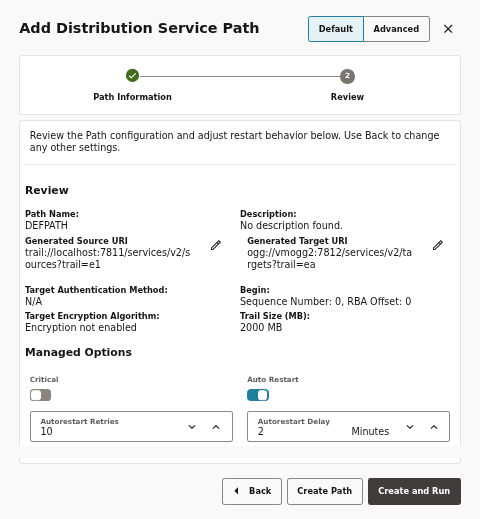
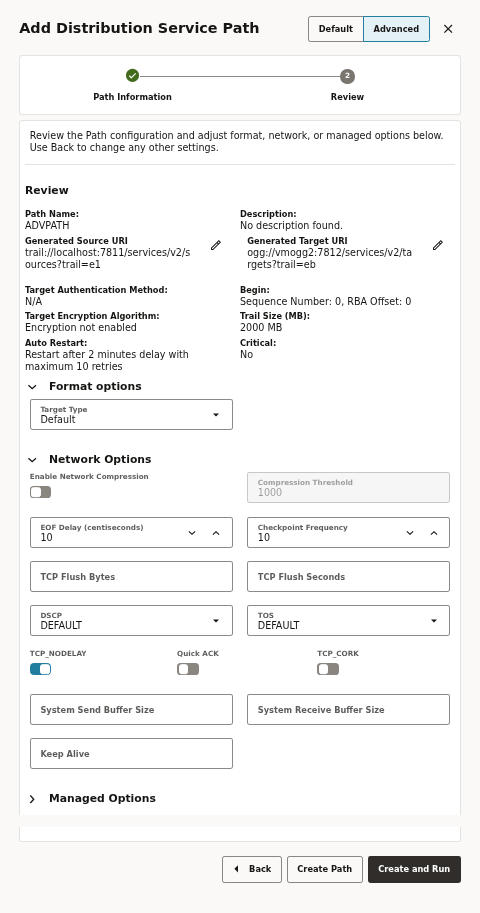
Starting with 23.26.3.0.0, these steps are gone. Instead, there are now only two steps: a configuration page, and a review page. Most of what used to be spread across the six screens now lives on the first page; the rest (the managed, format and network tuning options) moved onto the Review page, which is interactive rather than a read-only summary.
The second change is that this single page has a Default / Advanced toggle. This is the part the release notes mention:
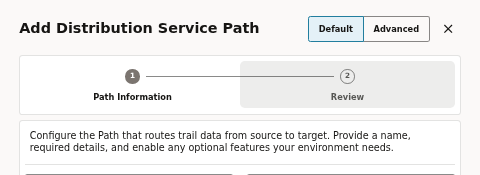
Default mode: only the required settings are displayed, like path name, source (extract and trail) and target (host, port, protocol and target trail).
Advanced mode: the same single page, but every optional field is revealed: air gap security, trail file size, target type, HPE NonStop toggle, format options and network options. The reverse proxy toggle, encryption and filtering checkboxes are present in both modes (see below).
Switching to Advanced in 23.26.3 does not bring back the six steps. It stays on one page, revealing the hidden fields. Here are the two forms:
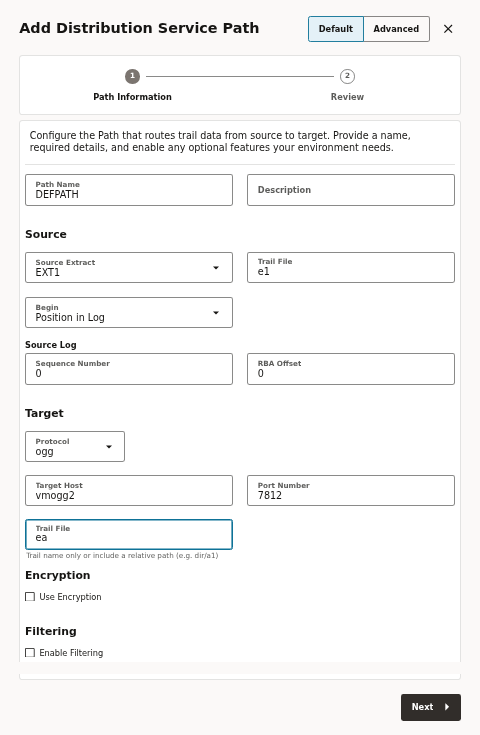
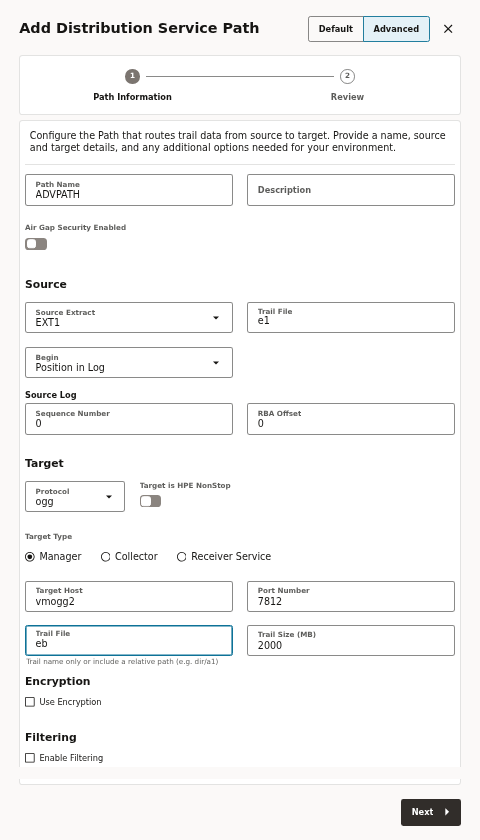
NB: The same Default / Advanced mechanism applies to the Receiver Service path creation form.
What do the hidden fields default to?
When Default mode hides a field, nothing is left blank. GoldenGate will silently apply a default value when calling the REST API. Knowing these defaults will help you decide whether to use the Default or the Advanced mode. Here is the list of what Advanced mode reveals.
| Field only editable in Advanced | Applies to | Default value |
|---|---|---|
| Air Gap Security Enabled | all protocols | Disabled |
| Trail Size (MB) | all protocols | 2000 MB |
| Target Type (Manager / Collector / Receiver Service) | ogg | Manager |
| Target is HPE NonStop | ogg | Disabled |
So a path created in Default mode always gets a 2000 MB trail, no air gap security, and (for an ogg target) a Manager target type. If any of those needs to change, you should switch to Advanced mode.
The review step includes the managed and tuning options
The second step (Review) is not a read-only summary. It always shows a summary of the path and an editable Managed Options section. In Advanced mode, it also shows Format options and a large Network Options section. The Default/Advanced mode toggle also changes what you see here:
| Section on the Review step | Default | Advanced | Notable defaults |
|---|---|---|---|
| Managed Options (Critical, Auto Restart, retries, delay) | Shown | Shown | Auto Restart on, 10 retries, 2 minute delay; Critical off |
| Format options (target format Type) | Hidden | Shown | Target Type = Default |
| Network Options (compression, TCP tuning, buffers, keep-alive) | Hidden | Shown | Compression off, EOF delay 10 tenths, checkpoint frequency 10, DSCP / TOS DEFAULT, TCP_NODELAY on |
To summarize, auto restart is on by default (10 retries, 2 minute delay) and you can adjust it without leaving Default mode. The network tuning parameters (compression, EOF delay, DSCP / TOS, TCP flags, socket buffers) keep their usual defaults unless you switch to Advanced mode and change them.
Default mode does not mean no security
The distribution path creation form is also adapted to the protocol you choose. Selecting the Target Protocol changes which fields appear, in both modes:
oggis the classic mode, without authentication fields. Advanced adds the Target Type and the HPE NonStop toggle.wsandwss: both add a reverse proxy toggle (disabled by default) and a Target Authentication Method: Certificate is the pre-selected value forwss. Switching to UserID Alias showsDomain: Network(greyed out, not editable) and anAliasdropdown (the same reservedNetworkdomain used for path connection credentials).
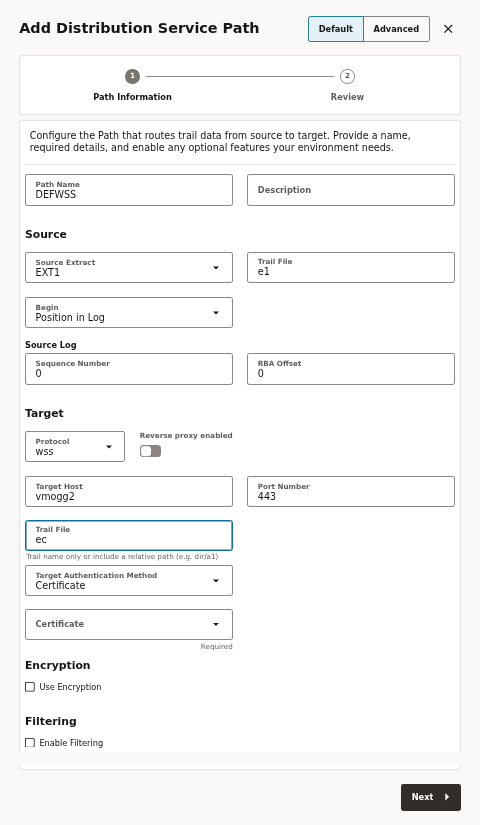
Since GoldenGate 26ai, the default for trail file size is no longer 500 MB but 2000 MB. If you are fine with a 2000 MB trail, no air gap, a Manager target (for ogg protocol), and the default auto restart behaviour, you can keep the default mode. Switch to Advanced when you want a different trail size, air gap setup, a Collector or Receiver Service target, HPE NonStop, a specific target format, or any of the network tuning options.
Nothing changes in GoldenGate REST API
The Default / Advanced switch is purely a web UI convenience. It changes which fields the form renders, not what GoldenGate stores or how you create a path programmatically. The REST endpoints are unchanged:
| Operation | Verb | Endpoint |
|---|---|---|
| Create distribution path | POST | /services/{version}/sources/{distpath} |
| Update distribution path | PATCH | /services/{version}/sources/{distpath} |
| Create receiver (collector) path | POST | /services/{version}/targets/{path} |
| Update receiver path | PATCH | /services/{version}/targets/{path} |
If you automate distribution path creation (I will publish a blog about this soon) in your environments, nothing changes. The payload you send is identical before and after patching to 23.26.3.0.0.
From a web UI perspective, paths are created with the exact same payloads in Default and Advanced mode. For instance, I created one path from the web UI in Default mode (DEFPATH) and an equivalent one in Advanced mode (ADVPATH), with the same source and target, as well as every optional field left at its pre-filled value. Analyzing the restapi.log files, here is the content of the payload:
oracle@vmogg: jq -c 'select(.request.context.verb == "POST" and .request.context.uriTemplate == "/services/{version}/sources/{distpath}")' restapi.ndjson
Captured DEFPATH (Default mode), POST /services/v2/sources/DEFPATH:
{
  "name": "DEFPATH",
  "status": "stopped",
  "source": {
    "uri": "trail://localhost:7811/services/v2/sources?trail=e1",
    "details": {}
  },
  "target": {
    "isDynamicOggPort": true,
    "uri": "ogg://vmogg2:7812/services/v2/targets?trail=ea",
    "details": {
      "trail": { "seqLength": 9, "sizeMB": 2000 },
      "compression": { "enabled": false }
    }
  },
  "options": {
    "eofDelayCSecs": 10,
    "checkpointFrequency": 10,
    "critical": false,
    "autoRestart": { "retries": 10, "delay": 2 },
    "streaming": true
  },
  "begin": { "sequence": 0, "offset": 0 }
}
Captured ADVPATH (Advanced mode), POST /services/v2/sources/ADVPATH:
{
  "name": "ADVPATH",
  "status": "stopped",
  "source": {
    "uri": "trail://localhost:7811/services/v2/sources?trail=e1",
    "details": {}
  },
  "target": {
    "isDynamicOggPort": true,
    "uri": "ogg://vmogg2:7812/services/v2/targets?trail=eb",
    "details": {
      "trail": { "seqLength": 9, "sizeMB": 2000 },
      "compression": { "enabled": false }
    }
  },
  "options": {
    "eofDelayCSecs": 10,
    "checkpointFrequency": 10,
    "critical": false,
    "autoRestart": { "retries": 10, "delay": 2 },
    "streaming": true
  },
  "begin": { "sequence": 0, "offset": 0 }
}
The two bodies differ only in name and the target trail letter. Every optional key that Default mode is supposed to “hide” (sizeMB, seqLength, compression.enabled, eofDelayCSecs, checkpointFrequency, critical, autoRestart, streaming) is sent explicitly by both modes, with the same value.
If you work mostly from the web UI and create paths by hand, the new form will help you. And if you automate with the REST API, this enhancement does not affect you at all. Your existing calls keep working exactly as before, and you were already, in effect, in “advanced mode” because you send whatever properties you choose.
![Thumbnail [60x60]](https://www.dbi-services.com/blog/wp-content/uploads/2025/05/JDE_Web-1-scaled.jpg)
![Thumbnail [90x90]](https://www.dbi-services.com/blog/wp-content/uploads/2025/05/martin_bracher_2048x1536.jpg)