I sometimes get asked how the new AI Service of GoldenGate 26ai works, and the best way to show it is to see it in action. In this blog, I will set up the AI Service with Google Gemini, using a free API key in Google AI Studio. Most of what will be said here can be applied to the other providers supported by GoldenGate 26ai.
New AI Service in GoldenGate 26ai
The AI Service is a Service Manager-level microservice, not a deployment-level one. Extract, replicat, Distribution and Receiver services belong to a deployment. The AI Service belongs to the Service Manager and is shared by every deployment on the host.
If you already use GoldenGate 26ai, you probably know that the AI Service has its own binary:
[oracle@vmogg bin]$ ps -ef|grep AIService
oracle     60905   60721  0 20:50 ?        00:00:00 /u01/app/oracle/product/ogg_23.26.3.0.3/bin/AIService
The AI Service holds two kinds of objects:
- Providers (one per external AI service): a base URL and authentication details.
- Models (one per embedding model you want to call): attached to a provider.
None of this is stored in a deployment. This means that when configuring the AI Service, you only need to configure it once for all your deployments. It also means that every deployment can access every AI model you register.
Four providers are supported with GoldenGate 26ai: Google Gemini, OpenAI, OCI Generative AI and Voyage AI. They can all do the same thing with GoldenGate. On top of this, you can also configure local models.
Getting a free Gemini API key
The first step when setting up a Gemini AI Service in GoldenGate is to retrieve the Gemini API key. You can create one for free in Google AI Studio, at aistudio.google.com/apikey:
- Sign in with a Google account and open the API keys page.
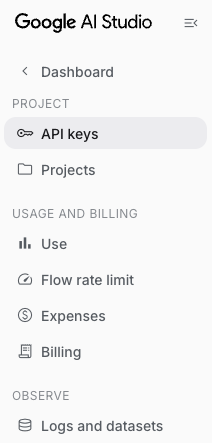
- Click on Create API key.
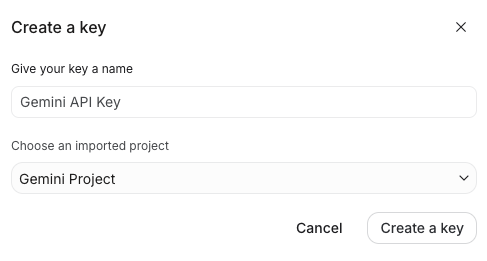
- Copy the key.

There are two things you should know before using this key for GoldenGate.
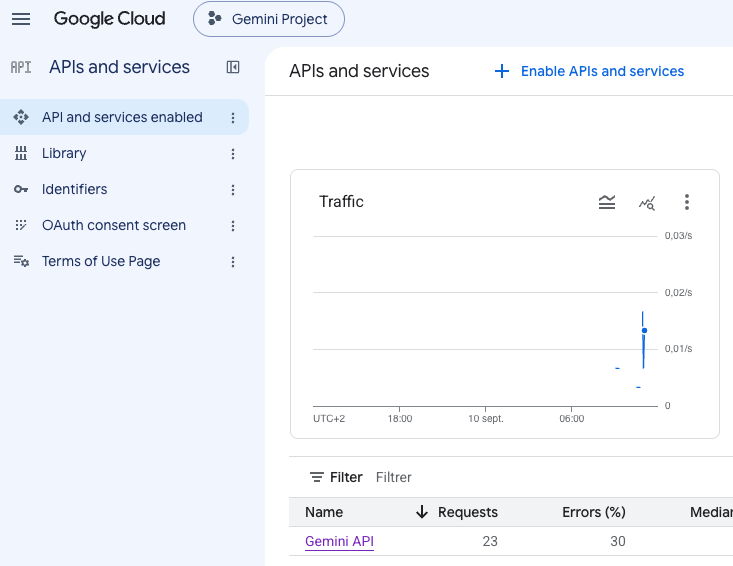
- Every Gemini API key is associated with a Google Cloud project. If you have multiple projects, make sure to select a project where the Gemini API is enabled (see below):
- Check the rate limits at aistudio.google.com/rate-limit before sizing anything. Requests per minute, tokens per minute or requests per day are all important metrics that you should keep an eye on.
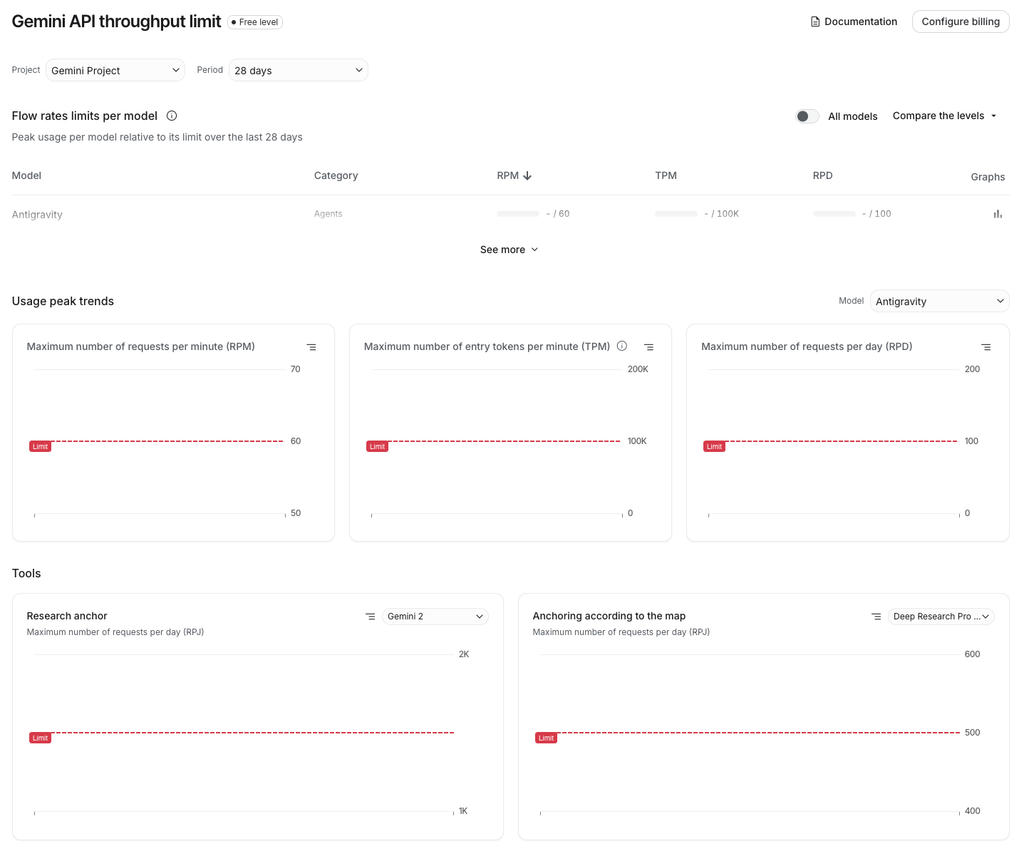
On the free tier, the daily request will most likely be the limited factor. But if the data you are embedding is large, you will be affected by the tokens limit.
For a lab, the default project and the key you just created are enough. For anything else, create the key in a dedicated Google Cloud project so quota and billing are isolated. A key created through AI Studio is already restricted to the Gemini API by default, so there is nothing extra to configure there.
GoldenGate prerequisites before using the AI Service
- Outbound connectivity: An HTTP proxy should be used for an AI service outside your network. If your GoldenGate host reaches the Internet through one, set
HTTPS_PROXYfrom the Service Manager Configuration page (in Deployments > ServiceManager > Configuration), as an Environment Variable.

- CA certificates: Oracle requires the use of CA certificates when connecting to any AI service provider, so the provider’s TLS chain has to be trusted by the Service Manager. Pull the chain with the following command:
openssl s_client -showcerts -connect generativelanguage.googleapis.com:443Then, add the CA certificates from the Service Manager certificate management page. The procedure is described in a blog about registering certificate in GoldenGate from the web UI. If you skip this step, you will receive the following error when trying to use the AI Service from a replicat:
2026-09-12T08:20:54.578+0000 WARNING OGG-30679 Oracle GoldenGate Delivery for Oracle, REPAI.prm: Response from EMBED endpoint using model gemini_embed returned error: code REMOTE_INFERENCE_FAILED, message 'SSL connection unexpectedly closed'.Registering the provider
Again, everything happens in the Service Manager web UI.
- Log in to the Service Manager and open the AI Service page.
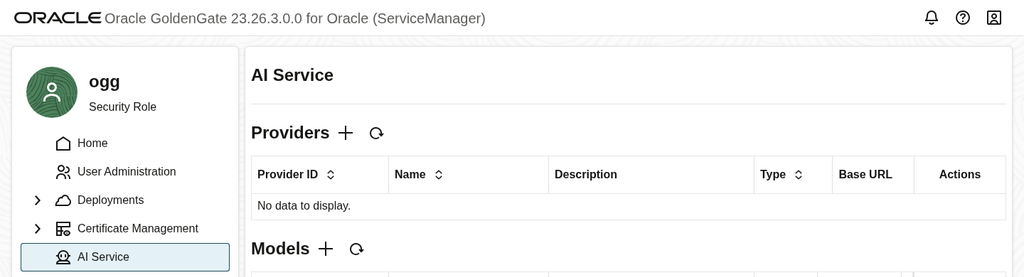
- In the Providers section, click + and pick the provider type. For this blog, we will use
Gemini. Fill in the form and submit.
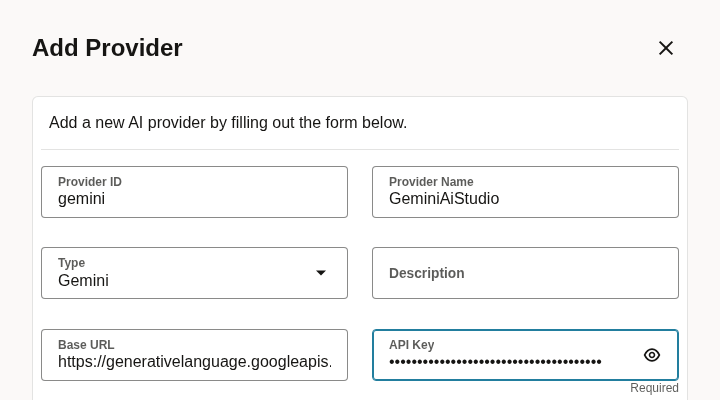
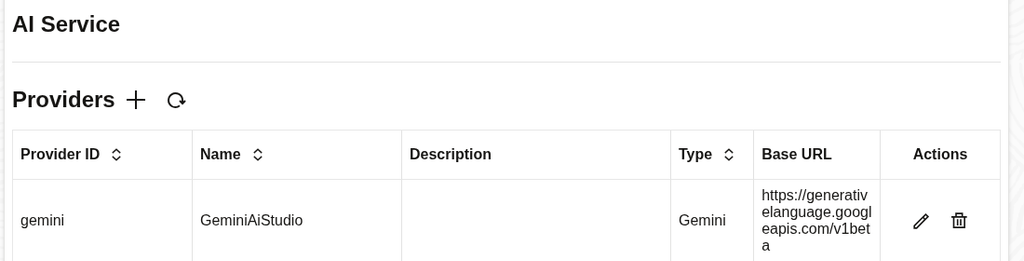
For Gemini, you just need a URL and a key:
| Field | Value |
|---|---|
| Provider ID | gemini |
| Provider Name | GeminiAiStudio |
| Base URL | https://generativelanguage.googleapis.com/v1beta |
| API Key | the key from Google AI Studio |
Keep the base URL, ending with /v1beta. Gemini embedding calls are a POST to /v1beta/models/<model>:embedContent, so the model-specific part of the path belongs to the model definition, not the provider.
Registering the model
Still on the same AI Service page, in the Models section, click +, fill in the form and submit:
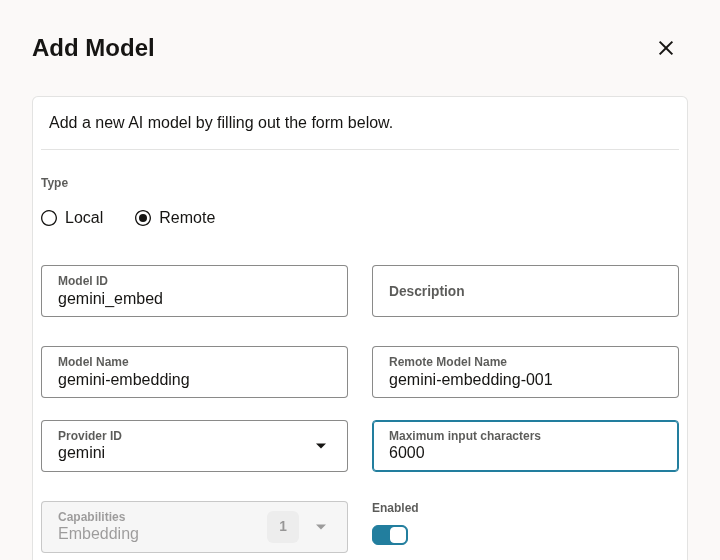

| Field | Value |
|---|---|
| Model ID | gemini_embed |
| Model Name | gemini-embedding |
| Remote Model Name | gemini-embedding-001 |
| Provider ID | gemini |
| Capabilities | Embedding |
| Enabled | on |
| Maximum Input Characters | see below |
Here is the meaning of each name given above:
- Remote Model Name is the name known by the provider.
- Model ID is what will be used in the replicat when using
@AISERVICE. - Model Name is just there for you to organize your models.
gemini-embedding-001 is the current general embedding model from Google. It defaults to 3072 dimensions and accepts anything from 128 to 3072 through the request’s output_dimensionality, with 768, 1536 and 3072 as the recommended values. Querying the model directly (GET /v1beta/models/gemini-embedding-001) gives its input limit:
{
    "name": "models/gemini-embedding-001",
    "inputTokenLimit": 2048,
    "outputTokenLimit": 1,
    "supportedGenerationMethods": [
        "embedContent",
        "countTextTokens",
        "countTokens",
        "asyncBatchEmbedContent"
    ]
}
One note on Maximum Input Characters: when I write these lines (September 2026, version 23.26.3), I still have an ongoing support request with Oracle about this parameter. The description of the parameter is straightforward, but the feature does not work. No matter the size of the input, everything will be passed to the AI Service, and to the AI model. This means that you could very quickly reach token limits if you don’t pay attention. Until this bug is resolved, do not expect this feature to work as intended.
Once a provider is enabled, the AI Service appears in the Services list on the Service Manager home page, the models become visible under the AI Service entry of the Microservices portal navigation, and they show up on a replicat’s Parameters page.
Calling Gemini from a GoldenGate replicat
Here is the syntax for the AISERVICE:
@AISERVICE(embed, <model_id>, <column_name>)Three arguments are needed:
- The capability,
embed, is the only option available for now. - The Model ID, as registered in the AI Service (not the Model Name!)
- One source column. It cannot be a concatenation of columns. If you try to pass
first_column || ' ' || second_columnthrough the AI Service, you will get this error:
2026-09-12 08:00:12  WARNING OGG-30081  Error in COLMAP clause. Invalid column mapping function or argument found in the COLMAP clause..
..._embed', name || ' - ' || desc...
                 ^.
2026-09-12 08:00:12  ERROR   OGG-00919  Error in COLMAP clause.
Here is an example of a replicat parameter file using AISERVICE:
REPLICAT repai
USERIDALIAS target_pdb26 DOMAIN OracleGoldenGate
DDL INCLUDE MAPPED
MAP PDB1.APP_PDB1.products, TARGET PDB26.APP_PDB26.products,
COLMAP (
    USEDEFAULTS,
    desc_vector = @AISERVICE(embed, 'gemini_embed', description));
The target column has to exist first
If you edit an existing replicat file to add an embedding, you must create the column on the target first. The AI Service will not create it. The column should be an Oracle VECTOR, and its dimension count has to match what the model returns.
ALTER TABLE app_pdb26.products
ADD (desc_vector VECTOR(3072, FLOAT32));
Using the default output of gemini-embedding-001 gives VECTOR(3072, FLOAT32). The dimension shouldn’t be changed later.
OGG-30679 when the key is wrong
Registering a provider or a model with a bad key produces no error at all, since nothing calls the provider at that point. Starting a replicat does not call it either, if there is no data waiting to be applied. It only happens when an @AISERVICE mapping processes a row.
An invalid key comes back as HTTP 400, not 401, with API_KEY_INVALID in the details. This is the full record from ggserr.log:
2026-09-12T09:26:59.205+0000  WARNING OGG-30679  Oracle GoldenGate Delivery for Oracle, REPAI.prm:  Response from EMBED endpoint using model gemini_badkey_model returned error: code REMOTE_INFERENCE_FAILED, message 'HTTP 400 - Bad Request: {
    "error": {
        "code": 400,
        "message": "API key not valid. Please pass a valid API key.",
        "status": "INVALID_ARGUMENT",
        "details": [
        {
            "@type": "type.googleapis.com/google.rpc.ErrorInfo",
            "reason": "API_KEY_INVALID",
            "domain": "googleapis.com",
            "metadata": {
            "service": "generativelanguage.googleapis.com"
            }
        },
        {
            "@type": "type.googleapis.com/google.rpc.LocalizedMessage",
            "locale": "en-US",
            "message": "API key not valid. Please pass a valid API key."
        }
        ]
    }
    }
    '.
An OGG-30679 error also happens when a key is in a Google Cloud project which has not enabled the Generative Language API. This returns PERMISSION_DENIED (403). Here is the full ggserr.log record:
2026-09-12T09:27:16.666+0000  WARNING OGG-30679  Oracle GoldenGate Delivery for Oracle, REPAI.prm:  Response from EMBED endpoint using model gemini_noaccess_model returned error: code REMOTE_INFERENCE_FAILED, message 'HTTP 403 - Forbidden: {
    "error": {
        "code": 403,
        "message": "Gemini API has not been used in project 293237196494 before or it is disabled. Enable it by visiting https://console.developers.google.com/apis/api/generativelanguage.googleapis.com/overview?project=293237196494 then retry. If you enabled this API recently, wait a few minutes for the action to propagate to our systems and retry.",
        "status": "PERMISSION_DENIED",
        "details": [
        {
            "@type": "type.googleapis.com/google.rpc.ErrorInfo",
            "reason": "SERVICE_DISABLED",
            "domain": "googleapis.com",
            "metadata": {
            "serviceTitle": "Gemini API",
            "consumer": "projects/293237196494",
            "containerInfo": "293237196494",
            "activationUrl": "https://console.developers.google.com/apis/api/generativelanguage.googleapis.com/overview?project=293237196494",
            "service": "generativelanguage.googleapis.com"
            }
        },
        {
            "@type": "type.googleapis.com/google.rpc.LocalizedMessage",
            "locale": "en-US",
            "message": "Gemini API has not been used in project 293237196494 before or it is disabled. Enable it by visiting https://console.developers.google.com/apis/api/generativelanguage.googleapis.com/overview?project=293237196494 then retry. If you enabled this API recently, wait a few minutes for the action to propagate to our systems and retry."
        }
        ]
    }
    }
    '.
When registering a model/provider, you will not get an error if it is not correctly configured. Running a replicat with an @AISERVICE mapping is the only test which can validate your model registration.
Replication example
Here is an EXTAI/REPAI replication example, inserting into APP_PDB26.products_src on the source:
INSERT INTO app_pdb26.products_src (id, name, description)
VALUES (9701, 'GoldenGate 26ai Live Demo Mug', 'A ceramic mug for GoldenGate engineers, printed with the AI Service architecture diagram.');
COMMIT;
On the target, a VECTOR(3072, FLOAT32) column is populated by Gemini:
SELECT id, name, VECTOR_DIMS(desc_vector) AS dims FROM app_pdb26.products WHERE id = 9701; ID NAME DIMS
---------- ------------------------------ -----
9701 GoldenGate 26ai Live Demo Mug 3072
# Vector content
[-1.34540349E-002,1.69963725E-002,2.44766194E-002,-6.56813234E-002,-5.2943374E-003,-2.17550527E-003,1.45018185E-002,-1.24750044E-002,1.46362577E-002,...The vector has 3072 dimensions, matching the default output of gemini-embedding-001.
To summarize
To set up Gemini in GoldenGate 26ai, you need to:
- Create the API key at aistudio.google.com/apikey. The project must have the Gemini API enabled.
- Set
HTTPS_PROXYfor the Service Manager if the host goes out through a proxy, and register the provider’s CA chain in the Service Manager. - Add the provider in AI Service, with the base URL
https://generativelanguage.googleapis.com/v1betaand the API key. - Add the model, with
gemini-embedding-001as the Remote Model Name - Add the
VECTORcolumn to the target table before altering the replicat parameter file, sized based on the dimension of the model output. - Add one
COLMAPline,USEDEFAULTSandcol = @AISERVICE(embed, <model_id>, <column_name>), with a single column as the third argument. - Apply one row and check the target column. Until this happens, you cannot be sure that your replicat will behave as intended.
![Thumbnail [60x60]](https://www.dbi-services.com/blog/wp-content/uploads/2025/05/JDE_Web-1-scaled.jpg)
![Thumbnail [90x90]](https://www.dbi-services.com/blog/wp-content/uploads/2025/05/martin_bracher_2048x1536.jpg)