Modernizing a reporting platform is a pivotal milestone for any BI infrastructure. Whether it’s a standard upgrade or a forced transition to Power BI Report Server (PBIRS) following the decommissioning of SSRS in SQL Server 2025, the operation is critical. For the purposes of our lab, we will use an SSRS 2017 source, but the logic remains universal: regardless of the original version, the goal is to ensure the continuity of your decision-making services without sacrificing your mental health in the process.
As my colleague Amine Haloui explained in a recent blog post, several strategies exist for migrating an instance. The “Lift and Shift” method (restoring the ReportServer database onto a new instance) is often the most attractive on paper. However, the reality on the ground can be more temperamental.
In some production environments, the target PBIRS instance already exists, hosts its own content, or follows specific configurations that prohibit simply overwriting its underlying ReportServer database. Therefore, we are proceeding here on the premise of a selective and granular migration: we must inject the SSRS catalog into an active PBIRS environment without burning everything to the ground in the process.
When faced with inventories exceeding hundreds or even thousands of reports (RDL), folders, and datasources, a manual approach via the web interface is not an option and automation becomes a necessity.
This article analyzes a systematic approach based on the ReportingServicesTools PowerShell module. The objective is to provide a robust methodology to extract your catalog and redeploy it intelligently, while managing the necessary reconfigurations along the way.
Phase 1: Smart Dumping – Building the Local Staging Area
To migrate cleanly, objects must first be isolated. The idea is not to blindly vacuum everything, but to target the critical folders of your SSRS instance and transform them into flat files (.rdl and .rds) within a local staging area. If your SSRS instance contains specific object types, the scripts can easily be adapted to include them as well.
This is where the power of the SOAP Proxy comes into play. Rather than multiplying slow HTTP calls, we use the native service interface to list and extract our components:
$sourceUrl  = "http://your-ssrs-server/ReportServer"
$exportRoot = "H:\Migration_Dump"

$proxySource = New-RsWebServiceProxy -ReportServerUri $sourceUrl
In a production environment, SSRS folders are often a messy mix of reports, data sources, images, and sometimes obsolete semantic models. To maintain total control over what we export, we isolate the filtering logic.
This Get-AllItemsByType function allows us to retrieve only what truly matters to us, based on the TypeName and file extension returned by the API.
function Get-AllItemsByType {
    param(
        [string]$CurrentPath,
        $Proxy,
        [string]$TypeName
    )
    try {
        return $Proxy.ListChildren($CurrentPath, $true) | Where-Object { $_.TypeName -eq $TypeName }
    } catch {
        Write-Host "  [!] Error on $CurrentPath : $($_.Exception.Message)" -ForegroundColor Red
        return $null
    }
}
This mapping between the file type and its extension must be defined upfront in a dictionary:
$extensionMap = @{
    "Report" = ".rdl"
    "DataSource" = ".rds"
}
A crucial point in extracting SSRS objects is preserving their context. To ensure a seamless import into PBIRS 2025, we must recreate the exact folder hierarchy of the source server locally.
The trick lies in transforming the SSRS path (formatted as /Folder/SubFolder/Report) into a valid Windows path, while simultaneously handling the extension mapping (.rdl for reports, .rds for DataSources).
function Export-SsrsItems {
    param(
        [string]$RootPath,
        $Proxy,
        [string]$TypeName,
        [string]$ExportRoot
    )

    $items = Get-AllItemsByType -CurrentPath $RootPath -Proxy $Proxy -TypeName $TypeName

    foreach ($item in $items) {
        $relativeItemPath = $item.Path.TrimStart('/').Replace("/", "\")
        $localFilePath    = Join-Path $ExportRoot $relativeItemPath
        $localDirectory   = Split-Path -Path $localFilePath -Parent

        if (-not (Test-Path $localDirectory)) {
            New-Item -ItemType Directory -Path $localDirectory -Force | Out-Null
        }

        Out-RsCatalogItem -Path $item.Path -Destination $localDirectory -Proxy $Proxy
    }
}
By doing this, your H:\Migration_Dump becomes the exact mirror of your SSRS portal. This structural rigor is what will allow us, in the next step, to remap our data sources without having to hunt down which report belongs to which department.
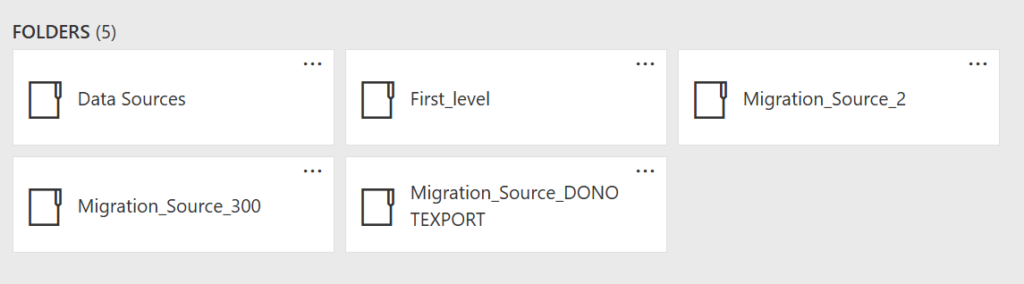
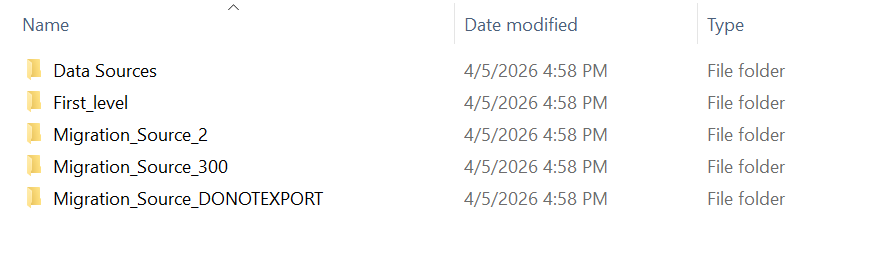
Finally, we define the folders we wish to export along with the document types they contain (since a migration is often the perfect time for a bit of spring cleaning):
$exportTasks = @(
    @{ Path = "/Migration_Source_2"; Types = @("Report") },
    @{ Path = "/Data Sources";  Types = @("DataSource") }
)

Write-Host "--- Selective Export Started ---" -ForegroundColor Cyan

foreach ($task in $exportTasks) {
    foreach ($typeName in $task.Types) {
        $ext = $extensionMap[$typeName]
        Export-SsrsItems `
            -RootPath   $task.Path `
            -Proxy      $proxySource `
            -TypeName   $typeName `
            -Extension  $ext `
            -ExportRoot $exportRoot
    }
}
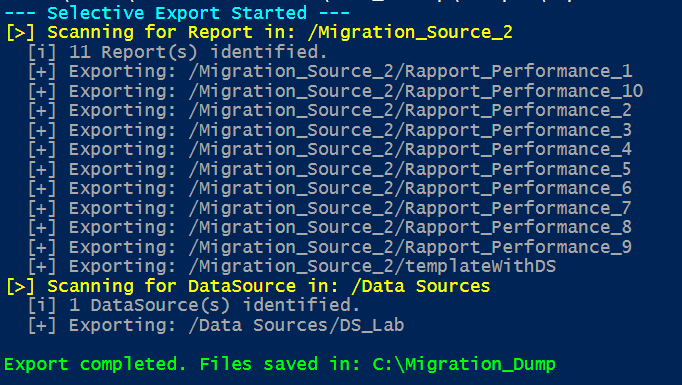
Phase 2: Data Source Patching – Mass XML Transformation
Once the extraction is complete, you have a local mirror of your source instance, but the data sources still point to the legacy infrastructure.
Instead of manually fixing each connection after the import (the best way to miss half of them), we will apply an automated transformation directly to our local XML files. This allows us to update connection strings in bulk before a single report even hits the target server.
The idea is simple: use PowerShell to inject the new SQL instance wherever necessary, ensuring a functional deployment from the very first second:
$allDataSources = Get-ChildItem -Path $exportRoot -Filter "*.rds" -Recurse

Write-Host "[>] Datasources updated in : $exportRoot" -ForegroundColor Yellow

foreach ($dsFile in $allDataSources) {
    [xml]$xmlContent = Get-Content $dsFile.FullName

    $node = $xmlContent.SelectSingleNode("//ConnectString")

    if ($null -ne $node) {
        $oldValue = $node."#text"
        if ($null -eq $oldValue) { $oldValue = $node.InnerText }

        $newValue = $oldValue -replace "OLD_REPORTING_INSTANCE", "NEW_REPORTING_INSTANCE"

        if ($oldValue -ne $newValue) {
            $node.InnerText = $newValue
            $xmlContent.Save($dsFile.FullName)
            Write-Host "  [v] ConnectString updated in : $($dsFile.Name)" -ForegroundColor Green
        }
    } else {
        Write-Host "  [!] ConnectString not found in file $($dsFile.Name)" -ForegroundColor Red
    }
}
Moreover, since we are interacting directly with the file’s XML structure, this logic isn’t limited to connection strings: you can apply the same principle to automate changes for any XML property, from timeouts to provider names.
Phase 3: Mass Deployment – Rebuilding the Reporting Portal
At this stage, the operation is purely mechanical. We once again leverage the ReportingServicesTools module to recreate the folder structure and upload the .rds and .rdl files. By following this specific order, PBIRS will automatically restore the links between your reports and their newly patched data sources.
It is worth noting that the script allows for importing into a specific root folder (defined by the $destroot variable). This is particularly useful if you want to isolate the migrated assets into a dedicated directory, such as SSRS_Folder to keep them distinct from the existing hierarchy. Furthermore, this script is designed with safety in mind: it cannot overwrite or delete anything. If a report with the same name already exists in the same location, the -Overwrite:$false argument prevents replacement, ensuring that the import process never destroys existing content.
Here is the final block to complete your migration:
$destUrl   = "http://your-pbirs-server/ReportServer"
$localDump = "H:\Migration_Dump"
$destRoot  = "/" #Start import in the root folder
$proxyDest = New-RsWebServiceProxy -ReportServerUri $destUrl

$extensionMap = @{
    "Report"     = ".rdl"
    "DataSource" = ".rds"
}

function Ensure-RsFolderBruteForce {
    param($fullFolderPath, $Proxy)
    $parts = $fullFolderPath.Split('/') | Where-Object { $_ -ne '' }
    $currentPath = ''

    foreach ($part in $parts) {
        $parent = if ($currentPath -eq '') { "/" } else { $currentPath }
        $target = if ($currentPath -eq '') { "/$part" } else { "$currentPath/$part" }

        try {
            $Proxy.CreateFolder($part, $parent, $null) | Out-Null
            Write-Host "  [DIR] Created : $target" -ForegroundColor Cyan
        } catch {
            if ($_.Exception.Message -match "AlreadyExists") {
                # Folder already exists but we continue
            } else {
                Write-Host "  [!] Error for folder $target : $($_.Exception.Message)" -ForegroundColor Red
            }
        }
        $currentPath = $target
    }
}

function Import-SsrsItem {
    param(
        [System.IO.FileInfo]$File,
        [string]$LocalDump,
        [string]$DestRoot,
        $Proxy
    )

    $relativeDir       = $File.DirectoryName.Replace($LocalDump, '').Replace("\", "/")
    $targetFolderPath  = ($DestRoot + $relativeDir).Replace("//", "/")
    $fullItemPath      = ($targetFolderPath + "/" + $File.BaseName).Replace("//", "/")

    Ensure-RsFolderBruteForce -fullFolderPath $targetFolderPath -Proxy $Proxy

    try {
        Write-RsCatalogItem -Path $File.FullName -Destination $targetFolderPath -Proxy $Proxy -Overwrite:$false
        Write-Host "  [DONE] Imported: $fullItemPath" -ForegroundColor Green
    }
    catch {
        if ($_.Exception.Message -match "already exists") {
            Write-Host "  [SKIP] Already created : $fullItemPath" -ForegroundColor Gray
        } else {
            Write-Host "  [FAIL] Error $fullItemPath : $($_.Exception.Message)" -ForegroundColor Red
        }
    }
}

$importOrder = @("DataSource", "Report")

foreach ($typeName in $importOrder) {
    $extension = $extensionMap[$typeName]
    Write-Host "`n[PASS] Import of object with type : $typeName ($extension)" -ForegroundColor Magenta

    $filesToImport = Get-ChildItem -Path $localDump -Filter "*$extension" -Recurse

    if ($filesToImport.Count -eq 0) {
        Write-Host "  [i] No file with $extension found." -ForegroundColor Gray
        continue
    }

    foreach ($file in $filesToImport) {
        Import-SsrsItem -File $file -LocalDump $localDump -DestRoot $destRoot -Proxy $proxyDest
    }
}

Write-Host "`nImport done!" -ForegroundColor Green
Importing via SOAP is more resource-intensive than extraction, as the server must validate every piece of metadata and physically recreate the path for each report. On large volumes, this stage can become a bottleneck (averaging ~1 second per report).
To overcome this, we can parallelize the import by folder, creating multiple background jobs running on separate threads. Here is the general skeleton to implement this multi-threaded approach:
$maxJobs = 5

foreach ($file in $filesToImport) {
    while ((Get-Job -State Running).Count -ge $maxJobs) {
        Start-Sleep -Milliseconds 500
    }

    Start-Job -Name "Import_$($file.Name)" -ScriptBlock {
        param($f, $url, $targetPath)

        $Proxy = New-RsWebServiceProxy -ReportServerUri $url

        try {
            Write-RsCatalogItem -Path $f.FullName -Destination $targetPath -Proxy $Proxy -Overwrite:$false
            return "SUCCESS: $($f.Name)"
        } catch {
            return "ERROR: $($f.Name) -> $($_.Exception.Message)"
        }
    } -ArgumentList $file, $destUrl, $targetFolderPath
}
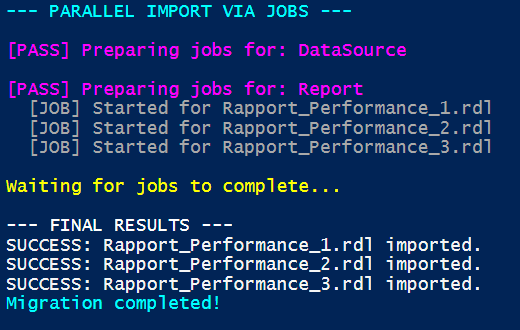
Note : The -Parallel parameter is a feature of the ForEach-Object cmdlet introduced in PowerShell 7 to enable native multi-threading. While it allows for processing multiple objects simultaneously, it is not reliably supported by the ReportingServicesTools library as the underlying API is not thread-safe. To ensure stability and avoid session collisions, it is recommended to use the Start-Job method instead, as it provides better process isolation for each task.
Key Takeaways for a Seamless Cutover
Migrating to Power BI Report Server shouldn’t be a manual challenge. By adopting this PowerShell-driven ETL approach, you replace the uncertainty of manual intervention with industrial-grade rigor.
The primary advantage lies in consistency: regardless of the report volume or folder complexity, the script guarantees an identical and predictable result every single time. By isolating extraction, XML transformation, and ordered importation, you maintain total control over your data integrity.
Ultimately, automation is about securing your delivery and freeing up time for what truly matters: leveraging your data on your brand-new PBIRS 2025 platform.
Happy migrating!
![Thumbnail [60x60]](https://www.dbi-services.com/blog/wp-content/uploads/2025/11/LTO_WEB.jpg)
![Thumbnail [90x90]](https://www.dbi-services.com/blog/wp-content/uploads/2022/08/NAC_web-min-scaled.jpg)