Configuring an NGINX reverse proxy for GoldenGate is well documented by Oracle, but what is not is the implication of adding or removing deployments. In fact, when modifying your GoldenGate deployments, you will have to reconfigure the NGINX reverse proxy.
If you don’t, part of your installation will not be working anymore. This is what will happen in the web UI:
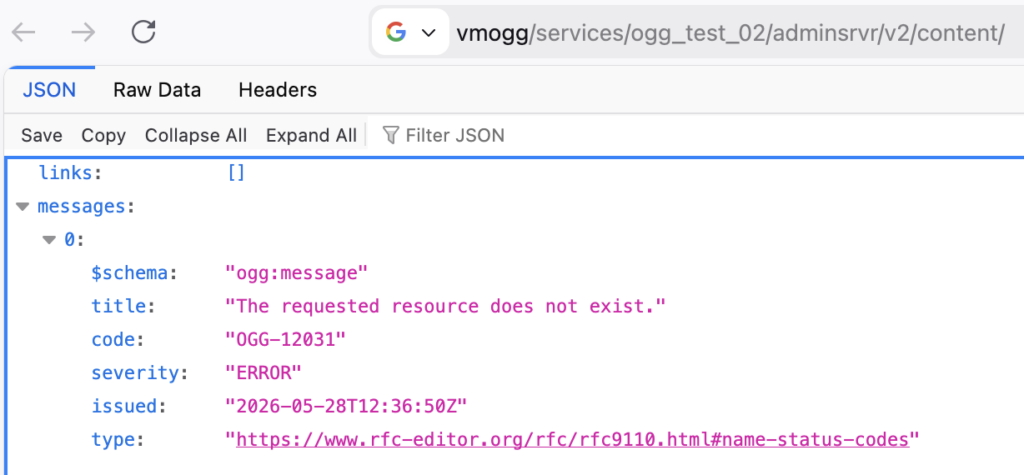
In the adminclient, you will receive an OGG-12031 error when connecting to the deployment, with the same error : “The requested resource does not exist“.
OGG (not connected) > connect https://vmogg deployment ogg_test_02 user ogg
Password for 'ogg' at 'https://vmogg':

2026-05-28T12:42:54Z  ERROR   OGG-12031  The requested resource does not exist.
And the same error will happen when calling the REST API of your new deployment:
RuntimeError: ERROR (code 404) - https://vmogg/services/ogg_test_02/adminsrvr/v2/extracts: The requested resource does not exist.The NGINX configuration generated by GoldenGate is static. Indeed, the file located in the /etc/nginx/conf.d directory contains deployment-specific routes generated from the GoldenGate setup at the time of execution. You can verify this by searching for an existing deployment name in the configuration:
> grep ogg_test_01 /etc/nginx/conf.d/ogg.conf | wc -l
187
Since the deployment name is an integral part of the API calls, and given that the configuration is not dynamic, after adding or removing a deployment, you will have to regenerate the configuration file.
Reconfiguring NGINX reverse proxy
You can regenerate the configuration with the ReverseProxySettings utility in the $OGG_HOME/lib/utl/reverseproxy directory. With the oracle user:
$OGG_HOME/lib/utl/reverseproxy/ReverseProxySettings --user ogg --port 443 --output /home/oracle/ogg.conf http://localhost:7809Make sure to adapt the GoldenGate username and the port to the Service Manager (7809 is the default). If GoldenGate is accessed through a VIP (in a RAC setup, for instance), add the --host parameter:
$OGG_HOME/lib/utl/reverseproxy/ReverseProxySettings --user ogg --port 443 --output /home/oracle/ogg.conf http://localhost:7809 --host ogg-vipOnce the new configuration is available, as root, edit the new file to include SSL parameters. If you don’t do this, NGINX will fail to restart, and your whole GoldenGate installation will not be accessible anymore.
> grep ssl_certificate /etc/nginx/conf.d/ogg.conf
    ssl_certificate         /etc/nginx/ssl/ogg.pem;
    ssl_certificate_key     /etc/nginx/ssl/ogg.key;
For these parameters, just reuse the ones you already had in your current configuration. With the root user, replace the old configuration with the new one.
cd /etc/nginx/conf.d/
mv ogg.conf ogg.conf_old
mv /home/oracle/ogg.conf .
chown root:root ogg.conf
Before restarting NGINX, test the configuration:
> nginx -t
nginx: the configuration file /etc/nginx/nginx.conf syntax is ok
nginx: configuration file /etc/nginx/nginx.conf test is successful
Finally, restart NGINX to apply the new configuration.
systemctl restart nginxAfter restarting NGINX, the new deployment becomes accessible from the web UI, the adminclient and the REST API.
![Thumbnail [60x60]](https://www.dbi-services.com/blog/wp-content/uploads/2025/05/JDE_Web-1-scaled.jpg)
![Thumbnail [90x90]](https://www.dbi-services.com/blog/wp-content/uploads/2025/05/martin_bracher_2048x1536.jpg)