Now that I have got an Oracle Enterprise Manager 24ai deployed in the cloud and an agent installed and configured on a DB System, I’m ready to configure OEM AI assistant. In this blog, I would like to guide you through the steps of configuration and show all problems I faced and how I have troubleshooted and resolved them.
Ask EM or Oracle AI Database Assitant?
Ask EM was introduced with 24ai Release 1 Update 4 (24.1.0.4 / EM 24.1RU04).
In RU10 Oracle has introduced Oracle AI Database Assistant, replacing previous version of Ask EM functionality.
See Oracle documentation about Oracle AI Database Assistant: https://docs.oracle.com/en/enterprise-manager/cloud-control/enterprise-manager-cloud-control/24.1/emadm/oracle-ai-database-assistant.html
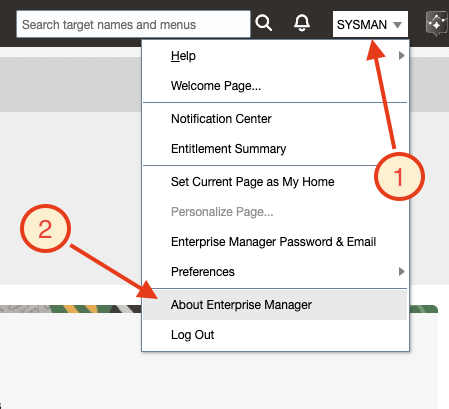
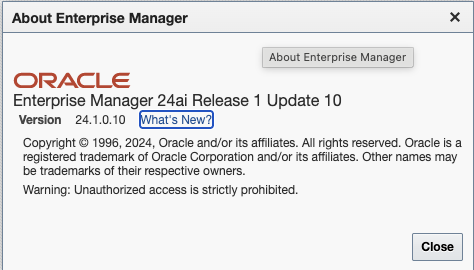
I’m running Enterprise Manager 24ai Release 1 Update 10, see next pictures:
What is Oracle AI Database Assitant
Oracle AI Database Assistant enables you to interact with Oracle Enterprise Manager using natural-language questions to assess enterprise health, investigate operational issues, and gain insights from Enterprise Manager telemetry.
From Oracle documentation we can read:
“Starting with Enterprise Manager 24ai Release 1 Update 10 (24.1.0.10), Oracle AI Database Assistant is available in Enterprise Manager. This enhanced experience, which replaces the earlier Ask EM functionality, is described in this chapter. In this release, Oracle AI Database Assistant focuses primarily on telemetry-oriented interactions and Enterprise Manager operational data.”
Prerequisites for Oracle AI Database Assistant
Several prerequisites are needed to configure and use Oracle AI Database Assistant:
- Log in to Enterprise Manager as a Super Administrator, that’s to say SYSMAN
- Review the supported LLM providers.
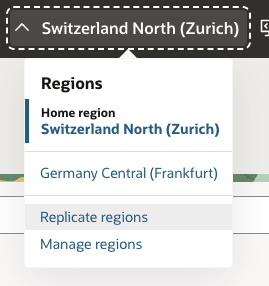
I will use the Enterprise Manager LLM Provider. For this I need an account in one of the supported OCI regions. Germany Central (Frankfurt): eu-frankfurt-1 is one of it and I have access to it, see following picture:
- Verify that Oracle AI Database Assistant is enabled in OEM. We can simply activate and deactivate it with command lines:
To deactivate it:
emctl set property -name enable_genai_assistant -value false- To activate it:
emctl set property -name enable_genai_assistant -value true- Add the following OCI policies so that Enterprise Manager can access the OCI Generative AI service:
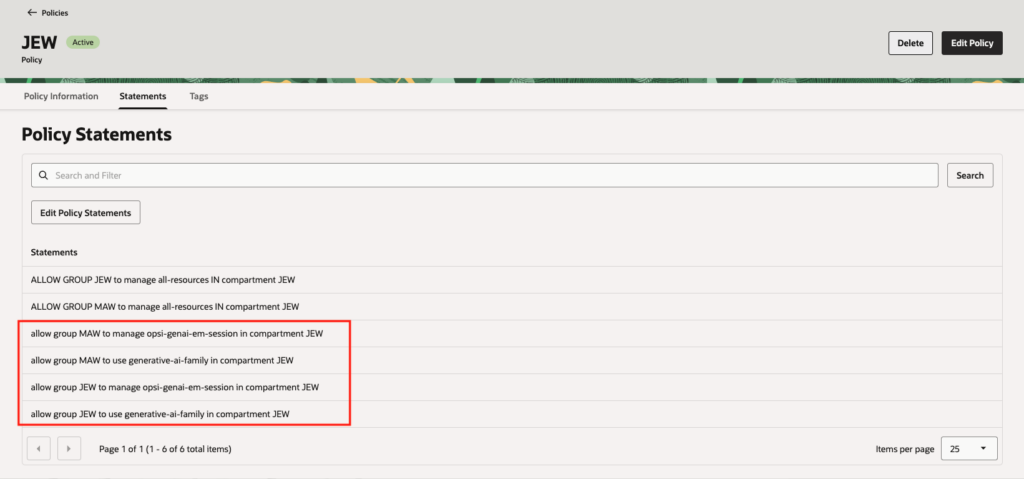
allow group <your-group-name> to manage opsi-genai-em-session in compartment <your-compartment-name>
allow group <your-group-name> to use generative-ai-family in compartment <your-compartment-name>
Knowing I do not have any right admin on the tenancy, I have ask the appropriate person to add the needed policies for me. See next picture:
Configure Oracle AI Database Assistant
Now I’m ready to configure Oracle AI Database Assistant. I need to be connected as SYSMAN user.
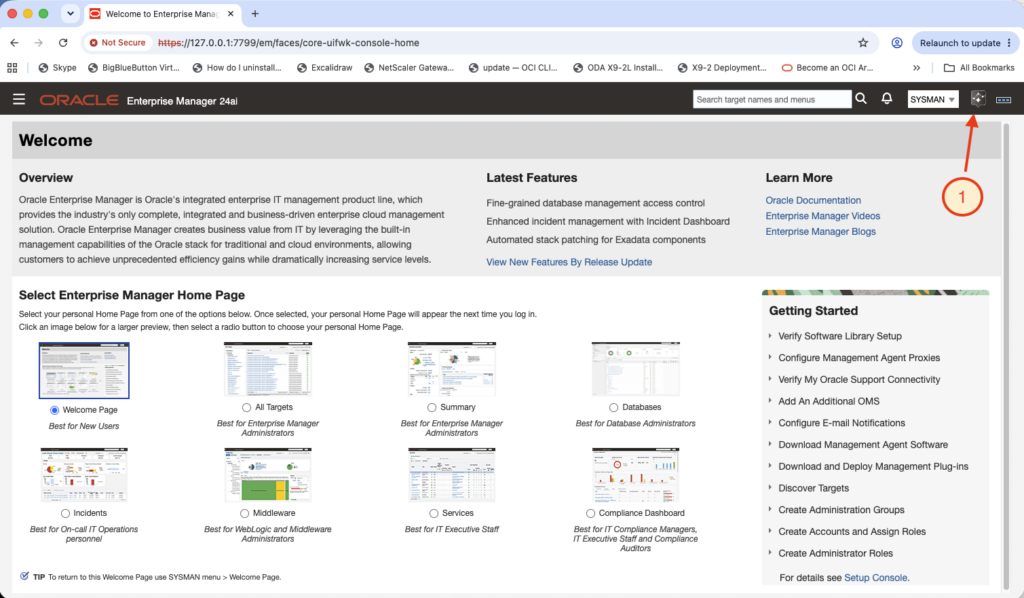
Let’s click on the Oracle AI Database Assistant button.
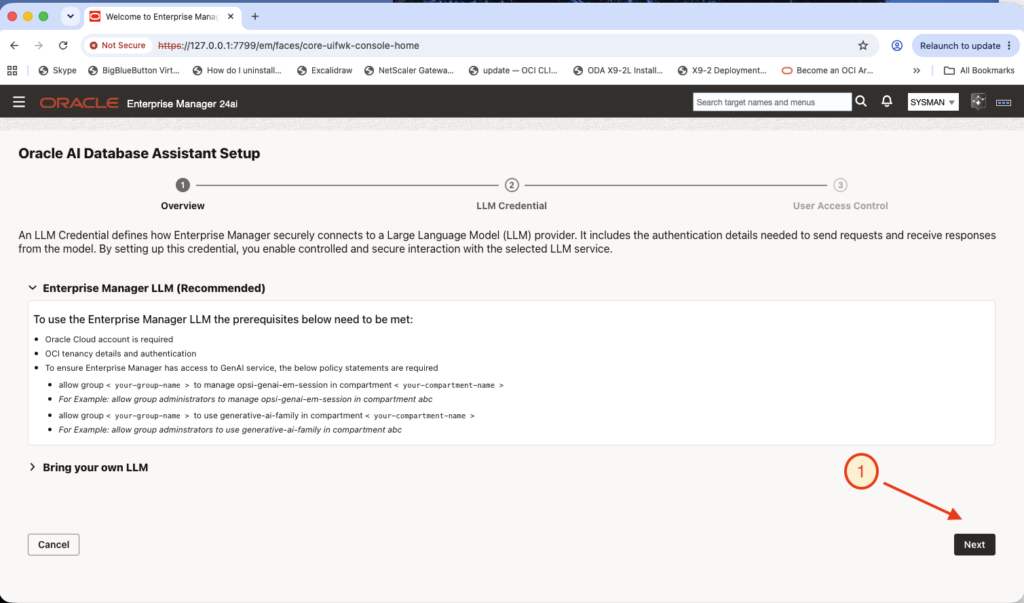
I chose to use the LLM (Large Language Model) integrated to Enterprise Manager .
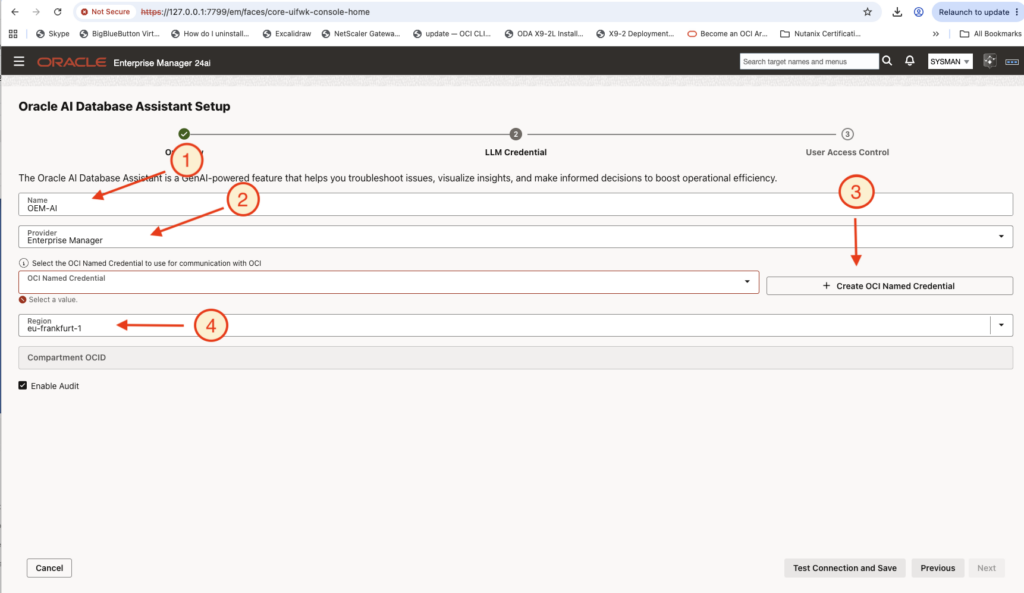
I then need to enter a “Name” for my AI Database Assistant, the provider will be “Enterprise Manager” as discussed earlier, and the region “eu-frankfurt-1”. I will then click on the button “Create OCI Named Credential” to create and use an OCI Named Credential.
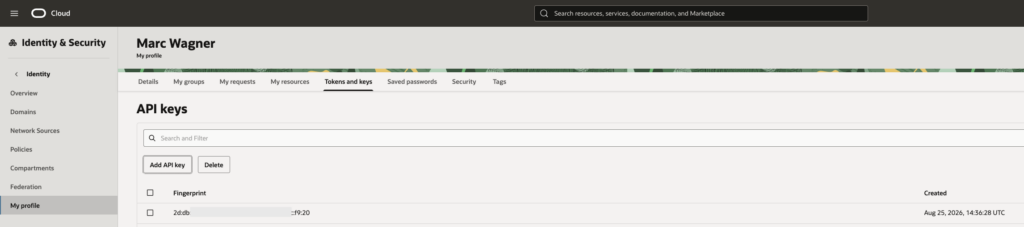
To create an OCI Named Credential, I need to have an OCI API keys for my user. I have created one on the OCI side previously, and will use that one, as shown in the next picture.
To create the OCI Named Credential, I will provide:
- A name for the credential
- The OCID of the OCI tenancy
- Your OCI user OCID
- The Public key Fingerprint of the OCI API Key
- The value of the private key
- And finally the name of the region supporting Generative AI, in my case Frankfurt in Germany
See next picture.
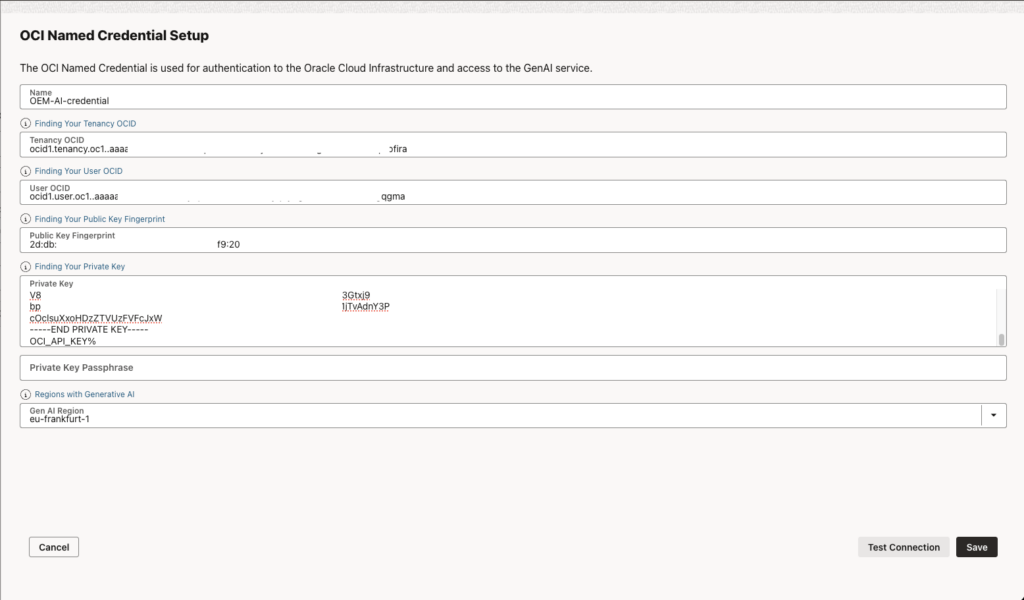
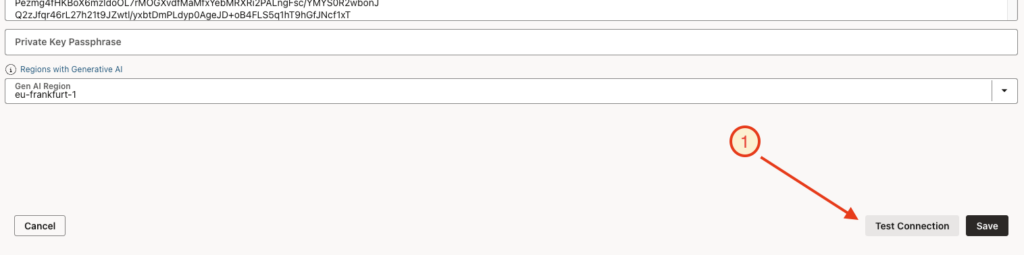
I can then test the connection.
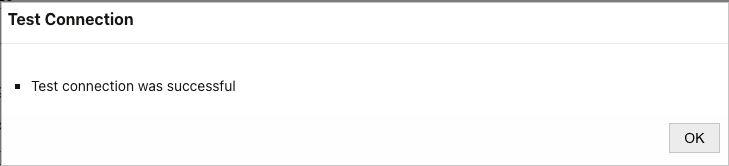
Connection was successfully, which is already a good think, meaning the authentication from Enterprise Manager to my OCI user is working.
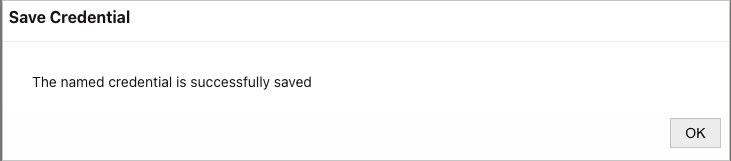
And I can save my OCI Named Credential configuration.
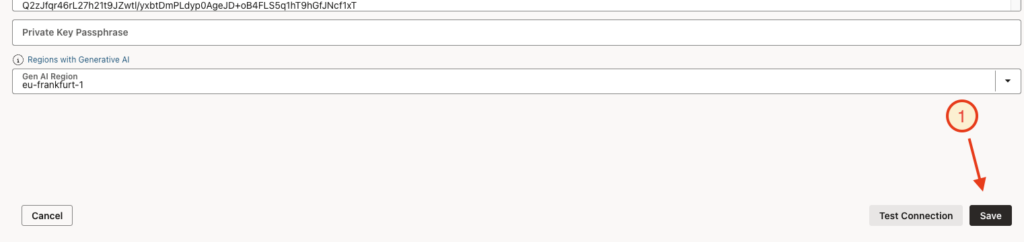
Which was successfully done.
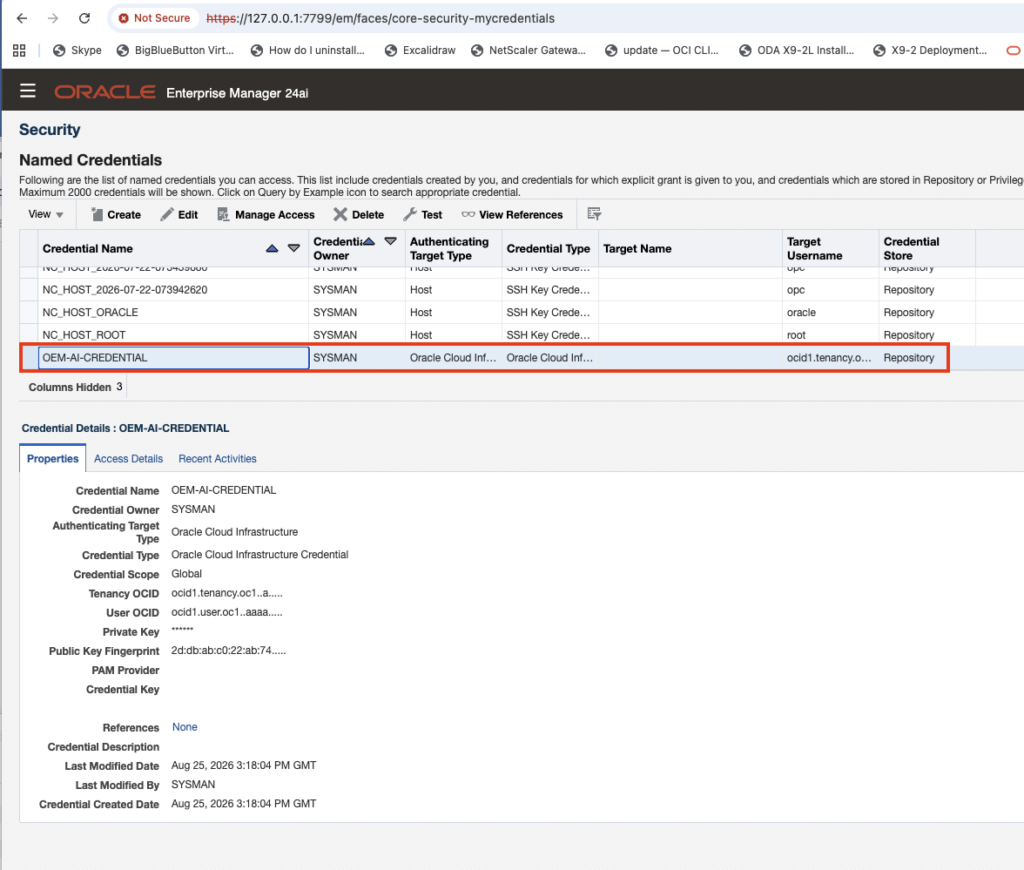
Of course I can then find it in Enterprise Manager security part.
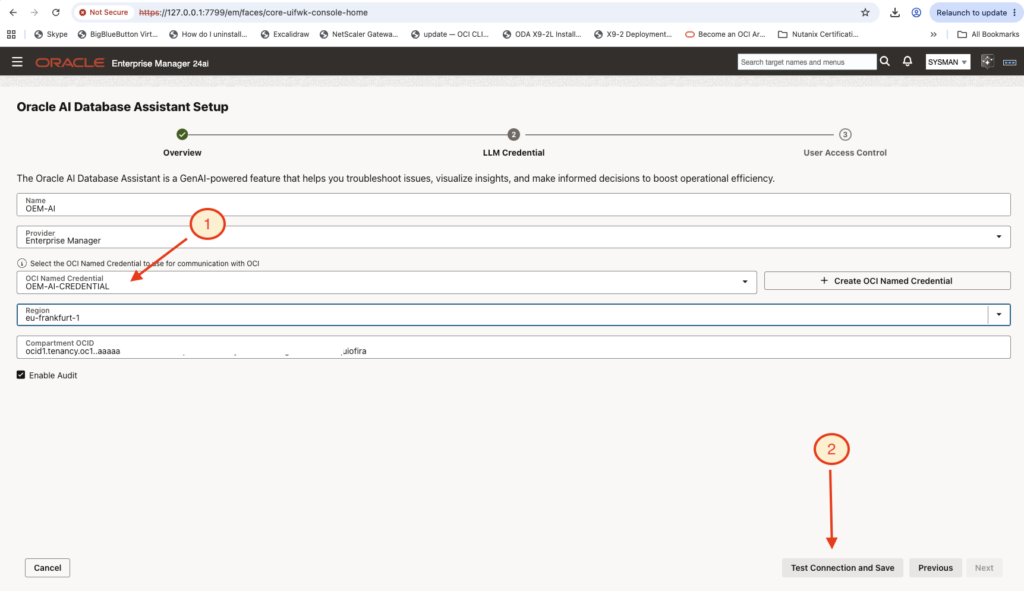
In the Oracle AI Database Assistant Setup, I will now be able to select the recently created OCI Named Credential.
But I was getting following errors:

Using the developper console from the browser I could find that:
- EM was successfully able to authenticate to OCI (fortunately as my OCI Named Credential configuration test was successfully)
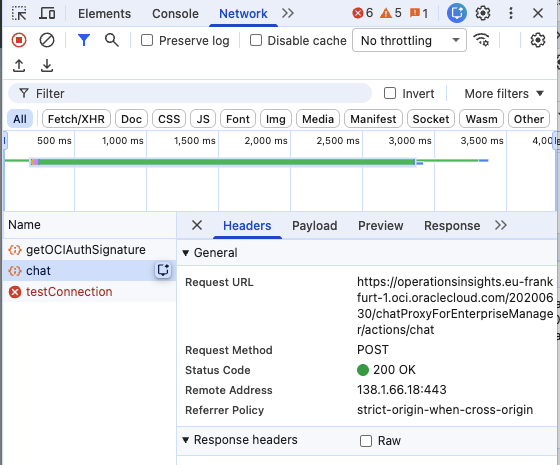
- But the https chat request was having problem
See next 2 pictures:
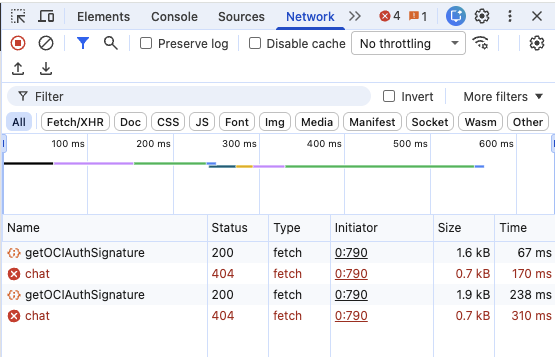
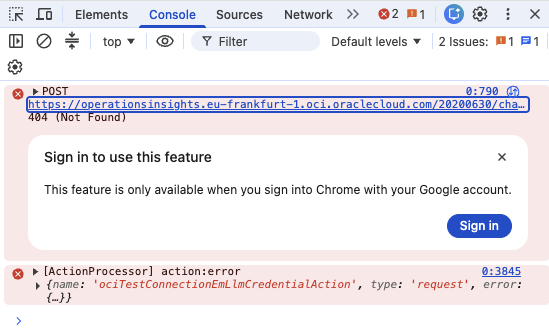
I tried to connect directly on the link and could see that the problem seems to be an authorization issue:
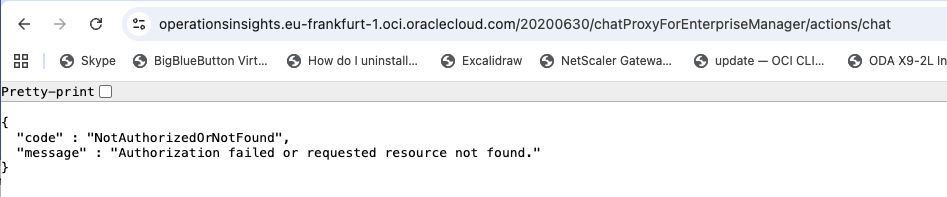
I contacted my colleagues on the OCI admin side (by the way, thanks Nicolas Jardot and Adrien Devaux for having taken time for troubleshooting), who were able to put some traces. And we could realise that Oracle AI Database Assistant setup will automatically take the root compartment OCID, which of course I had no access. I updated the setup configuration to update with my appropriate compartment OCID.
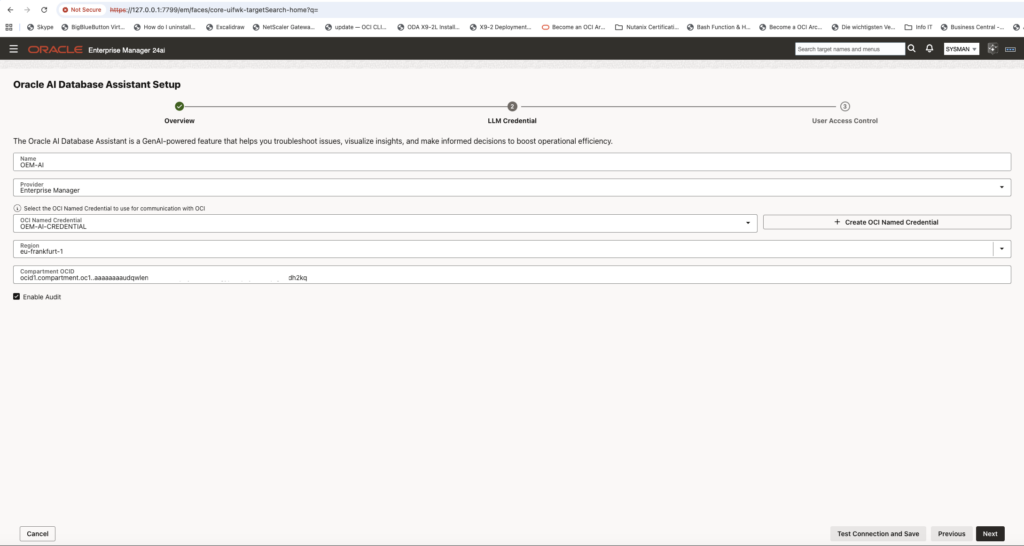
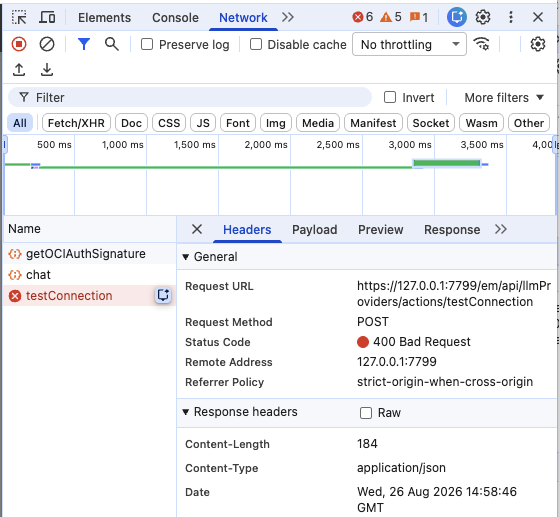
And clicking on the next button, the setup accepted my configuration and saved it. I have just got following error when the setup wanted to verify the LLM provider connection from Enterprise Manager.
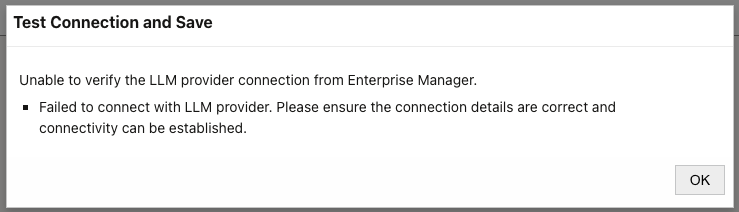
But I could still move forward and it was working. I have been opening an Oracle SR to understand if there is any impact or not. I will let you know as soon as I have got a reply.
In my browser developper console, I can now see that the authentication from Enterprise Manager to OCI is still working, see next picture.
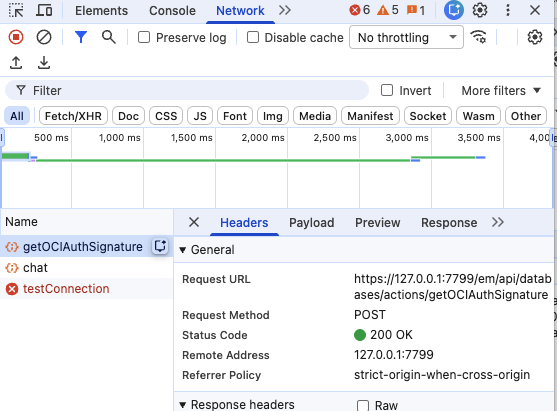
And that the connection to the chat https link is working as well, see next picture.
The failing test connection will come from the LLM provider test connection explained earlier, for which I will open a ticket by oracle:
Testing Oracle AI Database Assistant
Opening Oracle AI Database Assistant, I can see that I have access with no errors:
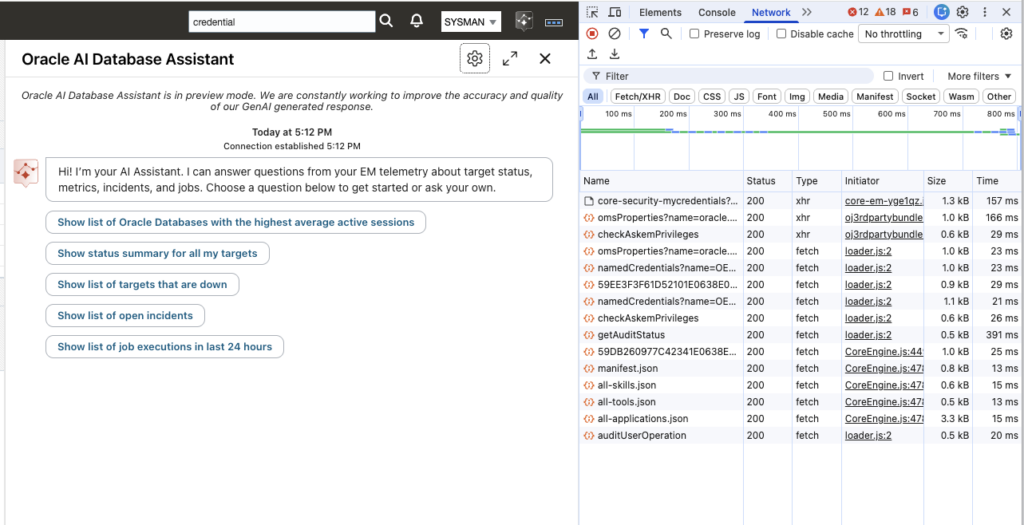
I made a quick test to list the targets that are down.
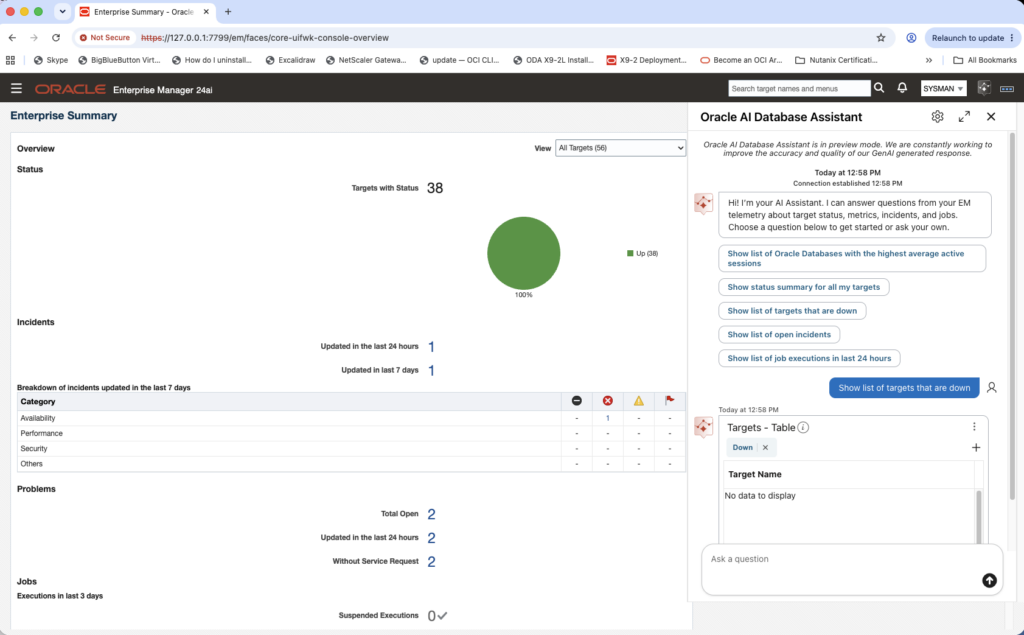
Which is correct.
Let’s ask for the target that are up.
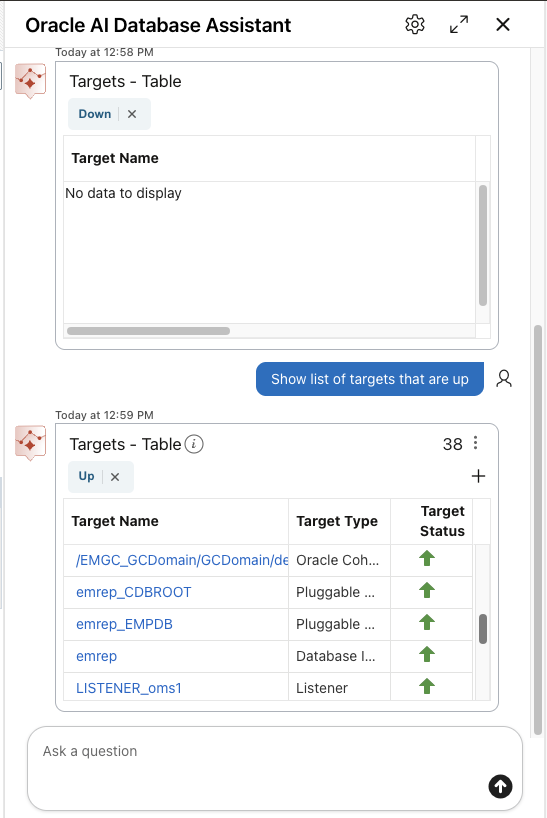
Which is correct
To wrap up…
I now have an Enterprise Manager 24ai lab with Oracle AI Database Assistant configured. I will now be able to test it and to challenge it.
![Thumbnail [60x60]](https://www.dbi-services.com/blog/wp-content/uploads/2022/08/MAW_web-min-scaled.jpg)
![Thumbnail [90x90]](https://www.dbi-services.com/blog/wp-content/uploads/2025/05/JDE_Web-1-scaled.jpg)