I know, I know, PostgreSQL usually feels more at home on Linux. But guess what? PgHero works just fine on Windows too, and I gave it a try myself. If you’re running PostgreSQL in a Docker container, this setup is surprisingly easily, and it gives you a great performance dashboard without touching your base system.
In this post, I’ll show you how I set it up with Docker Compose, including running PgHero itself in a container. The goal: a fully contained stack that’s easy to spin up, monitor, and tear down anytime.
What you need
- Docker Desktop installed on Windows (I recommend using WSL2 for smooth volume mounting).
- A PostgreSQL database running in Docker. We’ll build the stack together if you don’t have one yet. In my case, I decided to install PgHero when I was following one of the NestJs course, and used my existing stack.
- Basic familiarity with Docker Compose and command-line.
Optionally, you can create a folder on your PC to store database files, so your data sticks around even if the container stops. I will use a volume in this blog, to easily edit my PostgreSQL configuration.
Step 1: Your Docker Compose setup
Here’s a minimal Compose file for PostgreSQL, Redis, and PgHero. Save it somewhere on your machine, like C:\docker\pghero-setup\docker-compose.yml:
version: "3"
services:
  db:
    image: postgres
    restart: always
    ports:
      - "5438:5432"
    environment:
      POSTGRES_PASSWORD: pass123
      POSTGRES_USER: postgres
      POSTGRES_DB: postgres
    volumes:
      - "C:/Users/frj/Documents/Training/Nestjs/auth-extension/docker/postgres-data:/var/lib/postgresql/data"

  redis:
    image: redis
    ports:
      - "6379:6379"
    restart: always

  pghero:
    image: ankane/pghero
    depends_on:
      - db
    ports:
      - "8080:8080"
    environment:
      DATABASE_URL: postgres://postgres:pass123@db:5432/postgres
      PGHERO_USERNAME: admin
      PGHERO_PASSWORD: secret
    restart: always
Why this works:
dbis your PostgreSQL service. The bind mount points to a folder on your PC, so your data survives container restarts.- The
commandlines ensure PostgreSQL loadspg_stat_statements, which PgHero uses to track queries. pgheroruns in its own container and exposes port 8080 for the dashboard.depends_on: dbensures PgHero waits for PostgreSQL to start.
Step 2: Monitoring multiple databases
To be able to track more than one database, we create a pghero.yml file instead of using the DATABASE_URL environment variable. Create the file in the same directory as docker-compose.yml:
databases:
  primary:
    url: postgres://postgres:pass123@db:5432/postgres
  analytics:
    url: postgres://postgres:pass123@db:5432/analytics
Then update docker-compose.yml for PgHero:
  pghero:
    image: ankane/pghero
    depends_on:
      - db
    ports:
      - "8080:8080"
    environment:
      PGHERO_USERNAME: admin
      PGHERO_PASSWORD: secret
    volumes:
      - "./pghero.yml:/app/config/pghero.yml:ro"
    restart: always
PgHero will now show a dropdown to switch between databases in the UI.
Step 3: Start everything
In the folder with your docker-compose.yml:
docker-compose down  # stop any previous run
docker-compose up -d
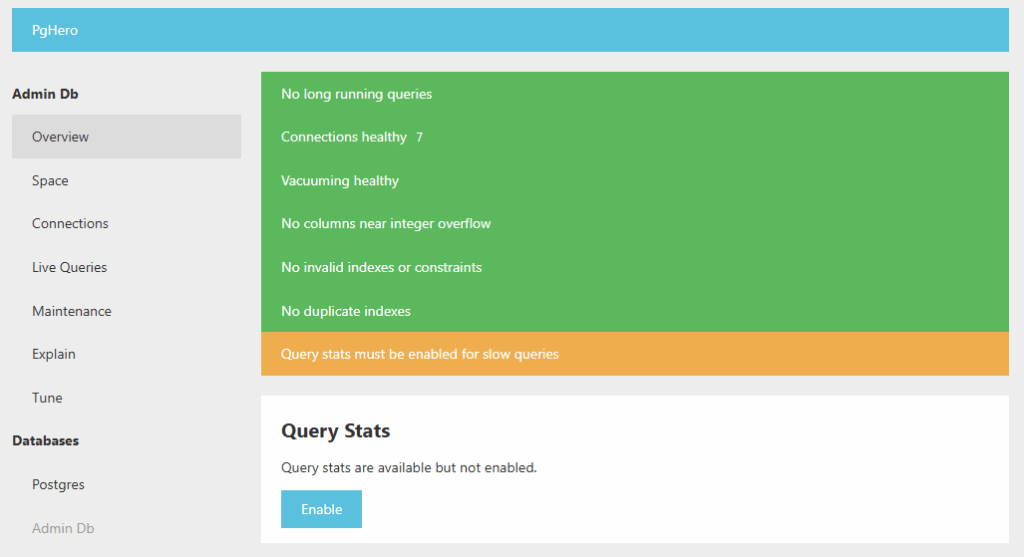
After a few seconds, open your browser at http://localhost:8080. Log in with the username and password you set (admin / secret). You should see the PgHero dashboard connected to your database.
Step 4: Enable query tracking
After starting PostgreSQL, connect to it and enable the pg_stat_statements extension. Inside your container, run:
docker exec -it <db_container> psql -U postgres -d postgres
Then in psql:
CREATE EXTENSION IF NOT EXISTS pg_stat_statements;
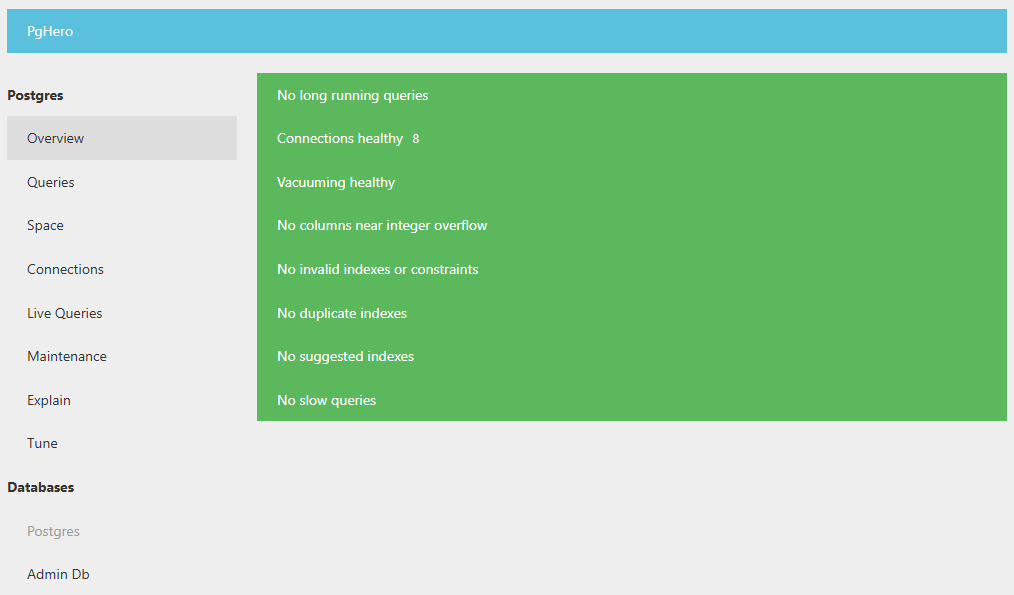
This makes sure PgHero can track queries, see long-running statements, and show useful stats. Note that you have to do it for each database.
Step 5: Windows-specific tips
- Use forward slashes (
C:/path/to/folder) for volume paths in Compose. - Make sure the folder exists before starting PostgreSQL.
- Check your
pg_hba.confif you see connection errors — Docker containers have their own internal IPs, and PostgreSQL needs to allow connections from them.
Step 6: Common troubleshooting
- 500 Internal Server Error / cannot connect: Usually a problem with
pg_hba.conf. Make sure your Docker network is allowed. - No stats showing: Ensure
pg_stat_statementsis loaded and the extension is created. - Dashboard not reachable: Check Docker mapped ports, firewall, and container logs (
docker logs <container-id>).
Conclusion
And that’s it! You now have a Windows-based Docker setup with PostgreSQL and PgHero. You can see your query stats, monitor performance, and even track multiple databases from the same dashboard.
![Thumbnail [60x60]](https://www.dbi-services.com/blog/wp-content/uploads/2022/08/FRJ_web-min-scaled.jpg)
![Thumbnail [90x90]](https://www.dbi-services.com/blog/wp-content/uploads/2025/05/martin_bracher_2048x1536.jpg)
![Thumbnail [90x90]](https://www.dbi-services.com/blog/wp-content/uploads/2022/08/DWE_web-min-scaled.jpg)