Why this blog?
While I was working for a customer, I was tasked to create an Azure infrastructure, using Terraform and Azure DevOps (ADO). I thought about doing it like I usually do with GitLab but it wasn’t possible with ADO as it doesn’t store the state file itself. Instead I have to use an Azure Storage Account. I configured it, blocked public network, and realized that my pipeline couldn’t push the state in the Storage Account
In fact, ADO isn’t supported as a “Trusted Microsoft Service” and so it can’t bypass firewall rules using that option in Storage Accounts. For this to work, I had to create a self-hosted agent that run on Azure VM Scale Set and that will be the topic of this blog.
Azure resources creation
Agent Creation
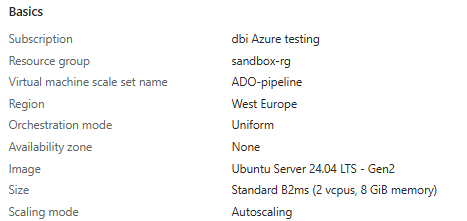
First thing, we create a Azure VM Scale Set. I kept most parameters to their default values but it can be customized. I chose Linux as operating system as it was what I needed. One important thing is to set the “Orchestration mode” to “Uniform”, else ADO pipelines won’t work.
Storage account
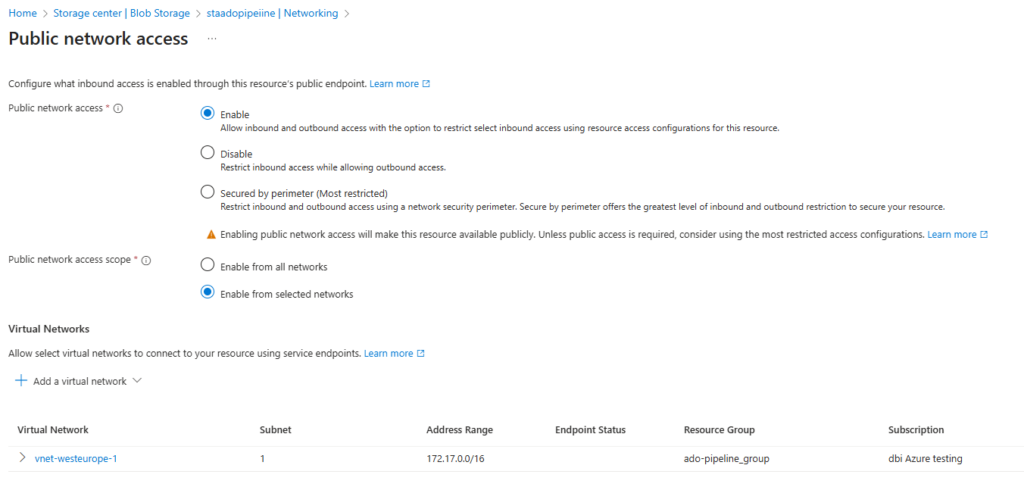
For the storage account that will store our state, any storage account should work. Just note that you also need to create a container inside of it to fill your terraform provider. Also, for network preferences we will go with “Public access” and “Enable from selected networks”. This is will allow public access only from restricted networks. I do this to avoid creating a private endpoint to connect to a fully private storage account.
Entra ID identity for the pipeline
We also need to create an Entra ID Enterprise Application that we will provide to the pipeline. This identity must have Contributor (or any look alike) role over the scope you target. Also, it must have at least Storage Blob Data Contributor on the Storage Account to be able to write in it.
Azure DevOps setup
Terraform code
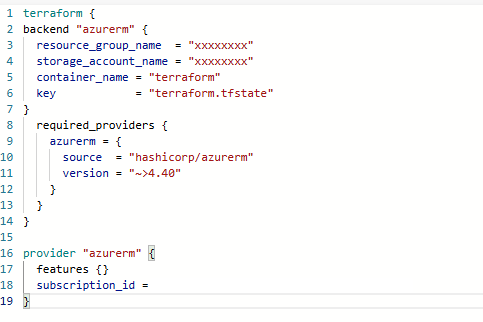
You can use any Terraform code you want, for my example I only use one which creates a Resource Group and a Virtual Network. Just note that your provider should look like this
Pipeline code
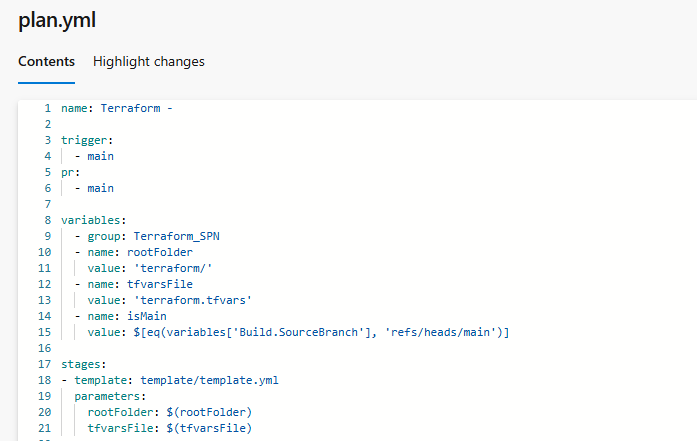
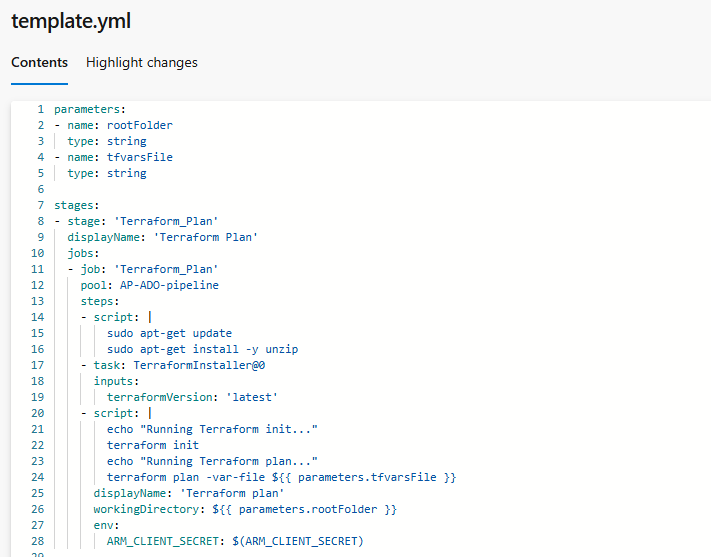
I’m used to split my pipeline in two files, the plan.yml will be given to the ADO pipeline and it will call the template to run its code. The things done in the pipeline are pretty simple. It installs Terraform on the VM Scale Set instance, then run the Terraform commands. The block of code can be reused for the “apply”.
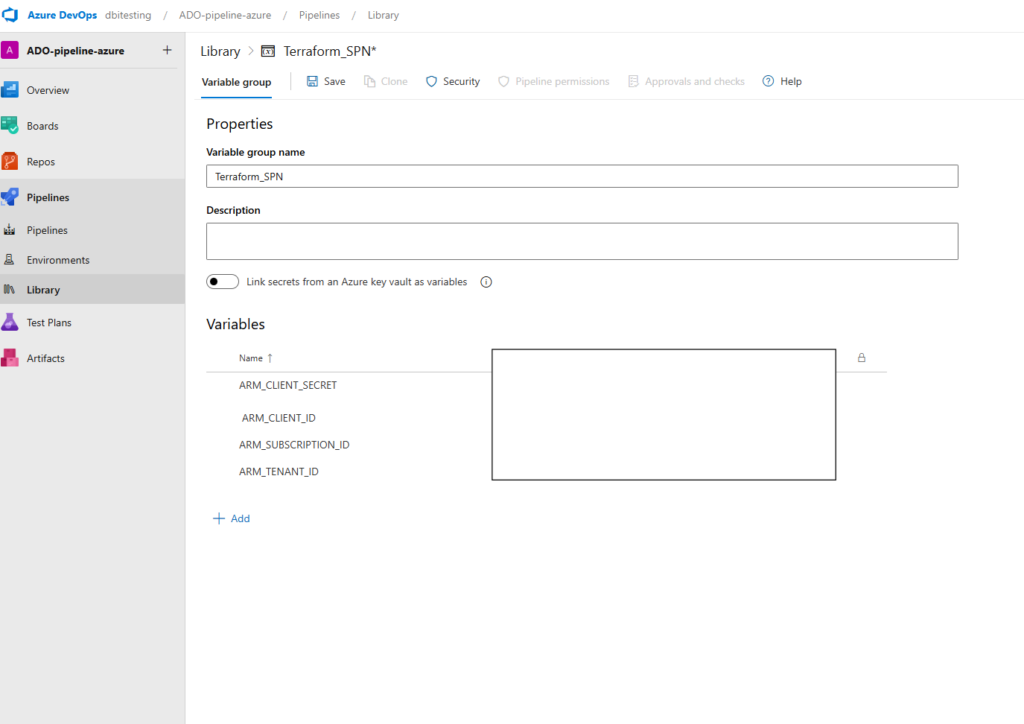
Few things to note, in my plan.yml I set a Variable Group “Terraform_SPN” that I will show you just after. That’s where we will find the information about our previously created Entra Id Enterprise Application
In the template.yml, what is important to note is the pool definition. Here I point just a name, which correspond to ADO Agent Pool that I created. I’ll also show this step a bit further.
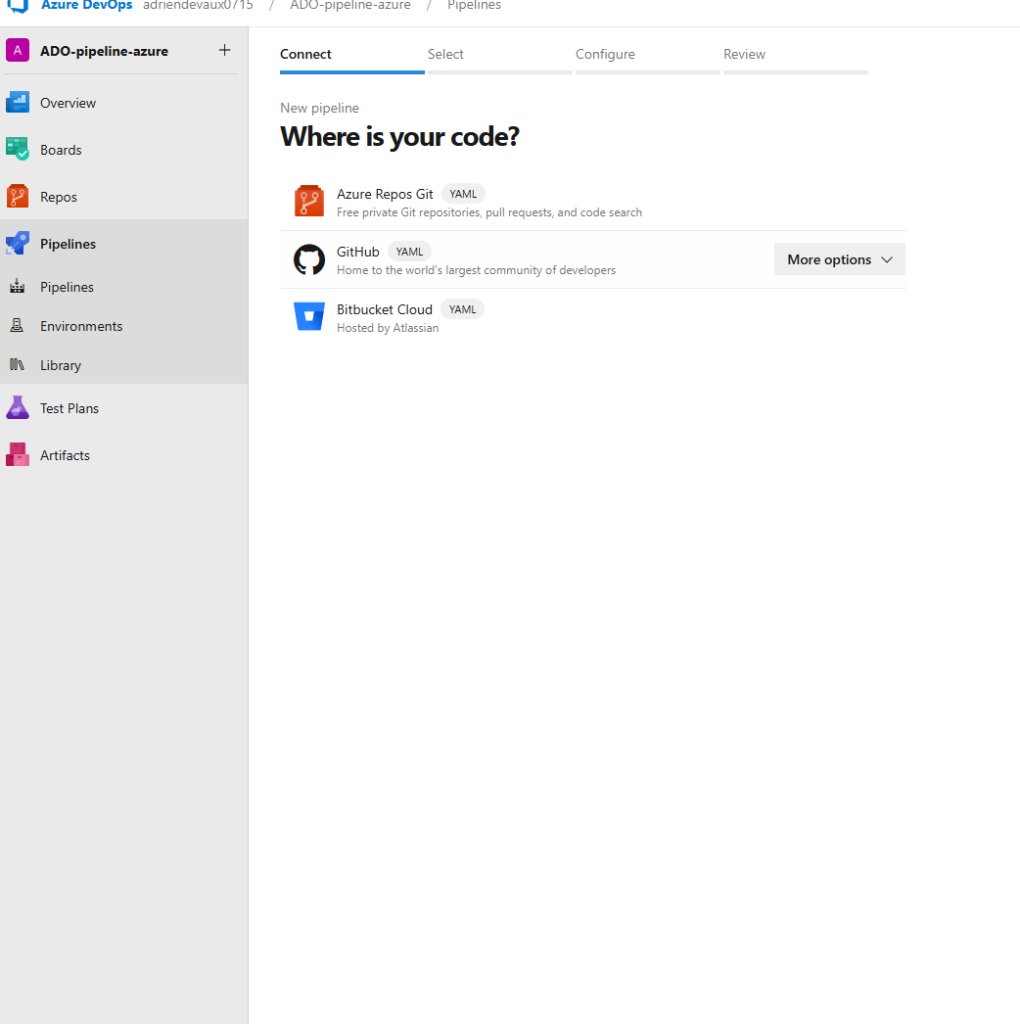
For the pipeline creation itself, we will go to Pipeline -> Create a new pipeline -> Azure Repos Git
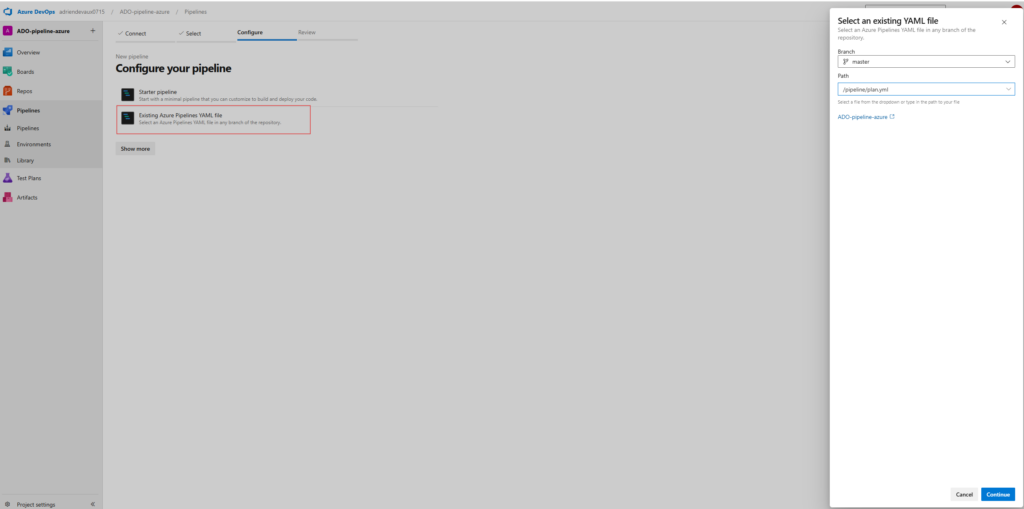
Then Existing Azure Pipelines YAML file, and pick our file from our repo.
We will also create a Variable Group, the name doesn’t matter, just remember to put the same in your YAML code. Here you create 4 variables which are information coming from your tenant and your enterprise application. That’s gonna be used during the pipeline run to deploy your resources.
ADO Agent Pool
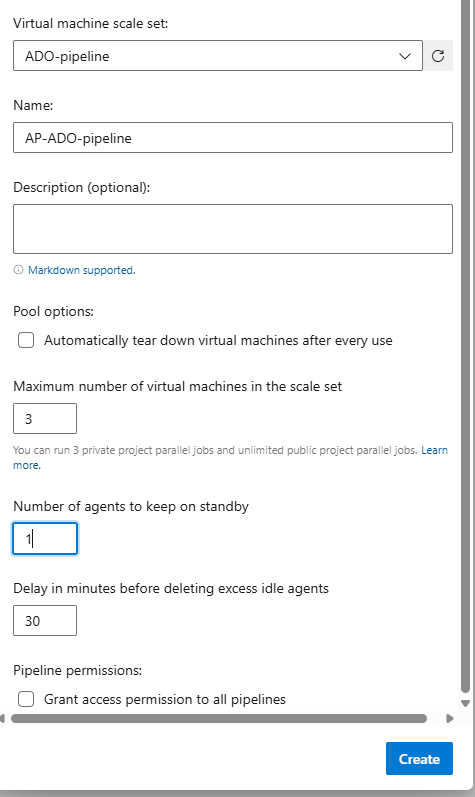
In the Project Settings, look for Agent Pools. Then create a new one and fill it as follow:
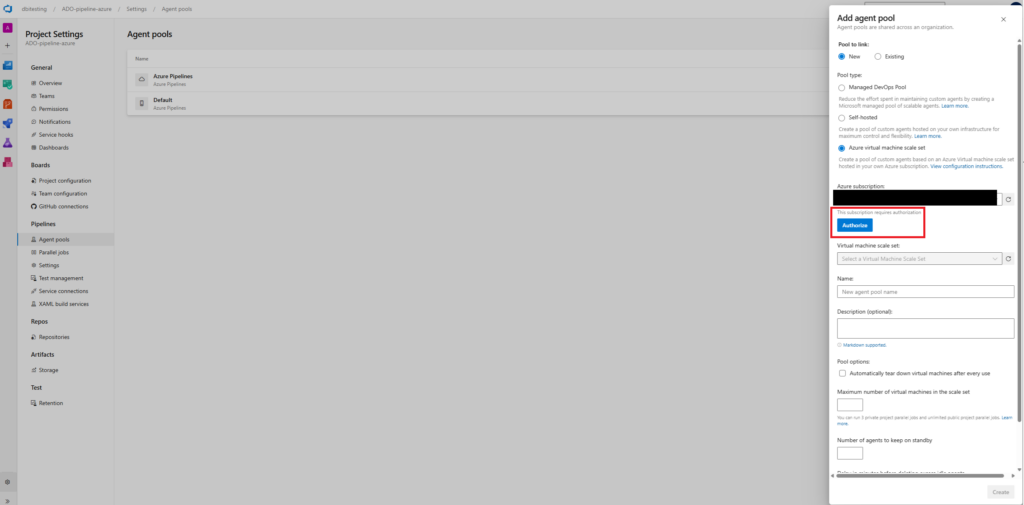
The Authorize button will appear after you select the subscription you want, and to accept this your user must have the Owner role, as it adds rights. This will allow ADO to communicate with Azure by creating a Service Principal. Then you can fill the rest as follow:
ADO pipeline run
When you first run your pipeline you must authorize it to use the Variable Group and the Agent pool.

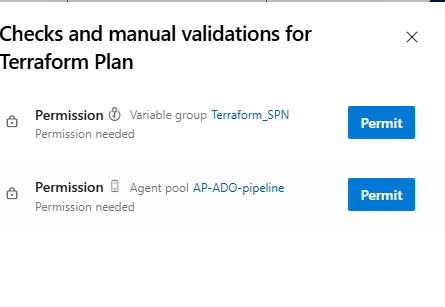
One this is done, everything should go smoothly and end like this.

I hope that this blog was useful and could help you troubleshoot that king of problem between Azure and Azure DevOps.
![Thumbnail [60x60]](https://www.dbi-services.com/blog/wp-content/uploads/2022/08/ADE_WEB-min-scaled.jpg)
![Thumbnail [90x90]](https://www.dbi-services.com/blog/wp-content/uploads/2025/05/JDE_Web-1-scaled.jpg)
![Thumbnail [90x90]](https://www.dbi-services.com/blog/wp-content/uploads/2022/08/NME_web-min-scaled.jpg)
![Thumbnail [90x90]](https://www.dbi-services.com/blog/wp-content/uploads/2022/08/GRE_web-min-scaled.jpg)