I have recently been configuring and testing Oracle AI Database Assistant integrated with Oracle Enterprise Manager 24ai Release 1 Update 10, to interact with the Oracle Management Repository (OMR) using natural language prompts.
It is time now to test the MCP server integrated with OEM 24ai Release 1 Update 12. In this blog, I will show you how I configured a client to connect and interact with OEM MCP server in order to get information from the OMR, and perform first short tests.
Requirements
I need to be at least in OEM 24ai Release 1 Update 12.
[oracle@oem24ai ~]$ $OMS_HOME/bin/emctl getversion oms
Oracle Enterprise Manager 24ai Release 1
Copyright (c) 1996, 2024 Oracle Corporation.  All rights reserved.
       Oracle Enterprise Manager OMS 24ai Release 1

[oracle@oem24ai ~]$ export ORACLE_HOME=$OMS_HOME

[oracle@oem24ai ~]$ $ORACLE_HOME/OPatch/opatch lspatches
39984317;EM Stack Patch Bundle 24.1.0.0.0(ID:260906.1632) (Patch 39984254)
39979941;OPSS Bundle Patch 12.2.1.4.260904
39930279;ADF BUNDLE PATCH 12.2.1.4.260825
39919567;WLS PATCH SET UPDATE 12.2.1.4.260823
39901894;WebCenter Core Bundle Patch 12.2.1.4.260818
39896168;OWSM BUNDLE PATCH 12.2.1.4.260818
39861406;PERL 5.42.2 patch for EM 24.1.0.0.0
39798204;RDA release 26.3-2026915 for OFM 12.2.1.4 SPB
39611663;OHS (NATIVE) DB19C BUNDLE PATCH 12.2.1.4.260624
39574504;FMW Thirdparty Bundle Patch 12.2.1.4.260617
39567777;OSS 19C BUNDLE PATCH 12.2.1.4.260616
39487427;JDBC19.31 BUNDLE PATCH 12.2.1.4.260603
39425385;DB CLIENT 19.31 FOR FMW BUNDLE PATCH 12.2.1.4.260721 (39425385)
38832179;One-off
38098858;One-off
1221432;Coherence Cumulative Patch 12.2.1.4.32
39808046;Oracle Enterprise Manager for Cloud Framework 24ai Release 1 Plug-in Update 13 (24.1.1.13) for Oracle Management Service
39808030;Oracle Enterprise Manager for Systems Infrastructure 24ai Release 1 Plug-in Update 13 (24.1.1.13) for Oracle Management Service
39808017;Oracle Enterprise Manager for Exadata 24ai Release 1 Plug-in Update 13 (24.1.1.13) for Oracle Management Service
39807976;Oracle Enterprise Manager for Oracle Database 24ai Release 1 Plug-in Update 13 (24.1.1.13) for Oracle Management Service
39807963;Oracle Enterprise Manager for Fusion Middleware 24ai Release 1 Plug-in Update 13 (24.1.1.13) for Oracle Management Service
39807951;Oracle Enterprise Manager 24ai Release 1 Platform Update 13 (24.1.0.13) for Oracle Management Service
36789759;FMW PLATFORM BUNDLE PATCH 12.2.1.4.240812
34065178;One-off
30152128;One-off
34809489;One-off
35965629;ADR FOR WEBLOGIC SERVER 12.2.1.4.0 CPU JAN 2024

OPatch succeeded.
[oracle@oem24ai ~]$
This is ok as I patched my OEM before performing further tests, and I’m now running Update 13.
Connectivity tests without any client
TCP connectivity
The address to reach the MCP server from my lab is the following:
https://oem24ai.jew.lab:7803/em/api/mcpBefore going further in configuring any client, I made a local connection test to the MCP server from my Mac using curl command. Option v for verbose and k to disable TLS certificate verification.
The command confirmed the connection is ok (DNS resolution, TCP connectivity). HTTP Error 401 (Unauthorized) is ok as we did not provide any user and password, so OEM rejected the unauthorized request.
maw@dbi-servicess-MacBook-Pro-2 ~ % curl -vk \
> https://oem24ai.jew.lab:7803/em/api/mcp
* Host oem24ai.jew.lab:7803 was resolved.
* IPv6: (none)
* IPv4: 10.0.10.250
*   Trying 10.0.10.250:7803...
* Connected to oem24ai.jew.lab (10.0.10.250) port 7803
* ALPN: curl offers h2,http/1.1
* (304) (OUT), TLS handshake, Client hello (1):
* (304) (IN), TLS handshake, Server hello (2):
* TLSv1.2 (IN), TLS handshake, Certificate (11):
* TLSv1.2 (IN), TLS handshake, Server key exchange (12):
* TLSv1.2 (IN), TLS handshake, Server finished (14):
* TLSv1.2 (OUT), TLS handshake, Client key exchange (16):
* TLSv1.2 (OUT), TLS change cipher, Change cipher spec (1):
* TLSv1.2 (OUT), TLS handshake, Finished (20):
* TLSv1.2 (IN), TLS change cipher, Change cipher spec (1):
* TLSv1.2 (IN), TLS handshake, Finished (20):
* SSL connection using TLSv1.2 / ECDHE-RSA-AES256-GCM-SHA384 / [blank] / UNDEF
* ALPN: server did not agree on a protocol. Uses default.
* Server certificate:
*  subject: CN=oem24ai.iaas.jewlab.oraclevcn.com
*  start date: Oct 13 13:55:47 2026 GMT
*  expire date: Oct 11 13:55:47 2036 GMT
*  issuer: O=EnterpriseManager on oem24ai.iaas.jewlab.oraclevcn.com; OU=EnterpriseManager on oem24ai.iaas.jewlab.oraclevcn.com; L=EnterpriseManager on oem24ai.iaas.jewlab.oraclevcn.com; ST=CA; C=US; CN=oem24ai.iaas.jewlab.oraclevcn.com
*  SSL certificate verify result: self signed certificate in certificate chain (19), continuing anyway.
* using HTTP/1.x
> GET /em/api/mcp HTTP/1.1
> Host: oem24ai.jew.lab:7803
> User-Agent: curl/8.7.1
> Accept: */*
>
* Request completely sent off
< HTTP/1.1 401 Unauthorized
< Date: Mon, 26 Oct 2026 13:07:26 GMT
< Date: Mon, 26 Oct 2026 13:07:26 GMT
< X-ORACLE-DMS-ECID: d5e13a8c-fc9e-4654-8dd2-ecd46f90471c-000004af
< X-ORACLE-DMS-RID: 0
< X-ORCL-EM-APIGW-ERR: 0
< X-ORCL-EM-APIGW-GUID: e525b50c-f555-1c15-b8ca-a13fe481ea20
< X-ORCL-EMOA: true
< X-Content-Type-Options: nosniff
< X-XSS-Protection: 1; mode=block
< X-Frame-Options: SAMEORIGIN
< Content-Length: 0
<
* Connection #0 to host oem24ai.jew.lab left intact
maw@dbi-servicess-MacBook-Pro-2 ~ %
MCP connection
Let’s test MCP connection with user and password using curl command. We will use following options:
- -s for silent execution
- -S to show errors
- -k to skip TLS certificate verification
- -u to provide user/password
- -H to provide the header
- -X to give the HTTP method
- -d to display the data to be sent in the HTTP request body in json format
The MCP method specified in the JSON request body is initialize. We use this method to establish an initial connection with the MCP server and negotiate protocol capabilities.
First securely read the password into a shell variable.
[oracle@oem24ai ~]$ read -rs -p "OEM password: " OEM_PASS
OEM password: [oracle@oem24ai ~]$
Then run the curl command to test the MCP connection.
[oracle@oem24ai ~]$ curl -sS -k -u "sysman:${OEM_PASS}" \
  -H "Content-Type: application/json" \
  -H "Accept: application/json, text/event-stream" \
  -X POST "https://oem24ai.jew.lab:7803/em/api/mcp" \
  -d '{
    "jsonrpc": "2.0",
    "id": 1,
    "method": "initialize",
    "params": {
      "protocolVersion": "2025-06-18",
      "capabilities": {},
      "clientInfo": {
        "name": "oem-mcp-test",
        "version": "1.0"
      }
    }
  }'
{"id":1,"jsonrpc":"2.0","result":{"protocolVersion":"2025-06-18","serverInfo":{"version":"1.0.0","name":"em-mcp-server","title":"Enterprise Manager MCP Server"},"capabilities":{"prompts":{"listChanged":false},"resources":{"listChanged":false,"subscribe":false},"tools":{"listChanged":false}},"instructions":"This is an MCP server to interface with Enterprise Manager (EM) Unless otherwise specified, assume that databases and database targets refers to the following target types: oracle_database, oracle_pdb, rac_database, oracle_cloud_atp, oracle_cloud_adw."}}[oracle@oem24ai ~]$
As we can see in the result, the connection to the MCP server was successful.
Query MCP tool lists
Let’s retrieve the lists of available tools exposed by the MCP server. This time, we will use the MCP method tools/list.
[oracle@oem24ai ~]$ curl -sS -k -u "sysman:$OEM_PASS" \
  -H "Content-Type: application/json" \
  -H "Accept: application/json, text/event-stream" \
  -H "MCP-Protocol-Version: 2025-06-18" \
  -X POST "https://oem24ai.jew.lab:7803/em/api/mcp" \
  -d '{
    "jsonrpc": "2.0",
    "id": 2,
    "method": "tools/list",
    "params": {}
  }'
{"id":2,"jsonrpc":"2.0","result":{"tools":[{"name":"ExecuteSql","title":"Execute SQL","description":"Execute SQL through the Free Query API. By default the query runs against the Enterprise Manager repository; include targetConnection to run against a target database. Use bind parameters instead of direct text substitution when applicable. The response contains query results, response time, and available result metadata.","inputSchema":{"properties":{"isSqlMonitorEnabled":{"description":"optional flag to enable SQL monitoring. Defaults to false","type":"boolean"},"excludeNullValues":{"description":"optional flag to omit null-valued properties from repository query results. Defaults to false","type":"boolean"},"resourcePlan":{"description":"optional resource plan action information for query tracking. Target database queries require action because it cannot be inferred from a query name","type":"object","properties":{"action":{"type":"string","description":"optional repository query action and required target database query action"}}},"query":{"description":"the sql query to execute","type":"string"},"bindType":{"description":"optional bind parameter mode. Defaults to INDEX. Use NAME when parameters are bound by alias","type":"string","enum":["INDEX","NAME"]},"transforms":{"description":"optional response transforms currently used for localized target type columns","type":"array","items":{"type":"object","properties":{"type":{"type":"string","description":"transform type"},"columnName":{"type":"string","description":"source column name"},"localizedColumnName":{"type":"string","description":"localized output column name"}}}},"limit":{"description":"optional positive integer row limit. Va
...
As we can see in the result we see the list of all available tools exposed by the MCP server, the first one been ExecuteSql.
This confirm our connection and use of the MCP server is ok.
Configure the MCP client
As MCP client I will use my Visual Studio Code installed on my Mac. To use it with the MCP server, I will install and use the Codex extension from OpenAI. I will sign in with my ChatGPT account.
OpenAI Codex is an AI-powered coding agent developed by OpenAI. It helps developers write, understand, debug, test, and modify code, often working directly with an existing software project.
Configure Codex extension
I will configure Codex with sysman password converted into a Base64-encoded string. For this I will use the base64 linux command:
maw@dbi-servicess-MacBook-Pro-2 ~ % printf '%s' 'sysman:XXXXXXX' | base64 | tr -d '\n'
c3lzbXXXXXXXXXXXXXXyMDI2%                                                                                                                                            maw@dbi-servicess-MacBook-Pro-2 ~ %
And I will configure Codex extension, see next 2 pictures. I provided OEM-MCP-native as MCP server name.
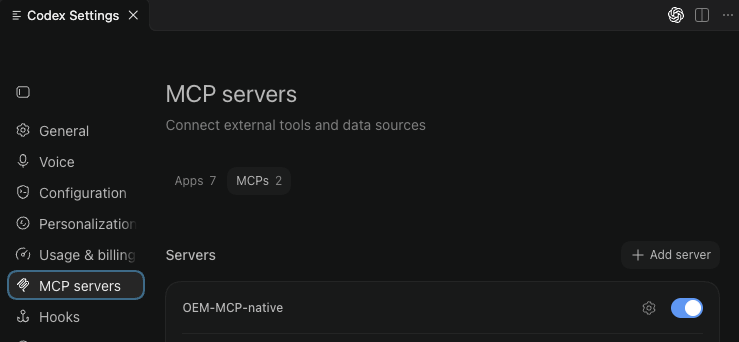
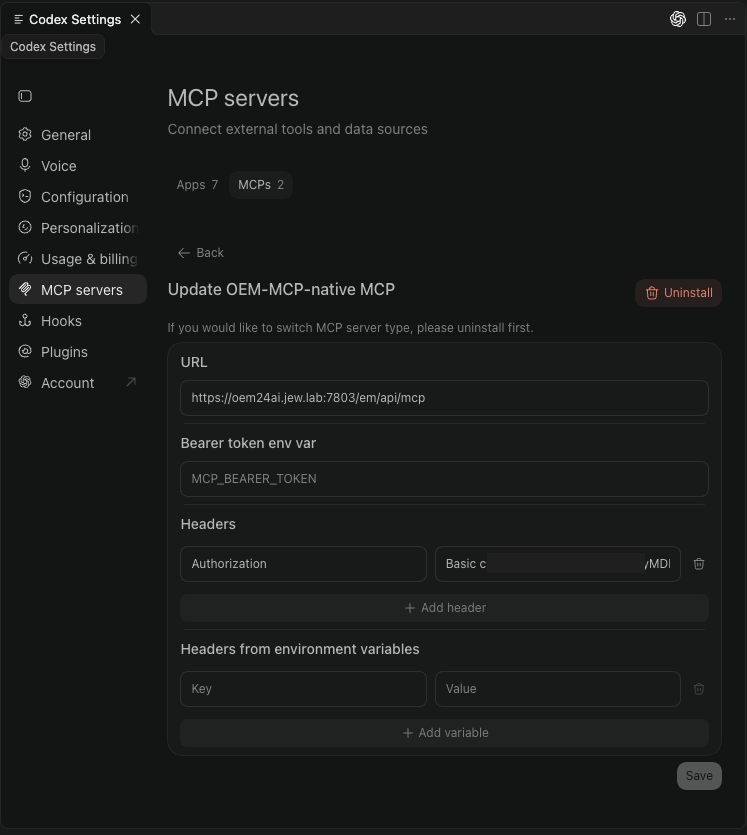
This configuration will be stored in the config.toml file from the .codex directory.
The connection was not working. Asking for the list of tools exposed by the MCP server was just provided an output that no tool was existing. I could find the following in the codex output terminal:
026-10-26 15:03:53.265 [warning] Failed to discover app tools authStatus=bearerToken error="MCP startup failed: handshaking with MCP server failed: Send message error Transport [codex_rmcp_client::tool_list_changes::ToolListChanges<codex_rmcp_client::event_notification_transport::EventNotificationTransport<rmcp::transport::worker::WorkerTransport<rmcp::transport::streamable_http_client::StreamableHttpClientWorker<codex_rmcp_client::http_client_adapter::StreamableHttpClientAdapter>>>>] error: Client error: HTTP request failed: http/request failed: error sending request for url (https://oem24ai.jew.lab:7803/em/api/mcp), when send initialize request: Send message error Transport [codex_rmcp_client::tool_list_changes::ToolListChanges<codex_rmcp_client::event_notification_transport::EventNotificationTransport<rmcp::transport::worker::WorkerTransport<rmcp::transport::streamable_http_client::StreamableHttpClientWorker<codex_rmcp_client::http_client_adapter::StreamableHttpClientAdapter>>>>] error: Client error: HTTP request failed: http/request failed: error sending request for url (https://oem24ai.jew.lab:7803/em/api/mcp), when send initialize request" hostId=local pluginId=null server=OEM-MCP-nativeI made some further check with curl command omitting -k option:
maw@dbi-servicess-MacBook-Pro-2 .codex % curl -v \
  https://oem24ai.jew.lab:7803/em/api/mcp
* Host oem24ai.jew.lab:7803 was resolved.
* IPv6: (none)
* IPv4: 10.0.10.250
*   Trying 10.0.10.250:7803...
* Connected to oem24ai.jew.lab (10.0.10.250) port 7803
* ALPN: curl offers h2,http/1.1
* (304) (OUT), TLS handshake, Client hello (1):
*  CAfile: /etc/ssl/cert.pem
*  CApath: none
* (304) (IN), TLS handshake, Server hello (2):
* TLSv1.2 (IN), TLS handshake, Certificate (11):
* TLSv1.2 (OUT), TLS alert, unknown CA (560):
* SSL certificate problem: self signed certificate in certificate chain
* Closing connection
* TLSv1.2 (IN), TLS handshake, Certificate (11):
* TLSv1.2 (OUT), TLS alert, unknown CA (560):
curl: (60) SSL certificate problem: self signed certificate in certificate chain
More details here: https://curl.se/docs/sslcerts.html

curl failed to verify the legitimacy of the server and therefore could not
establish a secure connection to it. To learn more about this situation and
how to fix it, please visit the web page mentioned above.
maw@dbi-servicess-MacBook-Pro-2 .codex %
And I could confirm that the problem comes from missing TLS certificate.
I ran following command to see what certificate was sent by the MCP server and understand why certificate verification failed.
[oracle@oem24ai ~]$ openssl s_client \
  -connect oem24ai.jew.lab:7803 \
  -servername oem24ai.jew.lab \
  -showcerts &1 |
grep -E 'subject=|issuer=|verify error|Verify return code'
verify error:num=19:self-signed certificate in certificate chain
subject=CN=oem24ai.iaas.jewlab.oraclevcn.com
issuer=O=EnterpriseManager on oem24ai.iaas.jewlab.oraclevcn.com, OU=EnterpriseManager on oem24ai.iaas.jewlab.oraclevcn.com, L=EnterpriseManager on oem24ai.iaas.jewlab.oraclevcn.com, ST=CA, C=US, CN=oem24ai.iaas.jewlab.oraclevcn.com
    Verify return code: 19 (self-signed certificate in certificate chain)
The return code: 19 confirm that the certificate could not be considered as trusted.
The second command will display the DNS name available in the certificate, here we do not have any:
[oracle@oem24ai ~]$ openssl s_client \
  -connect oem24ai.jew.lab:7803 \
  -servername oem24ai.jew.lab 2>/dev/null |
openssl x509 -noout -ext subjectAltName
No extensions in certificate
Also we can see that the domain name registered in the MCP Server certificate is not the same that the one we use to connect: . jew.lab versus jewlab.oraclevcn.com. We will have to provide both names in the new certificate we will create.
Configure a new trusted certificate and implement it into OEM
To help with this following oracle documentation is useful:
See parts: “Configuring Third Party Certificates”, then “Configuring a Third Party Certificate for HTTPS Console Users”.
Generate the private Certificate Authority (CA)
Let’s create the private key to be used to sign certificates (CA private key):
maw@dbi-servicess-MacBook-Pro-2 oem-pki % pwd
/Users/maw/Documents/Dokument/pem_ssh_key/OEM-Lab/oem-pki

maw@dbi-servicess-MacBook-Pro-2 oem-pki % openssl genrsa -out oem-root-ca.key 4096
Generating RSA private key, 4096 bit long modulus
.......++++
.............................................................................................................................................................................++++
e is 65537 (0x10001)

maw@dbi-servicess-MacBook-Pro-2 oem-pki % ls -ltrh
total 8
-rw-r--r--@ 1 maw  DBI-SERVICES\Domain Users   3.2K Oct 29 11:01 oem-root-ca.key
maw@dbi-servicess-MacBook-Pro-2 oem-pki %
I generated the CA certificate:
maw@dbi-servicess-MacBook-Pro-2 oem-pki % pwd
/Users/maw/Documents/Dokument/pem_ssh_key/OEM-Lab/oem-pki

maw@dbi-servicess-MacBook-Pro-2 oem-pki % ls -ltrh
total 8
-rw-r--r--@ 1 maw  DBI-SERVICES\Domain Users   3.2K Oct 29 11:01 oem-root-ca.key

maw@dbi-servicess-MacBook-Pro-2 oem-pki % openssl req -new -x509 -sha256 \
  -days 3650 \
  -key oem-root-ca.key \
  -out oem-root-ca.crt \
  -subj "/CN=OEM Lab Root CA" \
  -addext "basicConstraints=critical,CA:TRUE" \
  -addext "keyUsage=critical,keyCertSign,cRLSign"

maw@dbi-servicess-MacBook-Pro-2 oem-pki % ls -ltrh
total 16
-rw-r--r--@ 1 maw  DBI-SERVICES\Domain Users   3.2K Oct 29 11:01 oem-root-ca.key
-rw-r--r--@ 1 maw  DBI-SERVICES\Domain Users   1.7K Oct 29 11:08 oem-root-ca.crt
maw@dbi-servicess-MacBook-Pro-2 oem-pki %
I checked the certificate:
maw@dbi-servicess-MacBook-Pro-2 oem-pki % openssl x509 -in oem-root-ca.crt \
  -noout -subject -issuer -dates
subject= /CN=OEM Lab Root CA
issuer= /CN=OEM Lab Root CA
notBefore=Oct 29 10:08:18 2026 GMT
notAfter=Oct 26 10:08:18 2036 GMT
I checked the basic constraints extension:
maw@dbi-servicess-MacBook-Pro-2 oem-pki % openssl x509 -in oem-root-ca.crt -noout -text | \
  grep -A 3 "Basic Constraints"
            X509v3 Basic Constraints: critical
                CA:TRUE
            X509v3 Key Usage: critical
                Certificate Sign, CRL Sign
maw@dbi-servicess-MacBook-Pro-2 oem-pki %
All good, the certificate is marked as a Certificate Authority.
I verified the Root CA is self-signed:
maw@dbi-servicess-MacBook-Pro-2 oem-pki % openssl verify -CAfile oem-root-ca.crt oem-root-ca.crt
oem-root-ca.crt: OK
maw@dbi-servicess-MacBook-Pro-2 oem-pki %
Generate the OMS server certificate with both DNS names
I generated the OMS private key and CSR:
maw@dbi-servicess-MacBook-Pro-2 oem-pki % pwd
/Users/maw/Documents/Dokument/pem_ssh_key/OEM-Lab/oem-pki

maw@dbi-servicess-MacBook-Pro-2 oem-pki % ls -ltrh
total 16
-rw-r--r--@ 1 maw  DBI-SERVICES\Domain Users   3.2K Oct 29 11:01 oem-root-ca.key
-rw-r--r--@ 1 maw  DBI-SERVICES\Domain Users   1.7K Oct 29 11:08 oem-root-ca.crt

maw@dbi-servicess-MacBook-Pro-2 oem-pki % openssl req -new -newkey rsa:3072 -nodes \
  -keyout oem24ai.key \
  -out oem24ai.csr \
  -subj "/CN=oem24ai.iaas.jewlab.oraclevcn.com" \
  -addext "subjectAltName=DNS:oem24ai.iaas.jewlab.oraclevcn.com,DNS:oem24ai.jew.lab"
Generating a 3072 bit RSA private key
.....................++++
........................++++
writing new private key to 'oem24ai.key'
-----

maw@dbi-servicess-MacBook-Pro-2 oem-pki % ls -ltrh
total 32
-rw-r--r--@ 1 maw  DBI-SERVICES\Domain Users   3.2K Oct 29 11:01 oem-root-ca.key
-rw-r--r--@ 1 maw  DBI-SERVICES\Domain Users   1.7K Oct 29 11:08 oem-root-ca.crt
-rw-r--r--@ 1 maw  DBI-SERVICES\Domain Users   2.4K Oct 29 11:16 oem24ai.key
-rw-r--r--@ 1 maw  DBI-SERVICES\Domain Users   1.3K Oct 29 11:16 oem24ai.csr
maw@dbi-servicess-MacBook-Pro-2 oem-pki %
We have now oem24ai.key which is OMS server private key, oem24ai.csr which is certificate signing request.
I created the certificate extensions (we need to ensure the signed certificate contains the correct SAN entries):
maw@dbi-servicess-MacBook-Pro-2 oem-pki % cat > oem24ai.ext <<'EOF'
basicConstraints=critical,CA:FALSE
keyUsage=critical,digitalSignature,keyEncipherment
extendedKeyUsage=serverAuth
subjectAltName=DNS:oem24ai.iaas.jewlab.oraclevcn.com,DNS:oem24ai.jew.lab
subjectKeyIdentifier=hash
authorityKeyIdentifier=keyid,issuer
EOF

maw@dbi-servicess-MacBook-Pro-2 oem-pki % ls -ltrh
total 40
-rw-r--r--@ 1 maw  DBI-SERVICES\Domain Users   3.2K Oct 29 11:01 oem-root-ca.key
-rw-r--r--@ 1 maw  DBI-SERVICES\Domain Users   1.7K Oct 29 11:08 oem-root-ca.crt
-rw-r--r--@ 1 maw  DBI-SERVICES\Domain Users   2.4K Oct 29 11:16 oem24ai.key
-rw-r--r--@ 1 maw  DBI-SERVICES\Domain Users   1.3K Oct 29 11:16 oem24ai.csr
-rw-r--r--@ 1 maw  DBI-SERVICES\Domain Users   249B Oct 29 11:18 oem24ai.ext
maw@dbi-servicess-MacBook-Pro-2 oem-pki %
I signed the certificate with my private CA:
maw@dbi-servicess-MacBook-Pro-2 oem-pki % openssl x509 -req \
  -in oem24ai.csr \
  -CA oem-root-ca.crt \
  -CAkey oem-root-ca.key \
  -CAcreateserial \
  -out oem24ai.crt \
  -days 825 \
  -sha256 \
  -extfile oem24ai.ext
Signature ok
subject=/CN=oem24ai.iaas.jewlab.oraclevcn.com
Getting CA Private Key

maw@dbi-servicess-MacBook-Pro-2 oem-pki % ls -ltrh
total 56
-rw-r--r--@ 1 maw  DBI-SERVICES\Domain Users   3.2K Oct 29 11:01 oem-root-ca.key
-rw-r--r--@ 1 maw  DBI-SERVICES\Domain Users   1.7K Oct 29 11:08 oem-root-ca.crt
-rw-r--r--@ 1 maw  DBI-SERVICES\Domain Users   2.4K Oct 29 11:16 oem24ai.key
-rw-r--r--@ 1 maw  DBI-SERVICES\Domain Users   1.3K Oct 29 11:16 oem24ai.csr
-rw-r--r--@ 1 maw  DBI-SERVICES\Domain Users   249B Oct 29 11:18 oem24ai.ext
-rw-r--r--@ 1 maw  DBI-SERVICES\Domain Users    17B Oct 29 11:19 oem-root-ca.srl
-rw-r--r--@ 1 maw  DBI-SERVICES\Domain Users   1.8K Oct 29 11:19 oem24ai.crt
maw@dbi-servicess-MacBook-Pro-2 oem-pki %
oem24ai.crt is now created and signed by my private CA.
oem-root-ca.key must never be copied and must stay locally on my Mac.
I checked the certificate subject, issuer, validity and SAN:
maw@dbi-servicess-MacBook-Pro-2 oem-pki % openssl x509 -in oem24ai.crt -noout -subject -issuer -dates
subject= /CN=oem24ai.iaas.jewlab.oraclevcn.com
issuer= /CN=OEM Lab Root CA
notBefore=Oct 29 10:19:27 2026 GMT
notAfter=Jan 31 10:19:27 2029 GMT
maw@dbi-servicess-MacBook-Pro-2 oem-pki % openssl x509 -in oem24ai.crt -noout -text | \
grep -A 1 "Subject Alternative Name"
            X509v3 Subject Alternative Name:
                DNS:oem24ai.iaas.jewlab.oraclevcn.com, DNS:oem24ai.jew.lab
maw@dbi-servicess-MacBook-Pro-2 oem-pki %
I can see that both my DNS names are now existing.
I verified the certificate chain:
maw@dbi-servicess-MacBook-Pro-2 oem-pki % openssl verify -CAfile oem-root-ca.crt oem24ai.crt
oem24ai.crt: OK
maw@dbi-servicess-MacBook-Pro-2 oem-pki %
I also verified if the certificate is suitable for HTTPS:
maw@dbi-servicess-MacBook-Pro-2 oem-pki % openssl x509 -in oem24ai.crt -noout -text | \
grep -A 2 -E "Basic Constraints:|Key Usage:"
            X509v3 Basic Constraints: critical
                CA:FALSE
            X509v3 Key Usage: critical
                Digital Signature, Key Encipherment
            X509v3 Extended Key Usage:
                TLS Web Server Authentication
            X509v3 Subject Alternative Name:
maw@dbi-servicess-MacBook-Pro-2 oem-pki %
Create the Oracle Wallet for OEM 24ai
I have created all needed certificates for my OEM HTTPS console access. Following are available.
| File | Purpose |
| oem-root-ca.crt | Private CA certificate |
| oem24ai.crt | Signed OMS server certificate |
| oem24ai.key | OMS server private key |
I transferred the needed certificate files to the OMS server:
maw@dbi-servicess-MacBook-Pro-2 oem-pki % scp -i /Users/maw/Documents/Dokument/pem_ssh_key/OEM-lab/OEM-lab.key oem-root-ca.crt oem24ai.crt oem24ai.key [email protected]:/home/oracle/
oem-root-ca.crt                                                                                                                                                                                                                                                           100% 1744   121.2KB/s   00:00
oem24ai.crt                                                                                                                                                                                                                                                               100% 1822   127.0KB/s   00:00
oem24ai.key                                                                                                                                                                                                                                                               100% 2488   156.6KB/s   00:00
maw@dbi-servicess-MacBook-Pro-2 oem-pki %
I created the needed directory for certificate and moved the files:
oracle@oem24ai:/u01/app/oracle/oms24ai/ [rdbms19320] pwd
/u01/app/oracle/oms24ai

oracle@oem24ai:/u01/app/oracle/oms24ai/ [rdbms19320] mkdir -p oem-ssl/wallet

oracle@oem24ai:/u01/app/oracle/oms24ai/ [rdbms19320] chmod -R 700 oem-ssl

oracle@oem24ai:/u01/app/oracle/oms24ai/ [rdbms19320] mv ~/oem-root-ca.crt ~/oem24ai.crt ~/oem24ai.key oem-ssl/

oracle@oem24ai:/u01/app/oracle/oms24ai/ [rdbms19320] ls -ltrh oem-ssl
total 12K
-rw-r--r--. 1 oracle oinstall 1.8K Oct 29 10:33 oem-root-ca.crt
-rw-r--r--. 1 oracle oinstall 1.8K Oct 29 10:33 oem24ai.crt
-rw-r--r--. 1 oracle oinstall 2.5K Oct 29 10:33 oem24ai.key
drwx------. 2 oracle oinstall    6 Oct 29 10:39 wallet

oracle@oem24ai:/u01/app/oracle/oms24ai/ [rdbms19320] chmod 600 oem-ssl/oem24ai.key
oracle@oem24ai:/u01/app/oracle/oms24ai/ [rdbms19320]
I created the Oracle Wallet:
oracle@oem24ai:/u01/app/oracle/oms24ai/ [rdbms19320] export WALLET_DIR=/u01/app/oracle/oms24ai/oem-ssl/wallet

oracle@oem24ai:/u01/app/oracle/oms24ai/ [rdbms19320] $OMS_HOME/bin/orapki wallet create \
  -wallet "$WALLET_DIR" \
  -auto_login
Oracle PKI Tool Release 19.0.0.0.0 - Production
Version 19.32.0.0.0
Copyright (c) 2004, 2026, Oracle and/or its affiliates. All rights reserved.

Enter password:
Enter password again:
Operation is successfully completed.
oracle@oem24ai:/u01/app/oracle/oms24ai/ [rdbms19320]
I checked the created wallet files:
oracle@oem24ai:/u01/app/oracle/oms24ai/ [rdbms19320] ls -ltrh "$WALLET_DIR"
total 8.0K
-rw-------. 1 oracle oinstall   0 Oct 29 10:46 ewallet.p12.lck
-rw-------. 1 oracle oinstall 235 Oct 29 10:46 ewallet.p12
-rw-------. 1 oracle oinstall   0 Oct 29 10:46 cwallet.sso.lck
-rw-------. 1 oracle oinstall 280 Oct 29 10:46 cwallet.sso
oracle@oem24ai:/u01/app/oracle/oms24ai/ [rdbms19320]
I checked the private key format, should be private key:
oracle@oem24ai:/u01/app/oracle/oms24ai/ [rdbms19320] head -n 1 /u01/app/oracle/oms24ai/oem-ssl/oem24ai.key
-----BEGIN PRIVATE KEY-----
oracle@oem24ai:/u01/app/oracle/oms24ai/ [rdbms19320]
The private key format should be compatible with storing it into Oracle Wallet.
We can check that certificate and private keys match:
oracle@oem24ai:/u01/app/oracle/oms24ai/ [rdbms19320] openssl x509 -in /u01/app/oracle/oms24ai/oem-ssl/oem24ai.crt \
  -pubkey -noout | openssl dgst -sha256
SHA2-256(stdin)= 5a80b1977405XXXXf5b0cc39ab1ea

oracle@oem24ai:/u01/app/oracle/oms24ai/ [rdbms19320] openssl pkey -in /u01/app/oracle/oms24ai/oem-ssl/oem24ai.key \
  -pubout | openssl dgst -sha256
SHA2-256(stdin)= 5a80b1977405XXXXf5b0cc39ab1ea
oracle@oem24ai:/u01/app/oracle/oms24ai/ [rdbms19320]
Both SHA-256 digests match.
Now I will import the signed OMS certificate and private key into the wallet. I will first setup variable for the directories and check wallet files:
oracle@oem24ai:/u01/app/oracle/oms24ai/ [rdbms19320] echo $WALLET_DIR
/u01/app/oracle/oms24ai/oem-ssl/wallet

oracle@oem24ai:/u01/app/oracle/oms24ai/ [rdbms19320] export CERT_DIR=/u01/app/oracle/oms24ai/oem-ssl

oracle@oem24ai:/u01/app/oracle/oms24ai/ [rdbms19320] echo $CERT_DIR
/u01/app/oracle/oms24ai/oem-ssl

oracle@oem24ai:/u01/app/oracle/oms24ai/ [rdbms19320] ls -l "$WALLET_DIR"/ewallet.p12 "$WALLET_DIR"/cwallet.sso
-rw-------. 1 oracle oinstall 280 Oct 29 10:46 /u01/app/oracle/oms24ai/oem-ssl/wallet/cwallet.sso
-rw-------. 1 oracle oinstall 235 Oct 29 10:46 /u01/app/oracle/oms24ai/oem-ssl/wallet/ewallet.p12
oracle@oem24ai:/u01/app/oracle/oms24ai/ [rdbms19320]
I will secure wallet password into a variable:
oracle@oem24ai:/u01/app/oracle/oms24ai/ [rdbms19320] read -rs -p "Wallet password: " WALLET_PWD
Wallet password: oracle@oem24ai:/u01/app/oracle/oms24ai/ [rdbms19320]
And import the key into the wallet:
oracle@oem24ai:/u01/app/oracle/oms24ai/ [rdbms19320] $OMS_HOME/bin/orapki wallet import_private_key \
  -wallet "$WALLET_DIR" \
  -pwd "$WALLET_PWD" \
  -alias oem24ai \
  -pvtkeyfile "$CERT_DIR/oem24ai.key" \
  -cert "$CERT_DIR/oem24ai.crt" \
  -cacert "$CERT_DIR/oem-root-ca.crt"
Oracle PKI Tool Release 19.0.0.0.0 - Production
Version 19.32.0.0.0
Copyright (c) 2004, 2026, Oracle and/or its affiliates. All rights reserved.

Enter private key password:
PKI-07014: Unable to import private key. Header not present in private key
It seems the format of the key is not compatible. openSSL created a PKCS#8 PEM format key, let’s convert it to RSA PEM format:
oracle@oem24ai:/u01/app/oracle/oms24ai/ [rdbms19320] cp $CERT_DIR/oem24ai.key $CERT_DIR/oem24ai.key.bak.20261029_1202

oracle@oem24ai:/u01/app/oracle/oms24ai/ [rdbms19320] ssh-keygen -p -m PEM -f $CERT_DIR/oem24ai.key
Enter new passphrase (empty for no passphrase):
Enter same passphrase again:
Your identification has been saved with the new passphrase.

oracle@oem24ai:/u01/app/oracle/oms24ai/ [rdbms19320] head -n 1 "/u01/app/oracle/oms24ai/oem-ssl/oem24ai.key"
-----BEGIN RSA PRIVATE KEY-----
oracle@oem24ai:/u01/app/oracle/oms24ai/ [rdbms19320]
Now I have a RSA key format.
Let’s retry the import of the key into the wallet:
oracle@oem24ai:/u01/app/oracle/oms24ai/ [rdbms19320] $OMS_HOME/bin/orapki wallet import_private_key \
  -wallet "$WALLET_DIR" \
  -pwd "$WALLET_PWD" \
  -alias oem24ai \
  -pvtkeyfile "$CERT_DIR/oem24ai.key" \
  -cert "$CERT_DIR/oem24ai.crt" \
  -cacert "$CERT_DIR/oem-root-ca.crt"
Oracle PKI Tool Release 19.0.0.0.0 - Production
Version 19.32.0.0.0
Copyright (c) 2004, 2026, Oracle and/or its affiliates. All rights reserved.

Enter private key password:
PKI-07014: Unable to import private key. Header not present in private key
oracle@oem24ai:/u01/app/oracle/oms24ai/ [rdbms19320]
Still not ok. Let’s try converting it into a new p12 format key.
oracle@oem24ai:/u01/app/oracle/oms24ai/ [rdbms19320] openssl pkcs12 -export \
  -inkey "$CERT_DIR/oem24ai.key" \
  -in "$CERT_DIR/oem24ai.crt" \
  -certfile "$CERT_DIR/oem-root-ca.crt" \
  -name oem24ai \
  -out "$CERT_DIR/oem24ai.p12"
Enter Export Password:
Verifying - Enter Export Password:

oracle@oem24ai:/u01/app/oracle/oms24ai/ [rdbms19320] ls -ltrh $CERT_DIR
total 24K
-rw-r--r--. 1 oracle oinstall 1.8K Oct 29 10:33 oem-root-ca.crt
-rw-r--r--. 1 oracle oinstall 1.8K Oct 29 10:33 oem24ai.crt
drwx------. 2 oracle oinstall   90 Oct 29 10:46 wallet
-rw-------. 1 oracle oinstall 2.5K Oct 29 11:02 oem24ai.key.bak.20261029_1202
-rw-------. 1 oracle oinstall 2.5K Oct 29 11:02 oem24ai.key
-rw-------. 1 oracle oinstall 4.9K Oct 29 11:12 oem24ai.p12
oracle@oem24ai:/u01/app/oracle/oms24ai/ [rdbms19320]
I secured the new p12 key password and try the import again.
oracle@oem24ai:/u01/app/oracle/oms24ai/ [rdbms19320] read -rs -p "PKCS12 password: " PKCS12_PWD
PKCS12 password: oracle@oem24ai:/u01/app/oracle/oms24ai/ [rdbms19320]

oracle@oem24ai:/u01/app/oracle/oms24ai/ [rdbms19320] $OMS_HOME/bin/orapki wallet import_pkcs12 \
  -wallet "$WALLET_DIR" \
  -pwd "$WALLET_PWD" \
  -pkcs12file "$CERT_DIR/oem24ai.p12" \
  -pkcs12pwd "$PKCS12_PWD"
Oracle PKI Tool Release 19.0.0.0.0 - Production
Version 19.32.0.0.0
Copyright (c) 2004, 2026, Oracle and/or its affiliates. All rights reserved.

orapki command import_pkcs12 executed successfully.
oracle@oem24ai:/u01/app/oracle/oms24ai/ [rdbms19320]
The import was successful now!
I checked the wallet content:
oracle@oem24ai:/u01/app/oracle/oms24ai/ [rdbms19320] $OMS_HOME/bin/orapki wallet display \
  -wallet "$WALLET_DIR" \
  -complete
Oracle PKI Tool Release 19.0.0.0.0 - Production
Version 19.32.0.0.0
Copyright (c) 2004, 2026, Oracle and/or its affiliates. All rights reserved.

Requested Certificates:
User Certificates:
Subject:        CN=oem24ai.iaas.jewlab.oraclevcn.com
Issuer:         CN=OEM Lab Root CA
Serial Number:  00:B3:5D:86:6A:43:33:F1:1F
Key Length      3072
MD5 digest:     EC:14:E4:12:22:16:34:FC:28:1D:59:B8:F9:EA:F0:B2
SHA digest:     31:EE:0B:44:44:2C:05:A7:CC:B8:3B:70:C6:F9:E8:83:0E:55:F2:7D

Trusted Certificates:
Subject:        CN=OEM Lab Root CA
Issuer:         CN=OEM Lab Root CA
Serial Number:  00:D7:B3:06:4D:B3:41:CF:9F
Key Length      4096
MD5 digest:     C5:16:F1:A9:AA:AE:9A:FD:1A:A6:6E:72:9C:0B:0A:95
SHA digest:     AA:E4:F4:49:EF:6C:17:4D:9E:30:42:E9:34:A6:80:5D:AB:F3:7D:02

oracle@oem24ai:/u01/app/oracle/oms24ai/ [rdbms19320]
Configure OEM 24ai to use the new wallet for HTTPS on port 7803
I first checked that the Wallet is autologin and checked wallet content (should have the OEM server certificate):
oracle@oem24ai:/u01/app/oracle/oms24ai/ [rdbms19320] ls -l "$WALLET_DIR"/ewallet.p12 "$WALLET_DIR"/cwallet.sso
-rw-------. 1 oracle oinstall 4931 Oct 29 11:14 /u01/app/oracle/oms24ai/oem-ssl/wallet/cwallet.sso
-rw-------. 1 oracle oinstall 4886 Oct 29 11:14 /u01/app/oracle/oms24ai/oem-ssl/wallet/ewallet.p12

oracle@oem24ai:/u01/app/oracle/oms24ai/ [rdbms19320] $OMS_HOME/bin/orapki wallet display \
  -wallet "$WALLET_DIR" \
  -summary
Oracle PKI Tool Release 19.0.0.0.0 - Production
Version 19.32.0.0.0
Copyright (c) 2004, 2026, Oracle and/or its affiliates. All rights reserved.

Requested Certificates:
User Certificates:
Subject:        CN=oem24ai.iaas.jewlab.oraclevcn.com
Trusted Certificates:
Subject:        CN=OEM Lab Root CA
oracle@oem24ai:/u01/app/oracle/oms24ai/ [rdbms19320]
I backuped the current OMS configuration:
oracle@oem24ai:/u01/app/oracle/oms24ai/ [rdbms19320] mkdir oem-ssl/backup-20261029

oracle@oem24ai:/u01/app/oracle/oms24ai/ [rdbms19320] ls -ld oem-ssl/backup-20261029/

drwxr-xr-x. 2 oracle oinstall 6 Oct 29 12:46 oem-ssl/backup-20261029/

oracle@oem24ai:/u01/app/oracle/oms24ai/ [rdbms19320] cp -a /u01/app/oracle/oms24ai/gc_inst/em/EMGC_OMS1 ./oem-ssl/backup-20261029/

oracle@oem24ai:/u01/app/oracle/oms24ai/ [rdbms19320] ls -ltrh ./oem-ssl/backup-20261029/
total 0
drwxr-x---. 3 oracle oinstall 43 Oct 29 08:17 EMGC_OMS1

oracle@oem24ai:/u01/app/oracle/oms24ai/ [rdbms19320] ls -ltrh ./oem-ssl/backup-20261029/EMGC_OMS1/
total 4.0K
drwxr-x---. 10 oracle oinstall  110 Oct 21 05:33 sysman
-rw-r-----.  1 oracle oinstall 2.7K Oct 29 08:17 emgc.properties

oracle@oem24ai:/u01/app/oracle/oms24ai/ [rdbms19320] ls -ltrh ./oem-ssl/backup-20261029/EMGC_OMS1/sysman/
total 12K
drwxr--r--.  2 oracle oinstall    6 Oct 14 13:52 state
drwxr--r--.  3 oracle oinstall   19 Oct 14 13:57 emcli
drwxr-x---.  2 oracle oinstall   89 Oct 14 14:07 ocm
drwxr-----.  2 oracle oinstall   43 Oct 14 14:09 backup
drwxr--r--.  2 oracle oinstall    6 Oct 15 09:56 tmp
drwxr-x---.  9 oracle oinstall 4.0K Oct 21 11:55 agentpush
drwxr--r--.  5 oracle oinstall 4.0K Oct 29 08:16 log
drwxr-x---. 11 oracle oinstall 4.0K Oct 29 08:17 config
oracle@oem24ai:/u01/app/oracle/oms24ai/ [rdbms19320]
I added the wallet to the console (This targets the HTTPS Console certificate):
oracle@oem24ai:/u01/app/oracle/oms24ai/ [rdbms19320] $OMS_HOME/bin/emctl secure console -wallet /u01/app/oracle/oms24ai/oem-ssl/wallet
Oracle Enterprise Manager 24ai Release 1
Copyright (c) 1996, 2024 Oracle Corporation.  All rights reserved.
Securing Console... Started.
Enter Enterprise Manager Root (SYSMAN) Password :
Securing Console... Successful
Run SSL Reload Command
oracle@oem24ai:/u01/app/oracle/oms24ai/ [rdbms19320]
I ran the command to reload the certificate without having to restart the OMS:
oracle@oem24ai:/u01/app/oracle/oms24ai/ [rdbms19320] $OMS_HOME/bin/emctl secure ssl_reload
Oracle Enterprise Manager 24ai Release 1
Copyright (c) 1996, 2024 Oracle Corporation.  All rights reserved.
SSL Reload... Started.
SSL Reload completed successfully.
oracle@oem24ai:/u01/app/oracle/oms24ai/ [rdbms19320]
I verified the certificate actually presented by port 7803:
oracle@oem24ai:/u01/app/oracle/oms24ai/ [rdbms19320] echo | openssl s_client \
  -connect oem24ai.iaas.jewlab.oraclevcn.com:7803 \
  -servername oem24ai.iaas.jewlab.oraclevcn.com \
  2>/dev/null | openssl x509 -noout -subject -issuer -dates
subject=CN=oem24ai.iaas.jewlab.oraclevcn.com
issuer=CN=OEM Lab Root CA
notBefore=Oct 29 10:19:27 2026 GMT
notAfter=Jan 31 10:19:27 2029 GMT
oracle@oem24ai:/u01/app/oracle/oms24ai/ [rdbms19320]
OEM is presenting the new certificate on port 7803
Trust the OEM Root CA on my local Mac
The OEM 24ai server now presents the new certificate on port 7803. Next, I need my Mac to trust the CA that signed it, so Codex can establish a TLS connection to the OEM MCP endpoint.
I checked the certificate again:
maw@dbi-servicess-MacBook-Pro-2 oem-pki % pwd
/Users/maw/Documents/Dokument/pem_ssh_key/OEM-Lab/oem-pki

maw@dbi-servicess-MacBook-Pro-2 oem-pki % ls -ltrh
total 56
-rw-r--r--@ 1 maw  DBI-SERVICES\Domain Users   3.2K Oct 29 11:01 oem-root-ca.key
-rw-r--r--@ 1 maw  DBI-SERVICES\Domain Users   1.7K Oct 29 11:08 oem-root-ca.crt
-rw-r--r--@ 1 maw  DBI-SERVICES\Domain Users   2.4K Oct 29 11:16 oem24ai.key
-rw-r--r--@ 1 maw  DBI-SERVICES\Domain Users   1.3K Oct 29 11:16 oem24ai.csr
-rw-r--r--@ 1 maw  DBI-SERVICES\Domain Users   249B Oct 29 11:18 oem24ai.ext
-rw-r--r--@ 1 maw  DBI-SERVICES\Domain Users    17B Oct 29 11:19 oem-root-ca.srl
-rw-r--r--@ 1 maw  DBI-SERVICES\Domain Users   1.8K Oct 29 11:19 oem24ai.crt

maw@dbi-servicess-MacBook-Pro-2 oem-pki % openssl x509 -in oem-root-ca.crt -noout -subject -issuer -dates
subject= /CN=OEM Lab Root CA
issuer= /CN=OEM Lab Root CA
notBefore=Oct 29 10:08:18 2026 GMT
notAfter=Oct 26 10:08:18 2036 GMT
maw@dbi-servicess-MacBook-Pro-2 oem-pki %
And finally I added the Root CA to macOS trusted certificates:
maw@dbi-servicess-MacBook-Pro-2 oem-pki % sudo security add-trusted-cert \
  -d \
  -r trustRoot \
  -k /Library/Keychains/System.keychain \
  /Users/maw/Documents/Dokument/pem_ssh_key/OEM-Lab/oem-pki/oem-root-ca.crt
Password:
maw@dbi-servicess-MacBook-Pro-2 oem-pki %
Successful. This installed the CA into the system keychain and marks it as trusted.
Test connection with curl command
Let’s test the connection with curl command activating TLS verification, so omitting -k option.
I explicitly tested providing the CA file:
maw@dbi-servicess-MacBook-Pro-2 oem-pki % curl -v \
> -cacert /Users/maw/Documents/Dokument/pem_ssh_key/OEM-Lab/oem-pki/oem-root-ca.crt \
> https://oem24ai.jew.lab:7803/em/api/mcp
* URL rejected: No host part in the URL
* Closing connection
curl: (3) URL rejected: No host part in the URL
* Host oem24ai.jew.lab:7803 was resolved.
* IPv6: (none)
* IPv4: 10.0.10.250
*   Trying 10.0.10.250:7803...
* Connected to oem24ai.jew.lab (10.0.10.250) port 7803
* ALPN: curl offers h2,http/1.1
* (304) (OUT), TLS handshake, Client hello (1):
*  CAfile: /etc/ssl/cert.pem
*  CApath: none
* (304) (IN), TLS handshake, Server hello (2):
* TLSv1.2 (IN), TLS handshake, Certificate (11):
* TLSv1.2 (IN), TLS handshake, Server key exchange (12):
* TLSv1.2 (IN), TLS handshake, Server finished (14):
* TLSv1.2 (OUT), TLS handshake, Client key exchange (16):
* TLSv1.2 (OUT), TLS change cipher, Change cipher spec (1):
* TLSv1.2 (OUT), TLS handshake, Finished (20):
* TLSv1.2 (IN), TLS change cipher, Change cipher spec (1):
* TLSv1.2 (IN), TLS handshake, Finished (20):
* SSL connection using TLSv1.2 / ECDHE-RSA-AES256-GCM-SHA384 / [blank] / UNDEF
* ALPN: server did not agree on a protocol. Uses default.
* Server certificate:
*  subject: CN=oem24ai.iaas.jewlab.oraclevcn.com
*  start date: Oct 29 10:19:27 2026 GMT
*  expire date: Jan 31 10:19:27 2029 GMT
*  subjectAltName: host "oem24ai.jew.lab" matched cert's "oem24ai.jew.lab"
*  issuer: CN=OEM Lab Root CA
*  SSL certificate verify ok.
* using HTTP/1.x
> GET /em/api/mcp HTTP/1.1
> Host: oem24ai.jew.lab:7803
> User-Agent: curl/8.7.1
> Accept: */*
>
* Request completely sent off
< HTTP/1.1 401 Unauthorized
< Date: Thu, 29 Oct 2026 13:01:26 GMT
< Date: Thu, 29 Oct 2026 13:01:26 GMT
< X-ORACLE-DMS-ECID: d5217381-6141-4190-9a60-0a7f609ee162-00000beb
< X-ORACLE-DMS-RID: 0
< X-ORCL-EM-APIGW-ERR: 0
< X-ORCL-EM-APIGW-GUID: 9a1bdced-2748-8952-d070-7f568cfcb7fe
< X-ORCL-EMOA: true
< X-Content-Type-Options: nosniff
< X-XSS-Protection: 1; mode=block
< X-Frame-Options: SAMEORIGIN
< Content-Length: 0
<
* Connection #0 to host oem24ai.jew.lab left intact
maw@dbi-servicess-MacBook-Pro-2 oem-pki %
Working now. All ok. HTTP 401 Unauthorized is expected because we’re testing without credentials.
I also tested with default certificate trust configuration:
maw@dbi-servicess-MacBook-Pro-2 oem-pki % curl -v https://oem24ai.jew.lab:7803/em/api/mcp
* Host oem24ai.jew.lab:7803 was resolved.
* IPv6: (none)
* IPv4: 10.0.10.250
*   Trying 10.0.10.250:7803...
* Connected to oem24ai.jew.lab (10.0.10.250) port 7803
* ALPN: curl offers h2,http/1.1
* (304) (OUT), TLS handshake, Client hello (1):
*  CAfile: /etc/ssl/cert.pem
*  CApath: none
* (304) (IN), TLS handshake, Server hello (2):
* TLSv1.2 (IN), TLS handshake, Certificate (11):
* TLSv1.2 (IN), TLS handshake, Server key exchange (12):
* TLSv1.2 (IN), TLS handshake, Server finished (14):
* TLSv1.2 (OUT), TLS handshake, Client key exchange (16):
* TLSv1.2 (OUT), TLS change cipher, Change cipher spec (1):
* TLSv1.2 (OUT), TLS handshake, Finished (20):
* TLSv1.2 (IN), TLS change cipher, Change cipher spec (1):
* TLSv1.2 (IN), TLS handshake, Finished (20):
* SSL connection using TLSv1.2 / ECDHE-RSA-AES256-GCM-SHA384 / [blank] / UNDEF
* ALPN: server did not agree on a protocol. Uses default.
* Server certificate:
*  subject: CN=oem24ai.iaas.jewlab.oraclevcn.com
*  start date: Oct 29 10:19:27 2026 GMT
*  expire date: Jan 31 10:19:27 2029 GMT
*  subjectAltName: host "oem24ai.jew.lab" matched cert's "oem24ai.jew.lab"
*  issuer: CN=OEM Lab Root CA
*  SSL certificate verify ok.
* using HTTP/1.x
> GET /em/api/mcp HTTP/1.1
> Host: oem24ai.jew.lab:7803
> User-Agent: curl/8.7.1
> Accept: */*
>
* Request completely sent off
< HTTP/1.1 401 Unauthorized
< Date: Thu, 29 Oct 2026 13:03:09 GMT
< Date: Thu, 29 Oct 2026 13:03:09 GMT
< X-ORACLE-DMS-ECID: d5217381-6141-4190-9a60-0a7f609ee162-00000bf3
< X-ORACLE-DMS-RID: 0
< X-ORCL-EM-APIGW-ERR: 0
< X-ORCL-EM-APIGW-GUID: 23898c58-68b4-bb57-a5fb-1baf10253a9e
< X-ORCL-EMOA: true
< X-Content-Type-Options: nosniff
< X-XSS-Protection: 1; mode=block
< X-Frame-Options: SAMEORIGIN
< Content-Length: 0
<
* Connection #0 to host oem24ai.jew.lab left intact
maw@dbi-servicess-MacBook-Pro-2 oem-pki %
My Mac now trusts the new OEM certificate.
Run a discovery test with Codex
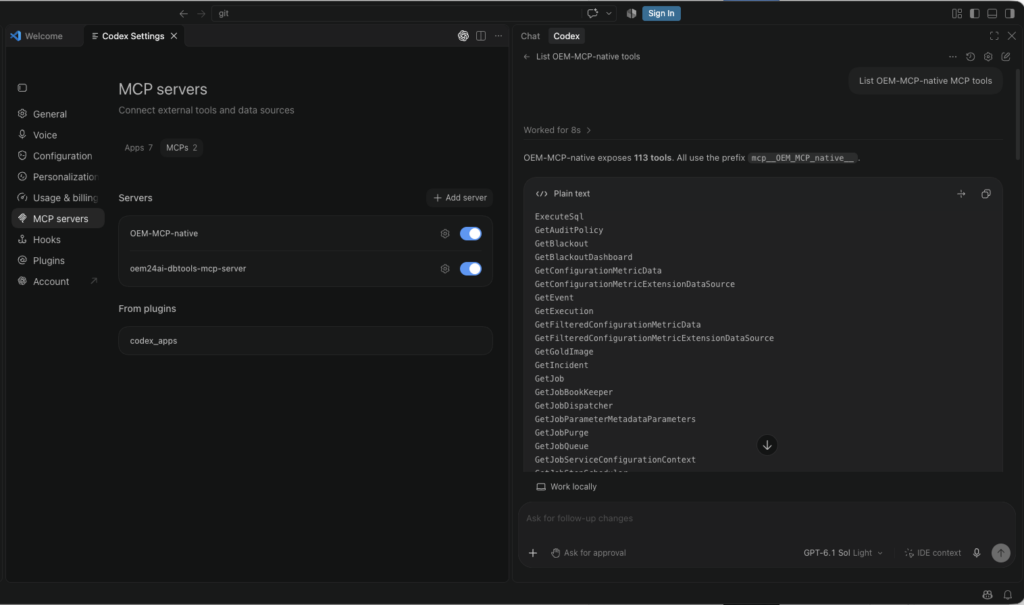
And now I could successfully list the tools exposed by the MCP server using codex, as you can see in previous picture.
The MCP connection is working and exposes 113 tools.
Make some tests with Visual Studio Code and Codex as MCP client
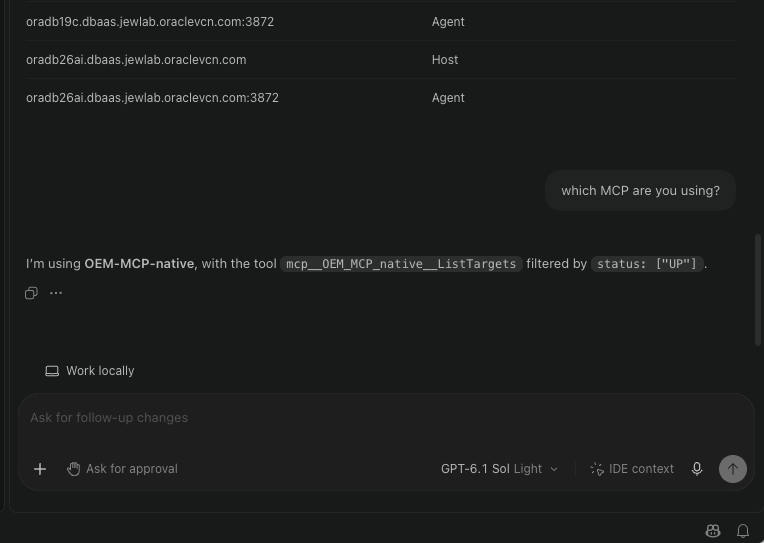
Let’s test and request to list the targets that are up.
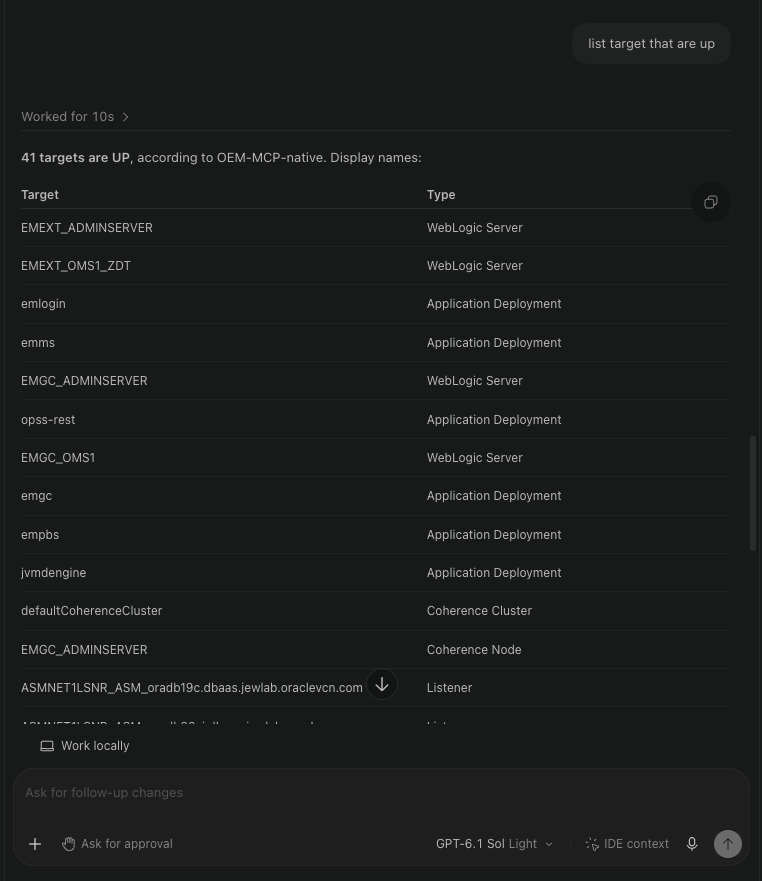
I can request which MCP server Codex is using and he will give me the tool that was used to retrieve the information.
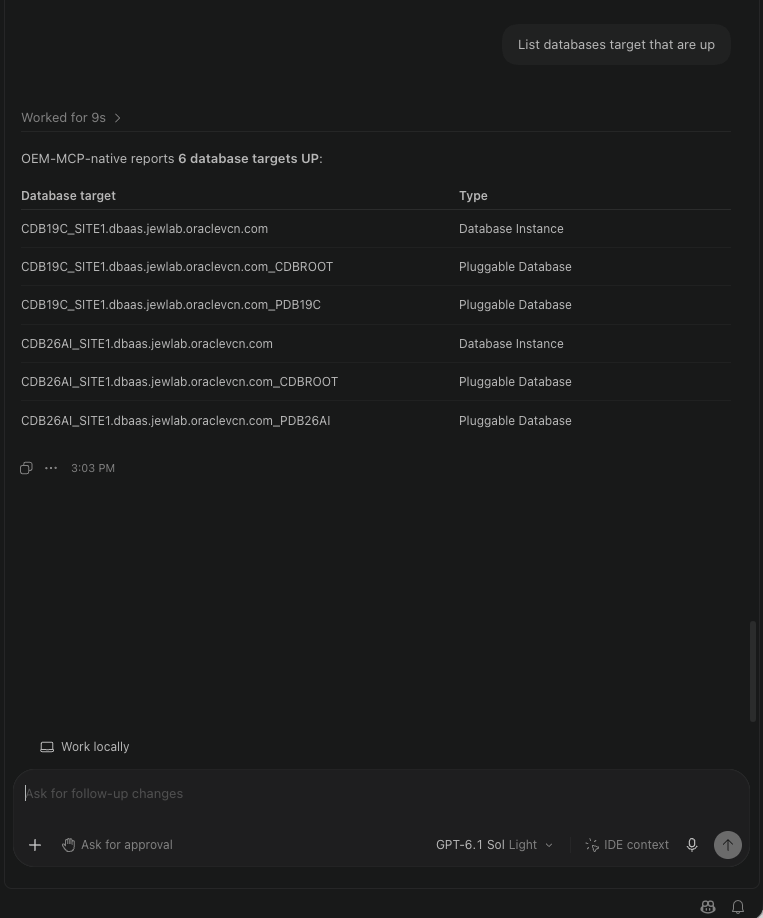
I queried to list the databases targets that are up:
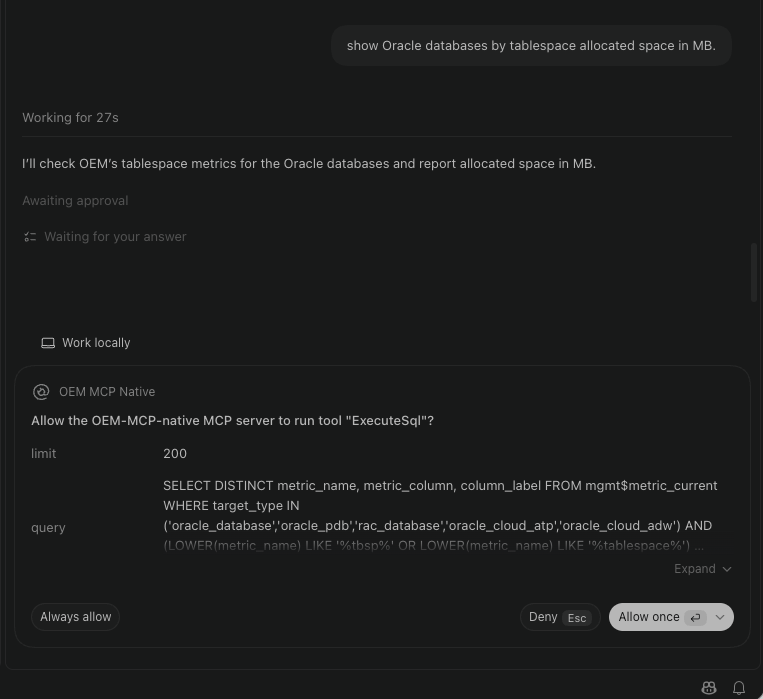
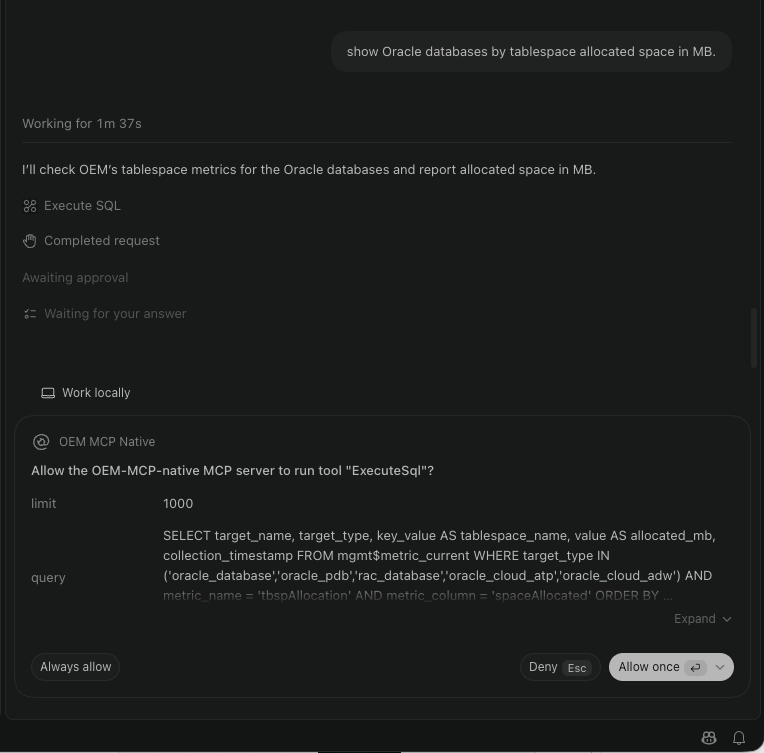
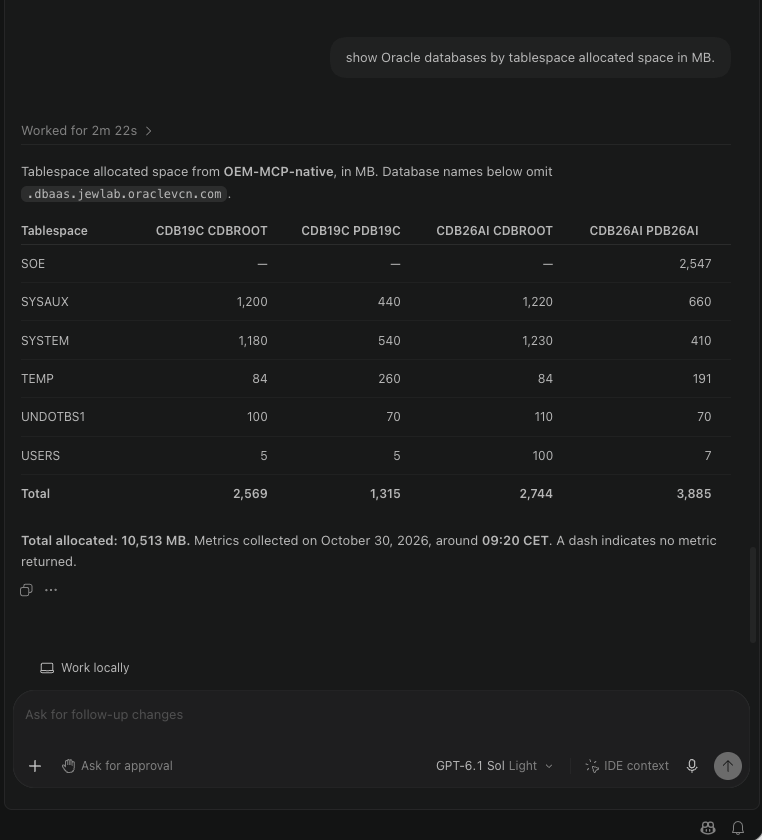
And I finally queried to show the databases by tablespace allocated space. Here we can see that Codex will use the ExecuteSql tool and run SQL queries on OMR:
To wrap up…
In this blog I showed how to configure client connection to MCP server built directly in OEM and how to use and query it. We can see that this solution is more powerful and flexible than using Oracle AI Database Assistant.
Here additional interesting websites:
![Thumbnail [60x60]](https://www.dbi-services.com/blog/wp-content/uploads/2022/08/MAW_web-min-scaled.jpg)
![Thumbnail [90x90]](https://www.dbi-services.com/blog/wp-content/uploads/2025/05/martin_bracher_2048x1536.jpg)