

In my last blog post (here), I explained how to configure a host for Windows Container as well as how to use some Windows Container cmdlets. Finally I demonstrated how to create a container with a SQL Server 2014 instance.
In this blog post, I will continue by explaining how to migrate the container I just created.
First of all, let’s remind the context: I have a Container named Test that runs on the top of a Windows Server Core Container image.
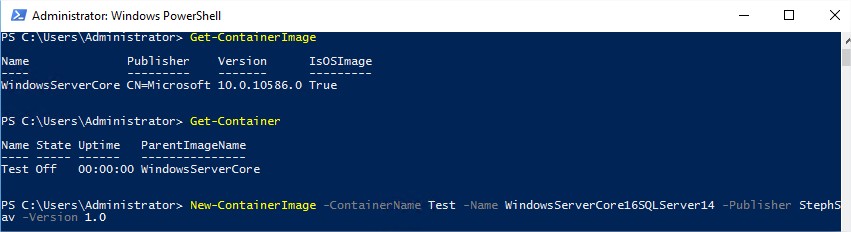
Let’s continue by creating a new Container image from my existing Test Container. I will do by using the PowerShell cmdlet New-ContainerImage. But before, let’s check which Container and Container Image I have in my Host and then let’s create my new image with a version, a publisher name and an image name as following:
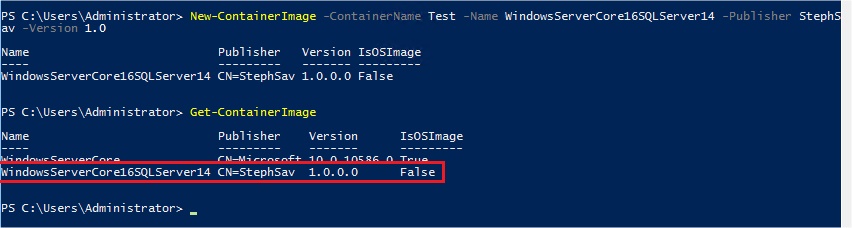
Let’s verify if my new Container Image named WindowsServerCore16SQLServer14 is created successfully:
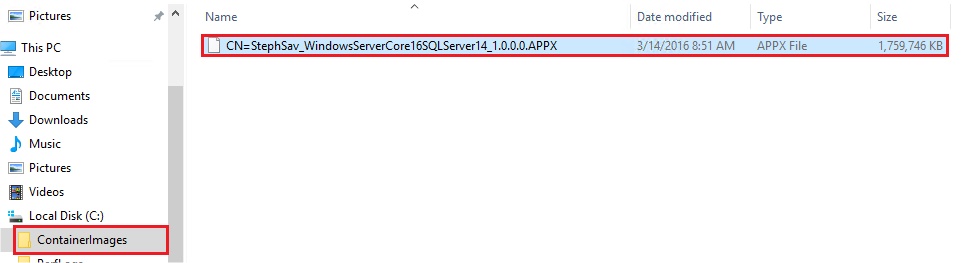
In order to be able to migrate this Image to a new Virtual Machine I will need to export it. To do that, I will use the Export-ContainerImage cmdlet that allow to export my Container Image to a file:

The Container Image named WindowsServerCore16SQLServer14 is not contained in a file named CN=StephSav_WindowsServerCore16SQLServer14_1.0.0.0.APPX which has a size of 1.7GB. This is realy lightweight compared to a complete Virtual Machine with it OS, libraries, a SQL Server instance…
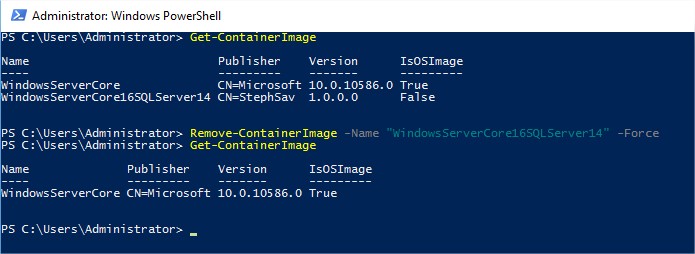
Let’s delete my Container Image on my current virtual machine before importing my Container Image test. I will use the Remove-ContainerImage cmdlet and the flag -Force to disable the remove confirmation message:
I will try to import my Container Image from my file generated some minutes ago:
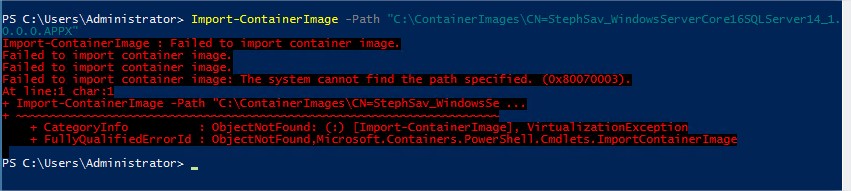
The import fails with a strange error message: The system cannot find the path specified.
After further investigation, at this moment, I didn’t find a solution to this problem but I saw that other persons faced the same error. My guess is that this error is relied on the preview version of Windows Server 2016. So let’s see if it will be resolve in the next TP …
I will update this blog post as soon as this import function will run without error 😉