If you have to transfer a big Oracle DataPump export (dumpfiles) from one firewall zone to another, it is often not possible to transfer it directly from the source- to the destination-host. Instead, you have to transfer it to a jumphost (or your laptop), then from there to the destination host.
But this is not optimal. You’ll need to store it on the jumphost first, and you may not have enough space there. So, what we can do?
New scp implementations
Newer scp implementations have the nice option “-3 Copies between two remote hosts are transferred through the local host.”
[jumphost01 ~]$ scp -3 oracle@srchost:/u99/dmp/*.dmp oracle@dsthost:/u99/dmp/
Depending on the type of data and your network and cpu, you can try to use ssh-compression. If the data is already compressed (expdp with compression, or database contains many jpeg images or mp3 files), then it may be slower with additional ssh compression, but for uncompressed text-type data, you may see a significant performance gain if you use compression. For one customer with a low bandwidth between locations, I noticed an increase from 20 to 70 GB/hour.
[jumphost01 ~]$ scp -C -3 oracle@srchost:/u99/dmp/*.dmp oracle@dsthost:/u99/dmp/
Old scp implementations
But often seen, especially on non-Linux hosts, there are old scp implementations without the ‘-3’ option. No worries, it is only a little bit more complex. Our friend in this context is port-forwarding.
We can specify a port that should be forwarded to another destination (host:port). Local forwarding (-L) means, the given port from the server I start ssh will be forwarded via the machine I log in to the given destination.
[jumphost01 ~]$ ssh -L 9999:dbhost02:1521 oracle@dbhost01
With that, I can connect with sqlplus user@//localhost:9999/MyService via dbhost01 to the listener of dbhost02 Port 1521 and start a connection to MyService.
But for our case we need the reverse-forwarding (-R): From the given port on the server I log in, the data should be transferred via my local host (where I started ssh) to the given destination (-R).
[jumphost01 ~]$ ssh -R 2222:dsthost:22 oracle@srchost
So, on srchost the port 2222 will be forwarded via jumphost01 to dsthost port 22. To transfer a file from srchost to dsthost, use (with “-C” including compression)
[srchost ~] scp -C -P 2222 /u99/dmp/*.dmp oracle@localhost:/u99/dmp/
Probably you will get an error 🙁
@@@@@@@@@@@@@@@@@@@@@@@@@@@@@@@@@@@@@@@@@@@@@@@@@@@@@@@@@@@
@    WARNING: REMOTE HOST IDENTIFICATION HAS CHANGED!     @
@@@@@@@@@@@@@@@@@@@@@@@@@@@@@@@@@@@@@@@@@@@@@@@@@@@@@@@@@@@
IT IS POSSIBLE THAT SOMEONE IS DOING SOMETHING NASTY!
Someone could be eavesdropping on you right now (man-in-the-middle attack)!
It is also possible that a host key has just been changed.
The fingerprint for the RSA key sent by the remote host is
...
The problem is that you will get the key of dsthost and not of localhost. To ignore it, use:
[srchost ~] scp -o StrictHostKeyChecking=no -o UserKnownHostsFile=/dev/null \
      -C -P 2222 /u99/dmp/*.dmp oracle@localhost:/u99/dmp/
Passwords
It is not unusual that you can only log-in with ssh-keys and not with password, or at least you do not know the password.
On the jumphost you have your public/private key pair and on the remote host your private key is in ~/.ssh/authorized_keys; To use the “old scp implementation”, you need the public/private key pair on the srchost and this public key on dsthost. Often, that is not allowed, or at least it is a configuration overhead.
But there is a simpler solution: Agent-forwarding. On the jumphost, start the ssh-agent and add the ssh key.
[jumphost01 ~]$  eval `ssh-agent`
Agent pid 787539
[jumphost01 ~]$  env |grep SSH
SSH_AUTH_SOCK=/tmp/ssh-XXXXXXYO4wFN/agent.787538
SSH_AGENT_PID=787539

[jumphost01 ~]$ ssh-add
Identity added: /home/oracle/.ssh/id_rsa (/home/oracle/.ssh/id_rsa)
Now we are ready to forward the agent to the remote host with the option “-A”:
[jumphost01 ~]$ ssh -A -R 2222:dsthost:22 oracle@srchost
our command
[srchost ~] scp [options] -P 2222 /u99/dmp/*.dmp oracle@localhost:/u99/dmp/
can now use our key from the jumphost and will not ask for a password if the key is registered on dsthost.
Windows PuTTY
If your Jumphost is Windows and you are using PuTTY, the pscp.exe does not support the “-3” option. But above “old” solution is also possible with PuTTY.
Add the forwarding in Connection > SSH > Tunnels. Choose the “Remote” raidobutton and add Source port and Destination. Do not forget to press [Add]. In the white box you must see “R2222 dsthost:22”
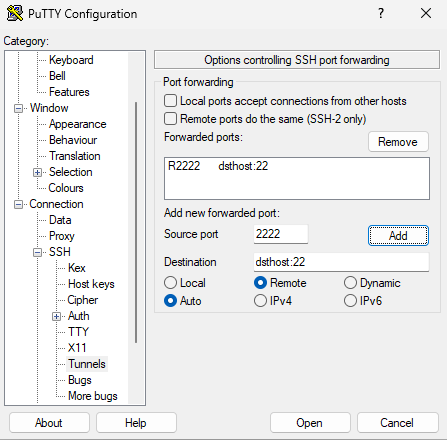
And for your ssh-keys to forward, go to Connection > SSH > Auth and mark “Allow agent forwarding”.
The keys are handled by “Pageant.exe” (putty version of ssh-agent). If you start it, you will not see it. Press the “Show hidden icons” on the taskbar, right-click on the pageant icon and choose “View keys”. In the window that appears, you can add your ssh-key.
Performance
We already have seen that ssh-compression can enhance the throughput.
The default OpenSSH is optimized for interactive work, not for high throughput. Especially if the servers are on different continents, then you may still have a good bandwidth, but the latency will be very high for physical reasons.
If you have this problem, take a look at the HPN-SSH project. It offers an OpenSSH based solution optimized for high-latency and high-bandwidth networks.