GoldenGate logs are a powerful source of information when troubleshooting or analyzing your deployments. However, there is at least one log file per service in the Microservices Architecture. This means that for a GoldenGate setup with multiple deployments, you can quickly have tens of log files to search for information. In that context, knowing where to look is important, especially if you are upgrading from a Classic Architecture where you only had to check the ggserr.log file.
REST API log files
The restapi.log files are one of the most important logs because of the amount of information they provide. They allow you to completely understand what is happening behind the scenes. It takes time to learn how to analyze them, but I wrote a dedicated article on REST API log analysis to help you through this. There is one restapi.log file per deployment, because the REST API calls are always made to a specific deployment. This is also true when using a reverse proxy.
These restapi.log files are also a source of information for other GoldenGate log files. For instance, REST API logs on the AI Service will be cleaned and filtered before ending up in the log dedicated to the AI Service. This is another reason why you should understand the content of these restapi.log files.
Here is a log example from a restapi.log file. Again, for more details, read the blog linked above.
2026-04-09 19:46:36.789+0000 ERROR|RestAPI.adminsrvr | Request #1581: {
    "context": {
        "httpContextKey": 140353514441552,
        "verbId": 7,
        "verb": "PATCH",
        "originalVerb": "PATCH",
        "uri": "/services/v2/extracts/EXTSRC",
        "protocol": "http",
        "headers": {
            "X-OGG-Context": "services/ogg_test_01/adminsrvr",
            "X-OGG-Deployment": "ogg_test_01",
            "X-OGG-Service": "adminsrvr",
            "X-OGG-Version": "v2",
            "X-OGG-Resource": "extracts/EXTSRC",
            "X-Real-IP": "**",
            "X-Forwarded-For": "**",
            "X-Forwarded-Host": "vmogg",
            "X-Forwarded-Proto": "https",
            "X-Forwarded-Server": "oggvm1",
            "X-SSL-Client-Verify": "NONE",
            "Connection": "keep-alive",
            "Host": "vmogg",
            "Content-Length": "75",
            "User-Agent": "python-requests/2.32.3",
            "Accept-Encoding": "gzip, deflate",
            "Accept": "application/json",
            "Content-Type": "application/json",
            "Cookie": "** Masked **",
            "Authorization": "** Masked **",
            "X-OGG-Requestor-Id": "",
            "X-OGG-Feature-List": ""
        },
        "host": "vmogg",
        "securityEnabled": false,
        "authorization": {
            "authUserName": "ogg",
            "authPassword": "** Masked **",
            "authMode": "Basic",
            "authUserRole": "Security"
        },
        "requestId": 4,
        "uriTemplate": "/services/{version}/extracts/{extract}"
    },
    "content": {
        "managedProcessSettings": "ogg:managedProcessSettings:NonExistingProfile"
    },
    "isScaRequest": true,
    "parameters": {
        "uri": {
            "extract": "EXTSRC",
            "version": "v2"
        }
    }
}
Response: {
    "context": {
        "httpContextKey": 140353514441552,
        "requestId": 4,
        "code": "404 Not Found",
        "headers": {
            "Content-Type": "application/json",
            "Set-Cookie": "** Masked **"
        },
        "Content-Type": "application/json",
        "contentType": "application/json"
    },
    "isScaResponse": true,
    "content": {
        "$schema": "api:standardResponse",
        "links": [
            {
                "rel": "canonical",
                "href": "https://vmogg/services/ogg_test_01/adminsrvr/v2/extracts/EXTSRC",
                "mediaType": "application/json"
            },
            {
                "rel": "self",
                "href": "https://vmogg/services/ogg_test_01/adminsrvr/v2/extracts/EXTSRC",
                "mediaType": "application/json"
            }
        ],
        "messages": [
            {
                "$schema": "ogg:message",
                "title": "The managed process settings profile 'ogg:managedProcessSettings:NonExistingProfile' does not exist.",
                "code": "OGG-08122",
                "severity": "ERROR",
                "issued": "2026-04-09T19:46:36Z",
                "type": "https://docs.oracle.com/en/middleware/goldengate/core/23.26/error-messages/"
            },
            {
                "$schema": "ogg:message",
                "title": "The item type  with name 'ogg:managedProcessSettings:NonExistingProfile' does not exist.",
                "code": "OGG-12029",
                "severity": "INFO",
                "issued": "2026-04-09T19:46:36Z",
                "type": "https://docs.oracle.com/en/middleware/goldengate/core/23.26/error-messages/"
            }
        ]
    }
}
adminclient log file
Depending on your configuration, the adminclient log file might not always be in the same location. More specifically, you can have multiple adminclient.log files for a single GoldenGate installation. The reason behind this is that the logs go to the location of your OGG_VAR_HOME environment variable. The adminclient.log can be located in :
- In your Service Manager
var/logdirectory, if your GoldenGate user has the Service ManagerOGG_VAR_HOMEset in the environment. - In your deployment
var/logdirectory, if you change theOGG_VAR_HOMEenvironment variable when switching between deployments at the OS level. This is not recommended, as it can lead to multipleadminclient.logfiles and mixed-up logs between deployments. - In your GoldenGate binaries, if you misconfigured your environment and are calling the
adminclientwith an emptyOGG_VAR_HOMEvariable. This is not ideal, as you could lose the log file after patching or upgrading.
There is not much to see in this file with the default logging configuration, but it can be used to troubleshoot connection issues with the adminclient.
Service Manager log files
Let’s look at the var/log folder of the Service Manager deployment.
oggsm/var/log:
ServiceManager.log
restapi.log
AIService.log
In GoldenGate 26ai, there are three different logs for the Service Manager:
ServiceManager.log: In a healthy installation, this log file should only contain logs generated when services start or stop. But if your Administration Server doesn’t start, this log is a good starting point for troubleshooting.
2026-04-09T19:20:28.124+0000 INFO | Task 'ogg_test_01:adminsrvr' started with process id 2505 (ogg_test_01:adminsrvr)
2026-04-09T19:20:28.159+0000 INFO | Task 'ServiceManager:AIService' started with process id 2515 (ServiceManager:AIService)
2026-04-09T19:20:28.182+0000 INFO | Task 'ogg_test_01:distsrvr' started with process id 2522 (ogg_test_01:distsrvr)
2026-04-09T19:20:28.215+0000 INFO | Task 'ogg_test_01:recvsrvr' started with process id 2542 (ogg_test_01:recvsrvr)
2026-04-09T19:20:28.234+0000 INFO | Task 'ogg_test_01:pmsrvr' started with process id 2553 (ogg_test_01:pmsrvr)
2026-04-09T19:20:29.243+0000 INFO | Installation topology updated (ServiceManager.Topology)restapi.log: See the chapter above about REST API Log Files.
AIService.log: This is where logs from the AI Service are gathered. It mostly consists of a cleaned collection of the REST API logs from calls made against the AI Service. For instance, here is a log you can get when adding an AI Provider to the Service Manager.
2026-04-09 19:32:21.056 DATA |AIService |AIService.RestApi | 247 RequestHandlers.cpp | 00000000-0000-0000-D5F8-000000000006> {"$schema":"api:standardResponse","links":[],"response":{"providers":[{"id":"1","name":"GeminiAiStudio","type":"gemini","baseUrl":"https://generativelanguage.googleapis.com/v1beta/models/gemini-flash-latest:generateContent","authentication":{"type":"api_key","configured":true},"links":[{"rel":"parent","href":"/api/v1/providers","mediaType":"application/json"},{"rel":"canonical","href":"/api/v1/providers/1","mediaType":"application/json"}]}],"metadata":{"fromCache":false,"providerCount":1,"lastUpdatedEpochMicroseconds":1775827941054749}},"messages":[]} (Thread 2)Deployment log files
GoldenGate deployments have more log file types than the Service Manager. In the var/log folder of your deployments, you should have the following files:
ogg_test_01/var/log:
adminsrvr.log
distsrvr.log
ER-events.log
extract.log
ggserr.log
pmsrvr.log
recvsrvr.log
replicat.log
restapi.logadminsrvr.log,distsrvr.log,recvsrvr.logandpmsrvr.log: These files contain all the information, warning and error messages from actions or events in the main GoldenGate services (Administration, Distribution, Receiver and Performance Metrics Services). They are not as extensive as what you can find in therestapi.logfile, but they provide a really good overview of what is happening inside your deployment.ER-events.log: This is a log file that can be used for monitoring your GoldenGate deployments. All warning and error messages on your extracts and replicats are available here. It is sometimes verbose, but still very useful for monitoring.
2026-04-10T07:11:17.844+0000  ERROR   OGG-01668  Oracle GoldenGate Capture for Oracle, EXTA.prm:  PROCESS ABENDING.
2026-04-10T07:12:24.447+0000 WARNING OGG-06658 Oracle GoldenGate Capture for Oracle, EXTB.prm: Unable to restore a failed connection to the database after 3 retries.extract.logandreplicat.log: In these log files, you can find status information, statistics, and transactions processed by your extracts and replicats. This does not provide fundamentally new information compared to other sources (adminclient, for instance), but it is a useful view when observing all processes at the same time.
2026-04-08T09:13:10.249+0000 INFO | INFO    OGG-01026  Oracle GoldenGate Capture for Oracle, EXTA.prm:  Rolling over remote file PDB1/aa000000321. (main)
2026-04-08T09:14:10.540+0000 INFO | INFO    OGG-01026  Oracle GoldenGate Capture for Oracle, EXTB.prm:  Rolling over remote file PDB1/ab000000645. (main)
2026-04-08T09:14:32.963+0000 INFO | INFO OGG-01026 Oracle GoldenGate Capture for Oracle, EXTC.prm: Rolling over remote file PDB1/ac000000128. (main)ggserr.log: This log serves the same purpose as it did in the old Classic Architecture, containing all information about your deployment. Contrary to what its name suggests, it does not only contain the errors happening in your deployment.
restapi.log: See the chapter above about REST API Log Files.
GoldenGate logs in the web UI
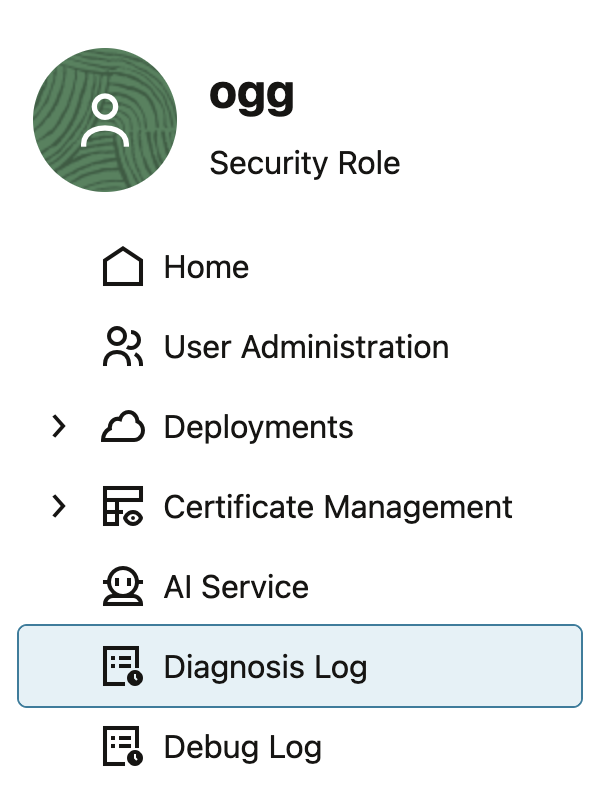
In the GoldenGate web UI, you can access, filter, or query some of the logs listed above. From the Service Manager, the Diagnosis Log tab displays the ServiceManager.log file with filtering options.
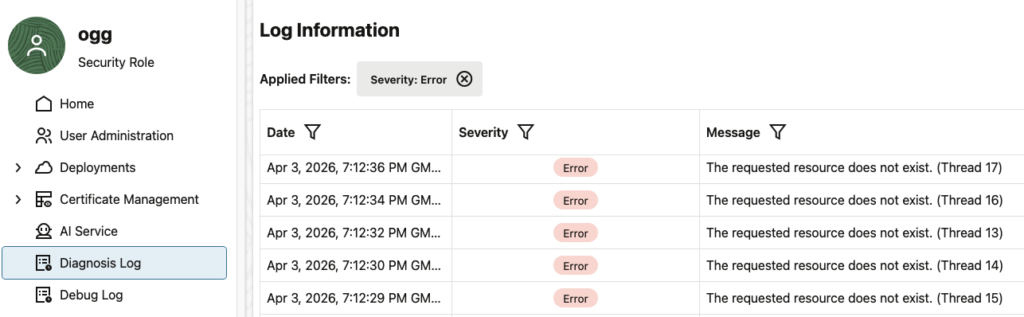
You can also quickly enable debug logs for the Service Manager, which is usually only needed when the Oracle Support requests it. This will generate a ServiceManager-debug.log file in your var/log directory, and it can be downloaded from the web UI and sent to the Oracle Support or your dbi GoldenGate expert for analysis.

When connected to a deployment in the web UI, you can also view different logs.
- From the home page, the Critical Events view displays the content of the
ER-events.logfile.

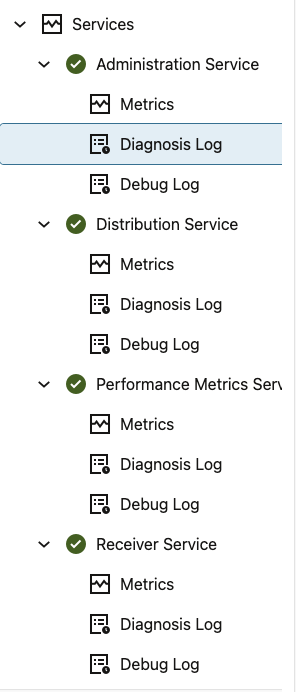
- From the Services page, you have access to the Diagnosis Log of each service. They will respectively display the
adminsrvr.log,distsrvr.log,recvsrvr.logandpmsrvr.logfiles. Similar to what I just explained, you can also enable debug logs temporarily if needed.
![Thumbnail [60x60]](https://www.dbi-services.com/blog/wp-content/uploads/2025/05/JDE_Web-1-scaled.jpg)